
.gitignore explained: stop tracking files you don't need in Git
· 5 min read
A .gitignore file tells Git which untracked files to leave out of your repo. Pattern syntax, precedence, untracking committed files, global ignores.
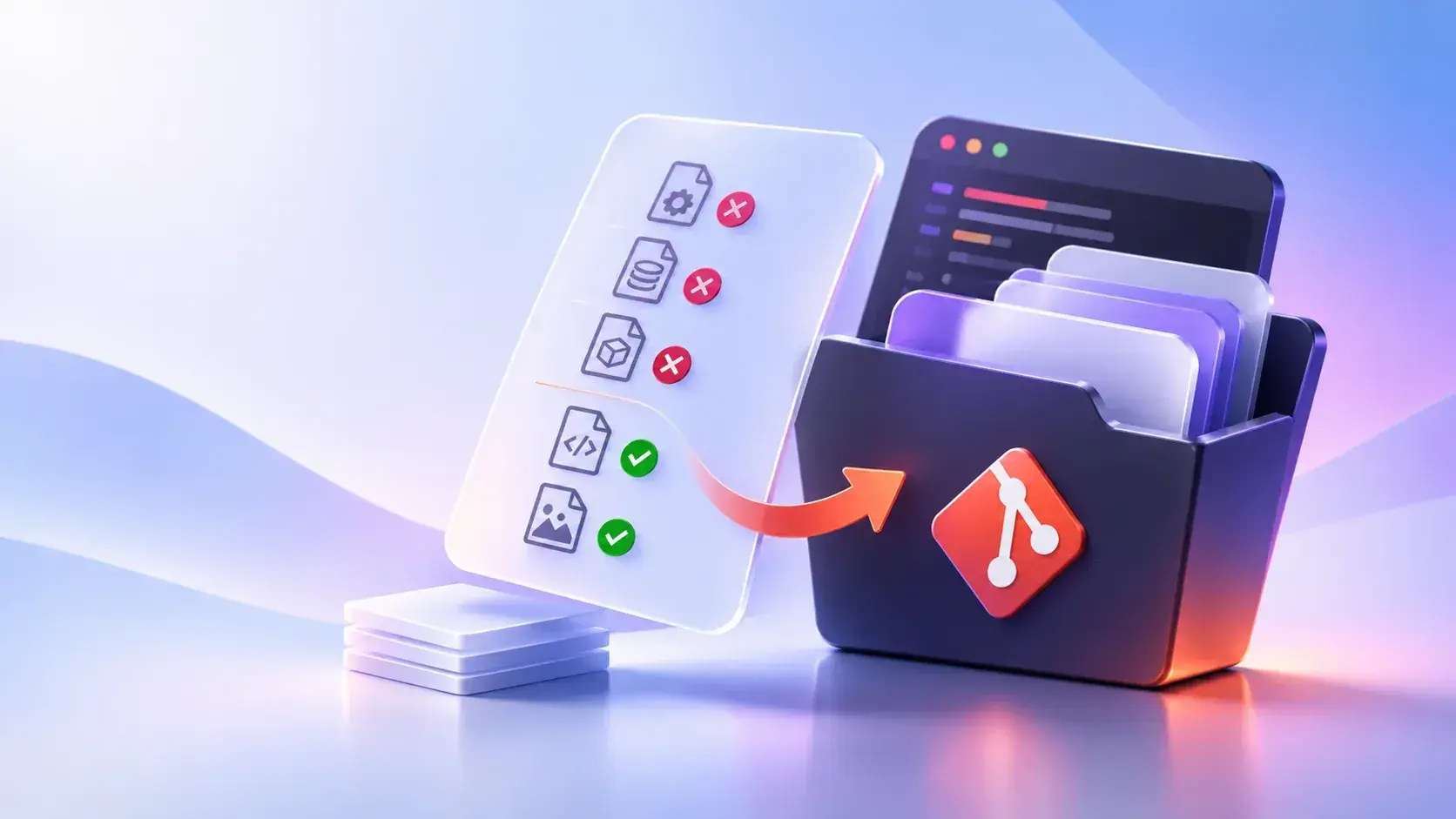
A .gitignore file lists the patterns Git should treat as intentionally untracked. Build artifacts, dependency folders, IDE settings, and OS junk do not belong in a repository, and a single plain-text file committed next to your code keeps them out of every commit and every clone.
That is the whole idea: write the rule once, and every copy of the repository obeys it. This guide explains what .gitignore controls and what it does not, how its pattern syntax works, which ignore file wins when several overlap, how to stop tracking a file Git already knows about, and how to find the exact rule hiding a file you expected to see.
Git splits files into three states: tracked (in the index and last commit), untracked (on disk but not in the index), and ignored (untracked and matched by an ignore rule). .gitignore only moves untracked files into the ignored bucket. It never promotes an ignored file back to tracked, and it never touches a tracked file. Understanding that boundary prevents most gitignore surprises.
What .gitignore controls — and what it does not
A .gitignore file specifies intentionally untracked files Git should ignore, and it only affects files Git is not already tracking. If you committed a file before adding it to .gitignore, Git keeps tracking it; the rule does not reach back into history. Because .gitignore is version-controlled and distributed with the code, the same rule applies to every clone.
It does not delete files, untrack committed files, or override a forced git add -f. Those are separate operations, and confusing them is the source of most gitignore frustration.
Pattern syntax: comments, negation, slashes, and wildcards
Each line is a pattern. Blank lines match nothing, and a line starting with # is a comment — escape a literal # with #. Trailing spaces are ignored unless escaped with a backslash.
Prefix a pattern with ! to negate it and re-include a file. You cannot re-include a file inside an excluded directory, because Git never descends into a directory it has already excluded. Escape a literal leading ! with !.
A leading or middle / anchors the pattern to the directory holding the .gitignore file, so /build matches build/ next to the file but not subdir/build/. A trailing / matches directories only. The wildcard * matches anything except a slash, ? matches one character except a slash, [a-zA-Z] is a character range, and ** has special meaning at the start, end, or middle of a pattern. The double-star behaves by position: a leading **/ matches at any directory level, so **/logs catches logs/, subdir/logs/, and deeper, while a trailing /** matches everything inside a directory.
A typical .gitignore for a Node project might look like:
node_modules/ *.log /dist/ .DS_Store .env
The gitignore documentation on git-scm.com defines all of these rules, and GitHub's ignoring-files guide walks through the same syntax with examples.
Precedence: which ignore file wins
More than one ignore source can apply to a repository, and they do not carry equal weight. From highest to lowest priority:
- Patterns passed on the command line.
- A .gitignore in the same or a parent directory — a lower-level file overrides a higher-level one.
- $GIT_COMMON_DIR/info/exclude.
- The file set by core.excludesFile, commonly ~/.gitignore_global.
Within one directory level, the last matching pattern decides. So if *.log is ignored on one line and !important.log re-includes it on the next, the later pattern wins. That ordering matters as much as the patterns themselves. Concretely, a root .gitignore that ignores build/ and a subfolder .gitignore that re-includes !build/output.txt cannot rescue that file, because Git never entered the excluded build/ directory in the first place. The lower-level file only runs for paths its parent did not already exclude.
Already tracked? Use git rm --cached
Adding a committed file to .gitignore does nothing to its history. Git still tracks it until you remove it from the index:
git rm --cached FILENAME
Then add FILENAME to .gitignore so Git does not reintroduce it. The file stays on your disk; Git simply stops watching it. This is the standard fix for the most common gitignore confusion: "my file is in .gitignore but Git still tracks it."
GitHub's ignoring-files guide documents this exact untracking recipe.
Three places to ignore files, and when to use each
Not every ignore rule belongs in a committed .gitignore:
- .gitignore — version-controlled, shared on clone, used by the whole team. For build outputs, dependency folders, and IDE settings everyone should ignore.
- .git/info/exclude — local to one repository, never committed or shared. For rules that only make sense in your own checkout.
- /.gitignore_global — personal, set with
git config --global core.excludesfile ~/.gitignore_global, and applied to every repository you touch. Good for OS junk such as * and .DS_Store, and editor swap files such as *.swp.
Committing .gitignore to the repository means every contributor and every CI run gets the same exclusions automatically. Do not commit personal rules such as your editor's temporary files; those belong in ~/.gitignore_global or .git/info/exclude so they stay off the shared history. Pick .gitignore for team-shared output, .git/info/exclude for one-off local clutter, and ~/.gitignore_global for personal noise you never want in any repository.
The Git configuration chapter of Pro Git covers core.excludesFile, and the official github/gitignore templates repo holds starter files for languages, operating systems, and editors. gitignore.io can also generate a .gitignore for a stack, though the normative rules above come from Git itself.
Debug which rule is hiding a file
When a file is missing and you do not know why, run:
git check-ignore -v path/to/file
It prints source:line:pattern for the rule that caused the ignore. Exit code 0 means ignored, 1 means not ignored, and 128 means a fatal error. Tracked files are not shown by default, so a silent result usually means the file is tracked rather than ignored. The git-check-ignore documentation has the full behavior.
Related Tools
ToolSura does not yet offer a Git-specific tool, but its developer tools hub collects general-purpose utilities developers use alongside version control.

Written by
Abhay Khant
Hi, I'm Abhay Khant
I'm a developer, builder, and technology enthusiast interested in turning ideas into useful products.
I enjoy working across web development, cybersecurity, automation, SEO, and content creation. Rather than only learning technologies individually, I like putting them together to build things that people can use.
One of my main projects is Toolsura, a free online utility platform that brings practical tools into one place. I'm building Toolsura as a product and a learning project where I can explore development, infrastructure, SEO, content distribution, automation, and product growth.
What I Build
My work currently revolves around several areas:
Web development with Next.js, React, Tailwind CSS, and modern web technologies
Backend development with Go, APIs, databases, and server-side systems
Automation using n8n, APIs, Docker, and connected services
SEO and content systems for building organic search traffic
Cybersecurity including web security, bug bounty, SOC concepts, and malware analysis
Content creation including video editing, YouTube content, graphics, and promotional videos
I enjoy going beyond tutorials and experimenting with complete systems, from the frontend interface all the way to the backend, deployment, automation, and distribution.
Toolsura
Toolsura is one of the projects I'm most actively building.
The idea is simple: create useful, accessible online tools that solve small problems quickly.
Toolsura includes utilities for things such as text, JSON, URLs, PDFs, images, security checks, and other everyday technical tasks.
Building it has also become a practical way for me to learn how a modern web product works.
That means working on:
Product → Development → Infrastructure → SEO → Content → Distribution → Automation → Growth
Technology & Learning
I'm particularly interested in understanding how systems work rather than simply learning how to use them.
My development work has included technologies such as:
Next.js · React · TypeScript · Tailwind CSS · Go · Gin · GORM · PostgreSQL · MongoDB · Docker · RabbitMQ · MinIO · Strapi
I've also worked with Linux environments and tools such as Kali Linux, Termux, and related security tooling.
My cybersecurity interests include web application security, bug bounty research, SOC analysis, and malware analysis.
Building in Public
I also create content around the things I build and learn.
This includes:
Tutorials and technical articles
YouTube videos
Product demonstrations
Visual explainers
Promotional videos
SEO-focused educational content
My goal is to turn projects and experiments into useful resources that other people can learn from.
Why I Build
For me, building is one of the best ways to learn.
Instead of learning a technology in isolation, I prefer starting with a real problem and figuring out what is required to solve it.
Sometimes that means writing code. Other times it's debugging a deployment at midnight, or working out why a page isn't being indexed, why an API isn't behaving correctly, or how to automate something that would otherwise take hours.
Those problems are part of the process.
Every project gives me another opportunity to understand how technology works in the real world.
What I'm Working Toward
I'm continuing to develop my skills across software engineering, cybersecurity, automation, and digital products.
At the same time, I'm building Toolsura into a useful platform and experimenting with different ways to create, distribute, and grow technical products.
There is still a lot to learn, but that's exactly what makes building interesting.
Let's Connect
If you're interested in web development, cybersecurity, automation, SEO, online tools, or building products, feel free to connect.
I'm always interested in learning, experimenting, and building something useful.
Build. Learn. Improve. Repeat.