
Markdown to PDF: Two Routes, and the One That Usually Wins
· 5 min read
How Markdown to PDF works as a two-step pipeline, when to print from a browser versus a dedicated engine, and the print CSS that decides quality.
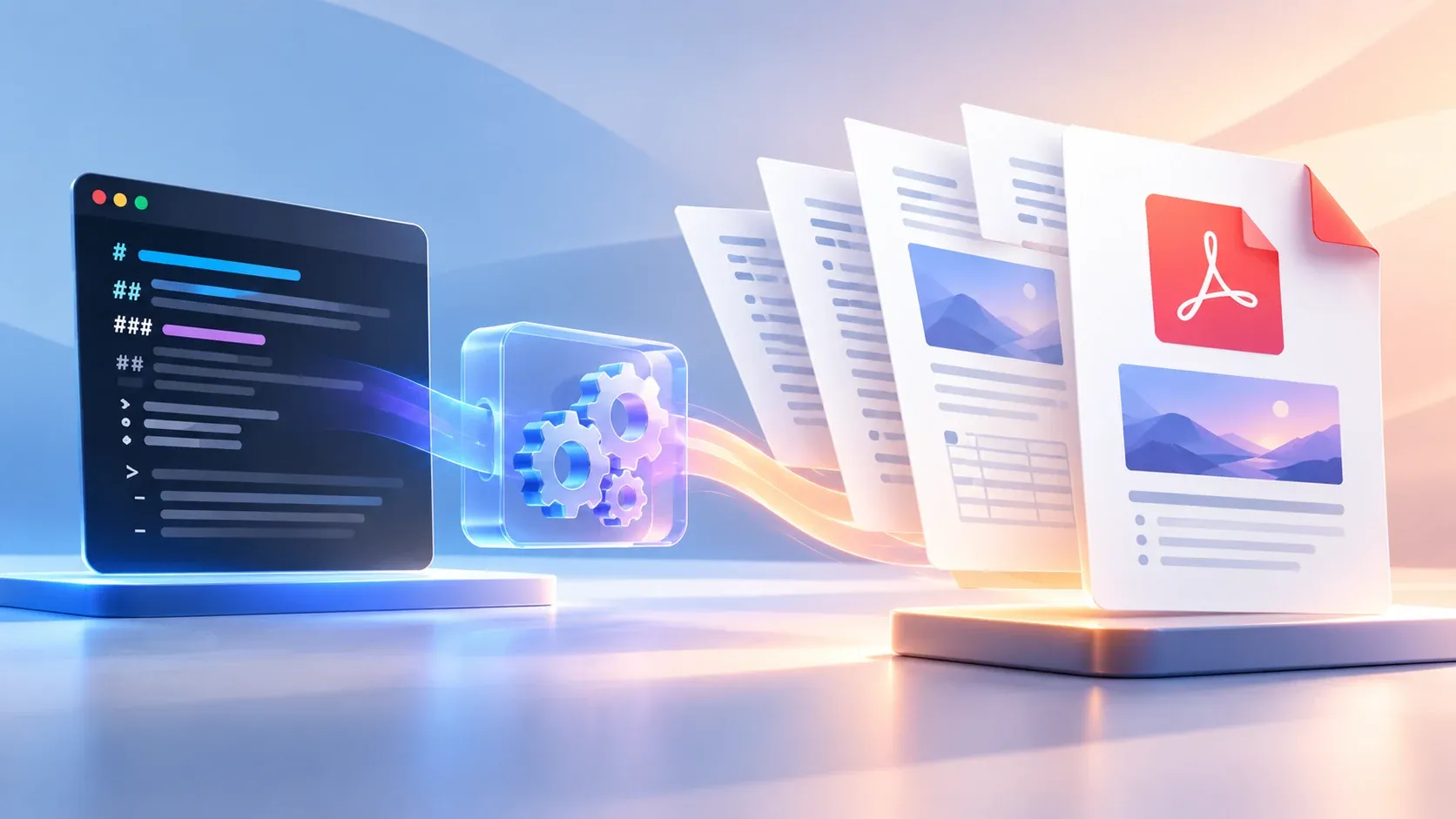
There are two ways to get a PDF out of a Markdown file, and choosing wrong costs you an afternoon. The first is to render the Markdown to HTML and print that HTML from a browser. The second is to go straight from Markdown to PDF with a dedicated library. They differ in how much control you get over page breaks, headers, and the typography that only matters on paper.
The browser route wins more often than people expect, because most of what makes a PDF look professional is a CSS concern, and a browser already has a layout engine that handles it. The library route wins when you need pagination logic, because asking a headless browser where a heading will land is genuinely hard, and a print-specific engine knows about page boundaries natively.
Key Takeaways
- Markdown to PDF is always two steps: Markdown to HTML, then HTML to PDF. The first step is solved.
- Browser print gives better typography and CSS control for free, at the cost of fiddly page breaks.
- Dedicated libraries know about pages natively, so heading-keep-with-next works without JavaScript.
- Choose print CSS before you choose the tool, since that decision rules out several options.
Why It Is Two Steps
The Pandoc documentation is explicit that its pipeline runs through an intermediate representation, and the CommonMark specification defines the HTML the first step produces. No mainstream tool converts Markdown straight to PDF. Every route goes through HTML, and that is not an implementation detail you can design around. It is because the intermediate step is where all the decisions live.
The first step is settled. Parse the Markdown with a CommonMark or GFM parser and you have HTML, which is the Markdown to HTML converter problem. The second step is where the interesting choices are, because turning a continuous HTML document into a sequence of fixed-size pages is a layout problem that HTML was not designed for.
A browser is very good at continuous layout and has to be persuaded to do paginated layout. A print-specific engine was built for pages and does not have to be persuaded. That single difference explains nearly every practical trade-off between the two routes.
Route one: render, then print
The approach is to convert Markdown to HTML, wrap it in a document with print styles, and open it in a browser or a headless browser such as Puppeteer or Playwright, then print to PDF.
const html = DOMPurify.sanitize(await marked.parse(markdown));
const page = await browser.newPage();
await page.setContent(`<!DOCTYPE html><html><head>
  <style>${PRINT_CSS}</style></head><body>${html}</body></html>`);
await page.pdf({ format: "A4", printBackground: true });
The Puppeteer documentation covers the print options, and Playwright's PDF guide covers the equivalent for its API. The strength here is that everything you already know applies. Media queries, web fonts, flexbox, grid, and print-specific @page rules all work because it is the same engine rendering the same CSS. A document that looks right in a browser looks right in the PDF, which removes an entire class of "it was fine until we printed it" problems.
The weakness is page breaks. CSS has no way to say "keep this heading with the following paragraph" without JavaScript, because the browser does not know a page boundary is coming until it has already laid the content out. The usual workaround is page-break-inside: avoid on containers, which is a hint rather than a guarantee, and it fails for a heading at the bottom of a page with its section on the next.
Route two: a dedicated engine
The alternative is a library built for paginated output. Pandoc is the common choice, taking Markdown in and PDF out through LaTeX, with page-breaking behavior defined in a template.
The strength is native page awareness, and the CSS Paged Media specification defines the page model both approaches are trying to express. Pandoc's templates can express keep-with-next rules and widow and orphan control directly, because the layout engine knows where pages are. A heading will not be stranded at the bottom of a page with its content overleaf, and you do not need JavaScript to achieve it.
The weakness is the toolchain. LaTeX has to be installed, which on some systems is a multi-hundred-megabyte dependency, and template customization is a LaTeX problem rather than a CSS one. Debugging a layout bug means reading LaTeX error output, which is a different skill from debugging CSS.
Choosing between them
| Browser print | Dedicated engine | |
|---|---|---|
| Page break control | CSS hints only | Native |
| Styling | CSS, full control | LaTeX templates |
| Setup | Node and a headless browser | LaTeX toolchain |
| Debugging | Browser devtools | Compiler output |
| Web fonts | Yes | Possible, awkward |
If the document is mostly prose with headings and the occasional table, browser print is the shorter path and the output is better. If the document is a technical manual where a stranded heading is a real defect, a dedicated engine is worth the setup.
A third case sits between them: a commercial service such as Prince or WeasyPrint, which renders HTML to PDF with a real paginating engine. You keep writing CSS and get native page breaks, at the cost of a dependency you did not write. WeasyPrint in particular is a Python library, not a service, which keeps the document local.
Print CSS is the real decision
Whichever route you pick, the print stylesheet is where the quality lives, and writing it is often more work than choosing the tool. The rules that matter most:
@page { margin: 20mm; }
h1, h2, h3 { break-after: avoid; }
pre, blockquote, table { break-inside: avoid; }
img { max-width: 100%; }
The break-after: avoid on headings is the one that separates a professional document from an amateur one, and it is also the rule a browser cannot guarantee. If heading control is your hard requirement, that fact should drive the tool choice before anything else.
The MDN documentation on print backgrounds describes the behaviour and the opt-in. Print backgrounds are off by default in browsers, so a heading that looks styled on screen may print plain unless you explicitly enable background printing. This catches people regularly, and it is a one-line fix in the print call and a common support ticket in the wild.
Fonts, and the licensing question
Embedding a font in a PDF is a licensing decision, not a technical one. A typeface's license governs whether you may redistribute it inside a document you generate, and most open licenses permit it while commercial licenses frequently do not.
The DejaVu fonts project and the Liberation fonts repository both document embedding rights explicitly. Open alternatives sidestep the question. DejaVu, Liberation, and the Noto family are freely licensed for embedding, and Liberation in particular is metrically compatible with the common Microsoft core fonts, so substituting it changes layout very little.
If you need a specific typeface, check its license before shipping generated documents to anyone else. This is worth resolving once, early, rather than discovering it when a customer asks why their PDF will not print.
Related tools and further reading
The Markdown to HTML converter handles the first step, rendering and sanitizing your Markdown so it is ready to print. The HTML to PDF converter covers the second step from HTML. The Markdown syntax cheat sheet covers the constructs you will be laying out, particularly tables and code blocks, which are the elements most likely to break across a page boundary.
Written by
Abhay Khant
Abhay Khant is the founder of ToolSura, a privacy-first developer tools platform. Writes about client-side architecture, AI tooling, and the open web.