
Extract text from images with OCR that runs locally
· 6 min read
Convert image to text free with browser-based OCR. Extract text from screenshots, scans, and photos without uploading files. Preprocessing tips included.
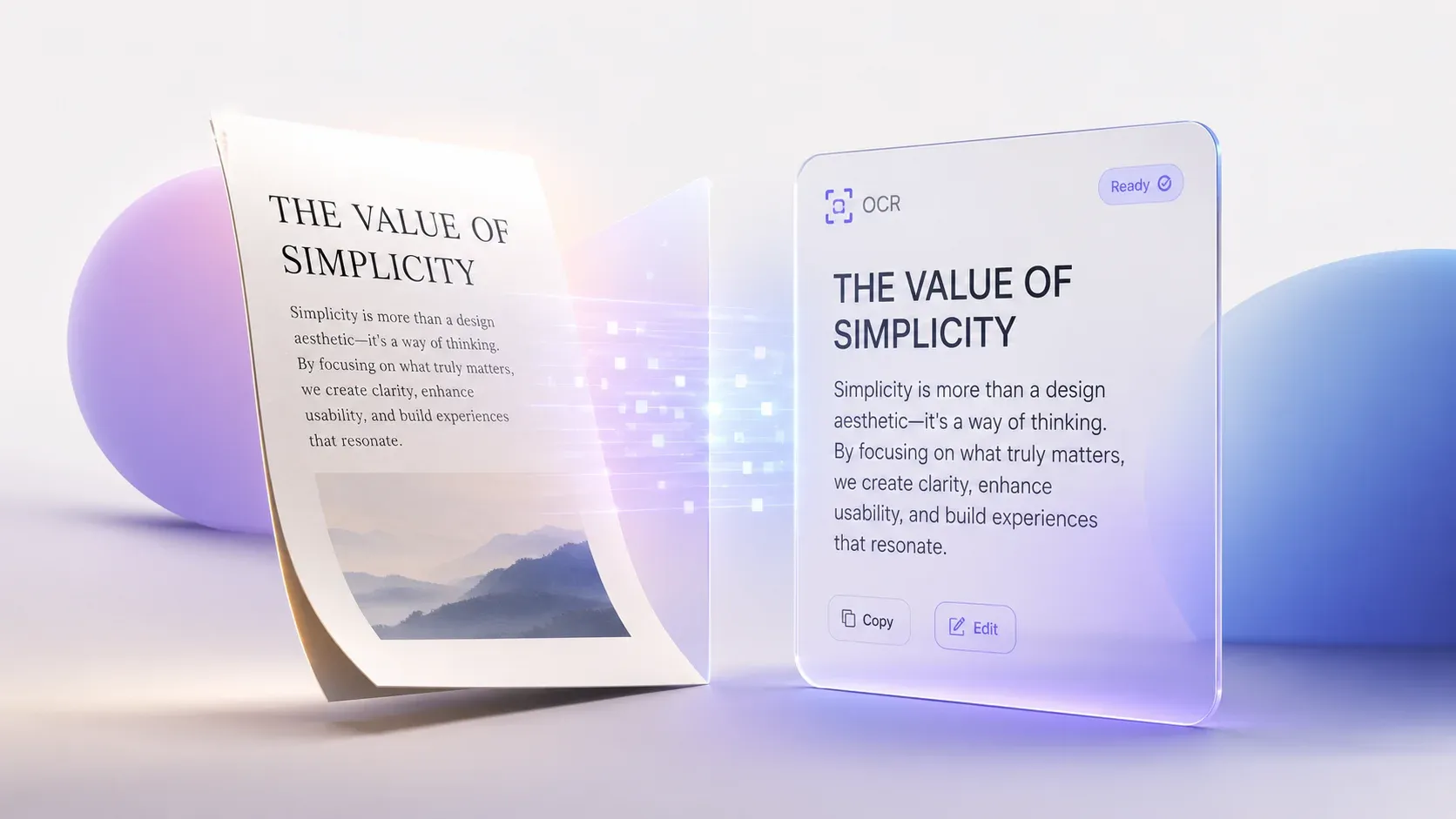
- OCR converts pictures of text into editable text; modern engines handle clean print very well
- Preprocessing is the accuracy lever: crop tight, straighten, boost contrast before recognition
- Browser-based OCR processes files locally, so sensitive documents never leave your device
- Handwriting and low-resolution sources remain the weak spots; typed text is the strong suit
The browser port used here documents its own configuration surface at tesseract.projectnaptha.com, including language-data loading options (traineddata files). Pointing the recognizer at an additional traineddata file is what makes multi-language recognition work without changing engines.
What an image to text converter actually does
An image to text converter runs optical character recognition: software that looks at the pixels of a picture and works out which letters and numbers they form. As Wikipedia's OCR overview describes it, the technology turns images of text into machine-encoded text you can edit, search, and copy. Feed it a screenshot of an error message and out comes quotable text; feed it a scanned contract page and out comes a paragraph you can paste into a document.
The everyday cases add up faster than most people expect. A screenshot of an address you need in your notes. A photo of a whiteboard after a meeting. A receipt where you want the total. A page from an old book that exists only as a scan, a job OCR has handled since its mid-century origins, just faster and far more accurately now. In every case the alternative is retyping by hand, and avoiding retyping is exactly what computers are for.
How OCR works, briefly
Modern OCR engines are neural networks trained on enormous volumes of text imagery. The pipeline has three broad stages. First the engine cleans and normalizes the image: converting to grayscale, estimating skew, binarizing pixels into ink and background. Then it segments the page into lines and words. Finally the recognition model classifies each character shape, using language models to resolve ambiguities like whether a vertical stroke is an l, an I, or a 1.
The engine behind many tools, including browser-based ones, descends from Tesseract, the open-source OCR engine whose history stretches back to Hewlett-Packard labs before its Google-era maintenance made it the default open-source choice. Its JavaScript port runs the same recognition stack inside the browser on a web worker, which is what makes private, no-upload OCR possible on ordinary web pages.
When you need image to text conversion
| Source | Typical use | Difficulty |
|---|---|---|
| Screenshots of apps or websites | Quoting errors, copying addresses | Easy: crisp digital text |
| Scanned documents | Digitizing contracts, letters, forms | Easy if clean scan |
| Photos of receipts | Expense totals, record keeping | Moderate: small text, glare |
| Whiteboard photos | Saving meeting output | Moderate: handwriting mix |
| Handwritten notes | Digitizing personal archives | Hard: cursive defeats most engines |
The pattern worth internalizing: printed and screen-rendered text converts reliably, while handwriting remains the frontier. Set expectations accordingly and preprocessing becomes obvious.
Screenshots deserve their reputation as the ideal input: they capture text at exact pixel values with no lens, no glare, and no compression noise. Camera photos of paper sit at the other end of the spectrum, which is why the preprocessing section below matters most for them.
Step-by-step: convert an image to text free
- Crop to the text region. Extra margins, UI chrome, and decorative graphics all give the engine more chances to hallucinate structure
- Open the image to text converter and drop the file in; recognition runs locally in your browser
- Review the output against the original, paying attention to number clusters and mixed fonts where errors cluster
- Clean up line breaks before pasting: OCR preserves visual line endings, so paragraphs often arrive as stacked fragments
A typical screenshot converts in under a minute end to end. Because processing happens client-side, there is no upload wait and no queue; the file simply never leaves your machine.
Preprocessing: the accuracy lever nobody uses
Sloppy conversions usually trace back to the input rather than the engine. Four fixes cover nearly every case:
Straighten the image
Even two or three degrees of rotation degrades recognition measurably; any editor's rotate-and-crop fixes it.
Boost contrast
Faded receipts and gray-on-gray scans benefit enormously from a levels or contrast adjustment before OCR; binarization works best when ink and background are already distinct. In browser code, the ImageData pixel array is where that adjustment happens.
Increase resolution
If the source is tiny, upscale it before conversion; character shapes need enough pixels to be distinguishable.
Remove clutter
Table borders, watermarks, and stamps confuse segmentation; crop them out when you can.
Think of it as cleaning a lens before taking a photo. Engines are good now, but they cannot recognize characters they cannot clearly see.
What to expect from accuracy
In practice, clean printed or screen-rendered text at reasonable resolution converts impressively well, and typos tend to be rare single-character slips rather than garbled passages. The pattern we see repeatedly: glare across a receipt total is exactly where a wrong digit sneaks in, while block-capital whiteboard lettering comes out clean and cursive margins come out mangled.
The error rate climbs as conditions degrade: specular highlights, camera shake, stylized fonts, dense tables, and handwriting all push accuracy down. Numbers deserve special suspicion because a mistaken digit rarely looks wrong in context; always proofread totals, dates, and codes against the source.
A practical habit: convert once, read the output alongside the image, and fix slips manually rather than re-running with tweaks unless the output is badly broken. Manual correction of a mostly-right result beats parameter fiddling almost every time.
Privacy: why no-upload matters
Documents people run through OCR are disproportionately sensitive: contracts, medical paperwork, IDs, financial records. Upload-based converters send every one of those files to a server where storage policies are out of your hands. Browser-based converters like ToolSura's process everything locally with JavaScript, using the same in-browser compute capabilities that power other client-side tools, so the document stays on your device from start to finish.
If you want to verify what metadata travels with your images before sharing them anywhere, the image metadata viewer shows the embedded EXIF data, including location tags, that a file carries. For the broader set of browser-based utilities beyond OCR, the complete guide to free online image tools maps the whole category.
Cleaning up extracted text
Raw OCR output needs a moment of tidying before it is usable. Three cleanups handle most of it:
- Rejoin broken paragraphs: merge lines that were split mid-sentence, then restore paragraph breaks where they belong
- Fix spacing artifacts: OCR sometimes inserts double spaces or drops spaces around punctuation; a find-and-replace pass catches both
- Normalize quotes and dashes: engines emit straight quotes inconsistently; standardize if the destination cares
Paste into a plain-text editor first rather than directly into formatted documents. Plain text strips any stray formatting artifacts and gives you a clean slate for the final paste.
Converting images to text without friction
A free image to text converter earns its keep the first time it saves you from retyping a page. The workflow is short: crop the region, drop the file into the OCR tool, review, tidy the output. Preprocess difficult sources and treat numbers with suspicion, and the results hold up for screenshots, scans, and receipts alike. Bookmark this image to text converter guide for the next time a wall of pixels stands between you and copyable text.
Related Tools

Written by
Bo Andersen
I test extraction against the failure cases first, because an OCR engine that reads a clean export is easy and one that reads a photograph taken in poor light is the reason anybody needs it. Order of operations matters more than it looks. Recognising text in the original language and then translating produces a different result from translating a page and recognising the result, because the second step has errors to work with and the first does not. Where the source language is known I extract first.
Image quality sets the ceiling and there is no recovery above it. Rotation applied a fraction of a degree off, uneven lighting, a low contrast between ink and paper and compression artefacts all reduce accuracy, and each is cheaper to fix at the source than to correct afterwards. Screenshots have their own difficulty.
Sub-pixel antialiasing produces letterforms the engine has never seen, and a screenshot scaled to a fraction of its original size is worse still. Capturing text at its native size matters more than it appears. Handwriting has a much lower ceiling and no general solution.
I am direct about which kinds of handwriting work and which do not, and I do not present a result as reliable when it is a guess. Every page reports the confidence and shows what came out wrong, because a transcription presented as exact and containing one wrong digit is worse than one flagged as uncertain. Where the text is a table, the recognition is the easy half and the reconstruction is the rest. A flat stream of values with the column boundaries lost is not a table, and any tool that presents it as one is doing layout analysis with a low success rate that the output does not advertise.