
Where does your capture go? Four no-download screenshot tools compared
· 9 min read
Four free screenshot tools compared by custody: which render on a server, which stay local, and where each one loses.
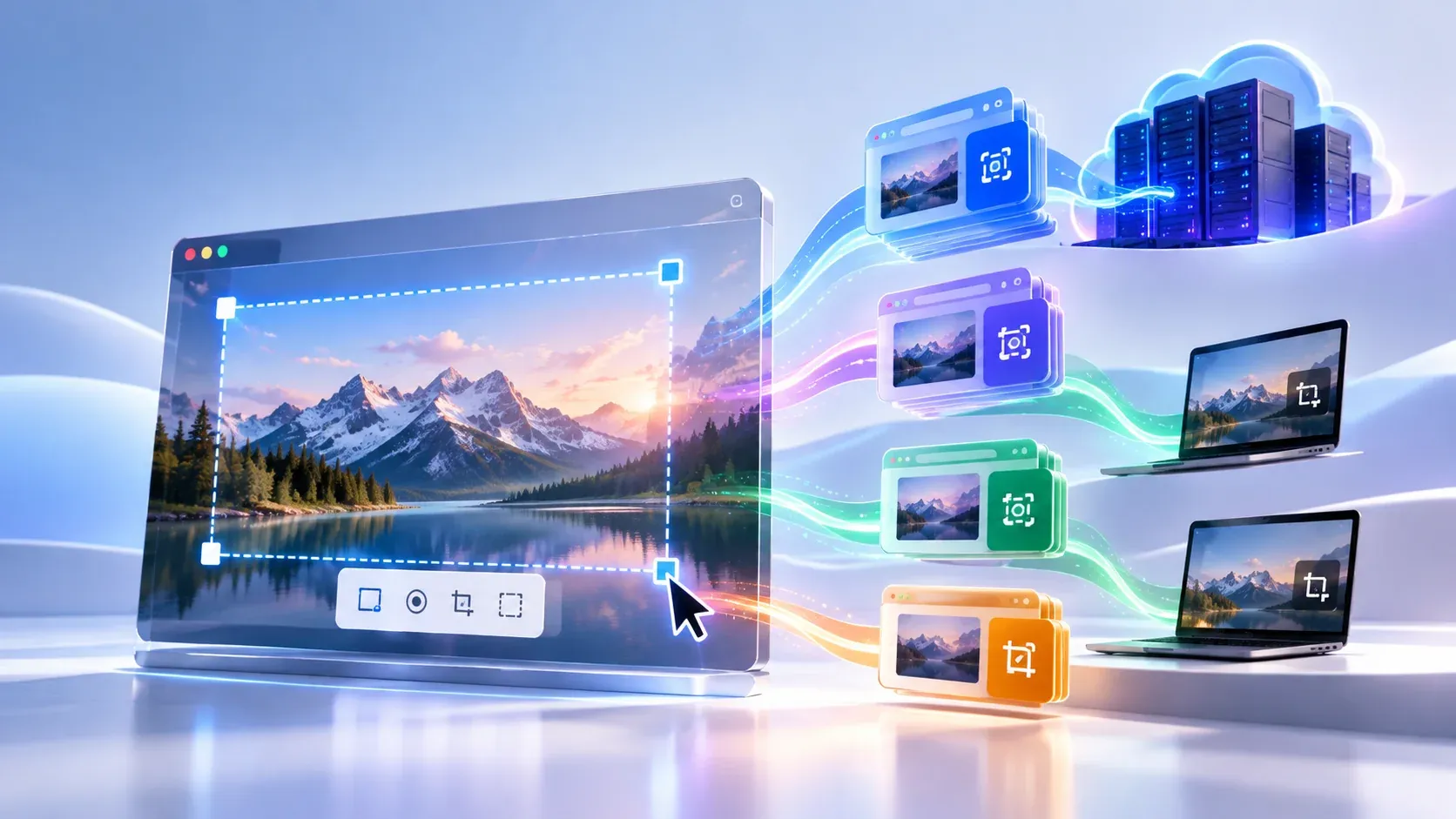
Type "online screenshot tool" into a search box and every result makes the same promise: a full-page website capture with nothing to download and nothing to install. The promise is real, but it hides three completely different trust profiles. Some of these tools render the page on their own servers, which means the link you paste travels to a stranger's machine before any pixels come back. Others run beside your tabs under browser permissions. A third group never touches the network at all, because the capture happens in your operating system.
"No download" tells you nothing about where your capture goes. A server-rendered screenshot needs zero installs yet still sends your URL and the fetched page content to third-party infrastructure. That is the myth this roundup dismantles: no download does not mean private. What follows judges four free options on the single question that matters: custody. For each entry you get its capture modes, its output control, and the exact path your data takes, including where our own tool loses.
How a URL screenshot happens in four steps
Before comparing tools, it helps to see the machinery. When you paste a link into a URL-render service, four things happen:
- You submit a URL. The web app takes the address you typed or pasted. Nothing is captured yet.
- The app forwards that URL to a capture service. The URL travels as JSON in a POST request to an API endpoint or internal route.
- A headless browser on someone else's infrastructure loads the page. This step is standardized: the W3C WebDriver specification defines screen capture as specified browser-automation commands, with dedicated sections for Take Screenshot and Take Element Screenshot, and Puppeteer's widely used Page.screenshot() method simply "[c]aptures a screenshot of this page." The key detail is where that headless browser runs: on the vendor's servers, not your device.
- The rendered pixels come back as an image file. You download a PNG, JPEG, or WebP. Some services cache that response: Microlink, for example, advertises "sub-second cached responses" served from an edge network, which means your submitted URL has now been fetched, rendered, and stored somewhere you do not control.
Step 3 is the whole custody story. If the rendering happens on a vendor's computer, your capture left the browser by design. No install was needed because someone else's machine did the work.
Mechanism 1: URL-render, a stranger's server visits the page for you
Capability: zero install, works on any device with a browser, and full-page capture including content below the fold. Screenshot Guru puts it plainly: "You don't need any screen-capture software or browser extensions to capture screenshots. And the tool works with lengthy web pages too that extend below the fold."
Custody consequence: the vendor's server visits the URL on your behalf, so it sees only the public web. Screenshot Guru states the limit verbatim: "Screenshot Guru cannot capture web pages that require login (like your Gmail mailbox), pages with Flash embeds (like the YouTube video player) or AJAX based sites like Google Maps." The reason is straightforward. The rendering server holds none of your session cookies. And because the vendor fetches, renders, and serves the result (Microlink describes "capture the full page or just the viewport" with cached edge responses), your submitted URLs transit third-party infrastructure. In short: a URL-render service cannot capture what you see; it captures what a stranger sees.
Mechanism 2: extension capture, the screenshot sees what you see
Capability: the capture runs inside your own browser tab, so it sees exactly what you see, including logged-in pages, private dashboards, and local files that no server could ever reach. GoFullPage describes the experience as "one click to capture a full webpage" with downloads in "PNG, JPG, PDF, etc…".
Custody consequence: the pixels stay local during the capture step, but the extension holds standing permissions over your tabs, so the trust question moves from "where does my URL go" to "what can this code touch." Chrome's permission taxonomy makes the tiers concrete: a broad debugger permission warns that the extension can "Read and change all your data on all websites," while the least-privilege activeTab model only "[g]ives temporary access to the active tab through a user gesture." GoFullPage's own site claims "no extra permissions are required to install", but that is a vendor claim, and the actual requested scope on the Chrome Web Store listing could not be read during research, so the real permission tier is UNVERIFIED.
Mechanism 3: desktop capture, the custody baseline
Capability: OS-native tools (Print Screen, Snipping Tool, Screenshot.app) capture anything visible on screen regardless of login state, page provenance, or network access. MDN's critical rendering path (parse, render tree, layout, paint) is frozen directly from your own display.
Custody consequence: there is no transit at all, because there is no network step. Custody stays on your device by construction. That makes desktop capture the baseline the other two mechanisms are measured against, not a reviewed product in this roundup. The cost is an install (or a built-in app) plus the absence of URL-to-image automation: nobody can paste a link into Snipping Tool and get back a full-page render of a site.
What "no download" actually means for each pick
The title promise needs a per-entry translation, because each mechanism satisfies it in a different sense:
- Screenshot Guru, no-install web app. Nothing to install, but "nothing travels" does not follow. Your URL travels to a render server instead. Read it as "no install, data travels."
- ToolSura's online screenshot tool, no-install web app with two modes. Screen captures stay local; URL captures travel to the capture service. Which sentence applies depends on which button you press (see the verdict below).
- GoFullPage, a small install with tab permissions. "No download" is false in the literal sense. The honest frame is "no desktop software, small browser install, permission-scoped trust."
- Microlink Screenshot API, no download for the user, but a developer primitive. It is REST in, image out: the right pick "if you're building it in," not a casual tool for a one-off capture.
- Desktop capture, download once or use the built-in app, offline after. It sits outside the "no download" promise entirely and appears here only as the custody baseline.
The custody table: four options side by side
| Tool | Capture modes | Output control | Where your capture goes | "No download," honestly |
|---|---|---|---|---|
| Screenshot Guru | URL-render: paste a link in the web app, solve a CAPTCHA, get an image | Full-page including below-fold; device frames for mobile shots | Your URL is fetched and rendered on vendor infrastructure; sees only the public web | True: no install; your URL travels instead |
| Microlink Screenshot API | URL-render API: URL in, image out over REST | Full page or viewport; mobile, tablet, and desktop widths; adblock plus CSS/JS injection before capture | Server-side by design: the vendor fetches your target URL, renders it, and serves the result from an edge network with cached responses | True for the end user, but it is a building block for developers, not a casual tool |
| GoFullPage | Extension capture in your own tab, one-click full page | PNG, JPG, and PDF downloads; annotations gated behind a premium tier | Runs locally in your browser and sees what you see, including private pages; standing tab permissions apply | False literally: a small browser install; no desktop software |
| ToolSura's online screenshot tool | Two modes: screen capture in the browser, or paste-a-URL capture | PNG, JPEG, and WebP output | Screen captures run locally via getDisplayMedia. The video never leaves the browser. URL captures POST the URL as JSON to the capture service, which renders server-side under quota gating |
True: no install; whether data travels depends on the mode you pick |
| Desktop baseline (Snipping Tool, Screenshot.app, Print Screen) | Local OS-level capture of anything on screen | Clipboard or file; annotation varies by app | Nowhere: no network step, custody stays on your device | Excluded: install or built-in app, offline after |
Two UNVERIFIED flags from the research apply across this table and stay flagged: no retention or deletion statement was read for any vendor, so this post asserts nothing about who keeps your captures; and GoFullPage's actual store-listing permission scope could not be read, so only its vendor claim is quoted. Data paths are described; storage fates are not.
Online screenshot tool verdicts: where each one wins and loses
Screenshot Guru: the simplest paste-a-link capture
Pick this when you want a screenshot of a public page in seconds with no account and no setup: solve the CAPTCHA, hit capture, take the file. Full-page rendering including below-fold content works, and device frames dress up mobile shots. Its hard boundary is the login wall: anything behind a session is unreachable, because the render server holds no credentials. Retention and deletion behavior: UNVERIFIED, no policy was read.
Microlink Screenshot API: for builders, not browsers
Pick this when you are wiring screenshots into software: link previews, automated page snapshots, responsive-width checks across mobile, tablet, and desktop. Viewport-or-full-page choice plus pre-capture CSS/JS injection gives developers real control. Skip it for casual one-off captures; it assumes you can call an API and handle the image it returns. Custody is server-side by design, and cached edge responses mean submitted URLs pass through vendor infrastructure. Account and free-tier mechanics: UNVERIFIED, not read during research.
GoFullPage: the login-wall answer, with a permission receipt to check
Pick this when the page you need is one only you can see: a logged-in dashboard, an intranet page, a local file. Extension capture is the only no-desktop-software mechanism that clears login walls, because it shoots what your own tab already rendered. The price is trust with standing: read the Chrome Web Store permission listing before installing and confirm which tier it requests, since the vendor's "no extra permissions" claim could not be cross-checked against the store page. Annotations cost extra on the premium tier.
ToolSura's online screenshot tool: two modes, stated plainly
This site's own tool earns its row by splitting the difference, and its limits are stated here exactly. URL captures POST the URL as JSON to the capture service, which renders the page server-side; usage is quota-gated, with quota headers parsed from the response. Screen captures run locally via getDisplayMedia, and that video never leaves the browser. Login-walled pages fail on the URL path (the server has no session, same as every URL-renderer in this table), so for anything private, use screen mode or a tab-level capture instead. Where it loses outright: if your target needs a login and you will not touch the screen-capture button, this tool cannot help you, and GoFullPage or desktop capture is the honest pick. Try it here: online screenshot tool.
A note on the desktop baseline
It wins every custody comparison and loses every convenience one: no URL submitted anywhere, no permissions granted to anyone. It stops being the answer when you need automation, below-fold rendering of long pages, or a screen you cannot reach.
Limits worth knowing before you pick
Login walls break every URL-renderer. This is a capability limit, not a defect: the rendering server holds none of your cookies, so anything behind authentication fails. Plan around it (open the page yourself and capture locally) rather than retrying the same link.
Extension permissions deserve thirty seconds of reading. Chrome's two tiers ("read and change all your data" versus temporary active-tab access) are the whole trust decision in one screen. Grant the broad tier only to extensions you would trust with your inbox, because technically you just did.
Long or script-heavy pages can fail on render services. No timeout figures were sourced for any listed tool, so treat this as a hedge rather than a spec: very long or JavaScript-intensive pages sometimes come back cropped, blank, or timed out. Retry at viewport width, or capture locally.
Nobody's retention policy is quoted here. No privacy policy was read in this research pass, so any sentence about who stores or deletes your captures would be invented. If retention matters for your use case, read the vendor's policy before submitting URLs.
Related Tools & Further Reading
Start where the capturing happens: the online screenshot tool takes a URL or your screen and returns a PNG, JPEG, or WebP, in the two modes described above. Three posts pair directly with it. Readers weighing whether to install anything should read Browser Tools vs Desktop Software, its decision framework covers the install-versus-tab question this roundup does not re-argue. Readers leaving quota-walled aggregator sites get the backstory in Online Tools Alternative. And the no-upload trust boundary behind every "stays on your device" claim is mapped in PDF Tools and the No-Upload Privacy Pattern.

Written by
Abhay Khant
Hi, I'm Abhay Thakor
I'm a developer, builder, and technology enthusiast interested in turning ideas into useful products.
I enjoy working across web development, cybersecurity, automation, SEO, and content creation. Rather than only learning technologies individually, I like putting them together to build things that people can use.
One of my main projects is Toolsura, a free online utility platform that brings practical tools into one place. I'm building Toolsura as a product and a learning project where I can explore development, infrastructure, SEO, content distribution, automation, and product growth.
What I Build
My work currently revolves around several areas:
Web development with Next.js, React, Tailwind CSS, and modern web technologies
Backend development with Go, APIs, databases, and server-side systems
Automation using n8n, APIs, Docker, and connected services
SEO and content systems for building organic search traffic
Cybersecurity including web security, bug bounty, SOC concepts, and malware analysis
Content creation including video editing, YouTube content, graphics, and promotional videos
I enjoy going beyond tutorials and experimenting with complete systems, from the frontend interface all the way to the backend, deployment, automation, and distribution.
Toolsura
Toolsura is one of the projects I'm most actively building.
The idea is simple: create useful, accessible online tools that solve small problems quickly.
Toolsura includes utilities for things such as text, JSON, URLs, PDFs, images, security checks, and other everyday technical tasks.
Building it has also become a practical way for me to learn how a modern web product works.
That means working on:
Product → Development → Infrastructure → SEO → Content → Distribution → Automation → Growth
Technology & Learning
I'm particularly interested in understanding how systems work rather than simply learning how to use them.
My development work has included technologies such as:
Next.js · React · TypeScript · Tailwind CSS · Go · Gin · GORM · PostgreSQL · MongoDB · Docker · RabbitMQ · MinIO · Strapi
I've also worked with Linux environments and tools such as Kali Linux, Termux, and related security tooling.
My cybersecurity interests include web application security, bug bounty research, SOC analysis, and malware analysis.
Building in Public
I also create content around the things I build and learn.
This includes:
Tutorials and technical articles
YouTube videos
Product demonstrations
Visual explainers
Promotional videos
SEO-focused educational content
My goal is to turn projects and experiments into useful resources that other people can learn from.
Why I Build
For me, building is one of the best ways to learn.
Instead of learning a technology in isolation, I prefer starting with a real problem and figuring out what is required to solve it.
Sometimes that means writing code. Other times it's debugging a deployment at midnight, or working out why a page isn't being indexed, why an API isn't behaving correctly, or how to automate something that would otherwise take hours.
Those problems are part of the process.
Every project gives me another opportunity to understand how technology works in the real world.
What I'm Working Toward
I'm continuing to develop my skills across software engineering, cybersecurity, automation, and digital products.
At the same time, I'm building Toolsura into a useful platform and experimenting with different ways to create, distribute, and grow technical products.
There is still a lot to learn, but that's exactly what makes building interesting.
Let's Connect
If you're interested in web development, cybersecurity, automation, SEO, online tools, or building products, feel free to connect.
I'm always interested in learning, experimenting, and building something useful.
Build. Learn. Improve. Repeat.