
Every way to merge PDF files, from Preview to CLI
· 5 min read
Merge PDF files free on any platform: built-in Mac and Windows tools, browser options, upload caveats, plus a measured 125-millisecond CLI benchmark.
- Merging is lossless: page content survives byte-for-byte
- macOS Preview merges PDFs natively with drag and drop
- Windows print-to-PDF creates the pieces; one extra step combines them
- Online tools split into local-processing and upload-based kinds; sensitive files belong in local ones
What merging PDFs actually does
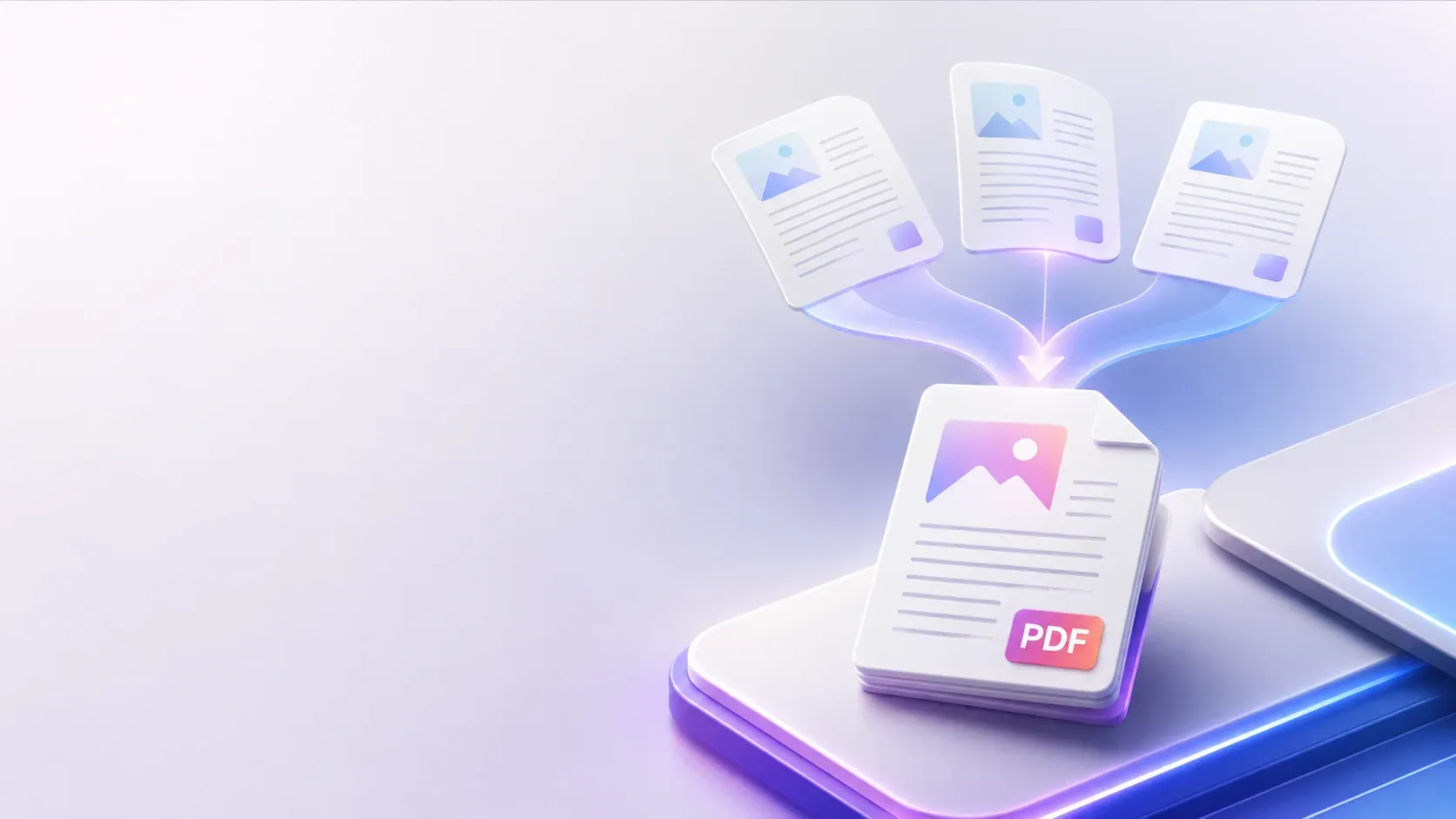
To merge PDF files free, it helps to know what happens under the hood. As the PDF format's structure and the ISO 32000-1 specification both describe, a PDF is an object tree of pages, fonts, and images. Merging builds a new tree that references the existing page objects from every source file. Because pages are copied rather than re-rendered, merging is lossless: text stays sharp, images keep their exact pixels, and nothing is recompressed unless you separately choose to compress afterward.
That lossless property is worth internalizing because it separates merging from compression. A merged file weighs roughly the sum of its parts. If the combined result feels too heavy, compression is a distinct second step with its own tradeoffs.
Free methods: merge PDF files on every platform
macOS: Preview does it natively
Every Mac ships with Preview, which merges PDFs in four steps: open the first PDF, show the thumbnail sidebar, drag the second PDF's icon or pages into that sidebar at the position you want, then export. Page-level rearranging works the same way, so merging and ordering happen in one pass. No download, no account, no upload.
Windows: print-to-PDF combines documents
Windows has included Microsoft Print to PDF since Windows 10. Open both documents, print each selection to PDF from the same session where your printer dialog supports combining jobs, or print them sequentially and combine the outputs afterward with a merger. That combining step is the honest catch here: print-to-PDF creates the pieces but never assembles them, so pair it with pdfunite, or with a browser-based merger like ToolSura's below when you would rather click than type.
Linux: pdfunite in one line
Most distributions include pdfunite from Poppler utilities, and the entire operation is pdfunite file1.pdf file2.pdf file3.pdf combined.pdf. We put that claim to the test during this guide's research: merging three sample PDFs took one 125-millisecond command. The 109,260-byte result weighed essentially the sum of its 109,807 bytes of sources, and qpdf confirmed all three pages intact. For batch merging dozens of files, a shell loop around pdfunite outclasses any GUI.
Phones and tablets: Files app on iOS, browser on Android
iOS covers this natively: open the Files app, select the PDFs, and choose Create PDF from the context menu, which merges them on device. Android ships no built-in equivalent, so the browser-based route is the honest mobile answer there: load the merger in a tab, pick the files, download the result.
Online mergers: convenient, with one honest caveat
Online mergers come in two flavors with different privacy profiles. Browser-based ones process files locally through client-side file APIs, while upload-based services transmit documents to their servers for processing. Both handle cross-platform jobs gracefully, and they are the right answer when none of the native methods fit. That data-flow difference is worth weighing: local browser processing is fine even for contracts and medical records, while anything uploaded belongs there only if you would be comfortable with it sitting on someone else's server.
ToolSura's own PDF merger and splitter works entirely in your browser on the local-processing side of that line, so pages assemble without any upload at all. Our reviews of iLovePDF alternatives and Smallpdf alternatives compare the major players if you go that route.
A practical habit: use native tools for anything sensitive, online mergers for everything else, and you never have to think twice about either.
What survives a merge (and what may not)
| Element | Survives? | Notes |
|---|---|---|
| Page content (text, images) | Yes | Copied losslessly between files |
| Page order within sources | Yes | You control final order during merge |
| Internal bookmarks/outlines | Sometimes | Naive merges often drop them |
| Cross-document links | Sometimes | Depends on the tool |
| Form fields | Sometimes | Name collisions can merge values |
The form-field row deserves emphasis when combining government or application forms: two documents that both use a field named "name" can end up sharing one value after a naive merge. Test interactive PDFs after merging rather than discovering it at submission time.
Merging scans and choosing page ranges
Two situations need slightly more care than straightforward merges. Scanned documents often arrive with pages you do not want: blank backsides, cover sheets, accidental duplicates. Merging tools that support page-range selection let you pull only the wanted pages from each source, which beats merging everything and deleting pages afterward.
Scanned material also pairs well with OCR after assembly: once the combined document exists, running optical character recognition across it makes the whole merged file searchable in one pass instead of per-source. And because the ISO-standardized PDF format treats pages as independent objects, pulling page ranges never damages the remaining pages; worst case you close without saving and start over.
Common mistakes when merging PDFs for free
| Mistake | Consequence | Fix |
|---|---|---|
| Merging in the wrong order | Re-doing the whole job | Rearrange pages after merging instead |
| Compressing each part first | Compounded image loss across files | Merge losslessly, compress once at the end |
| Uploading confidential documents casually | Data lands on unknown servers | Use native tools for sensitive material |
| Assuming bookmarks survive | Lost navigation in long merged docs | Verify outlines after merging |
The compress-after-merge rule pairs naturally with our guide on how to compress PDF without losing quality, which covers the DPI and metadata decisions for that second step.
Merging PDFs free from here on
To merge PDF files free, reach for the tools already on your machine first. Preview on macOS and print-to-PDF on Windows handle most jobs; command-line utilities take batches. Reserve online mergers for convenience, starting with the local-processing merger before considering upload-based services. Merge losslessly, arrange pages once, compress only at the end if size matters. Your next multi-document job should take minutes without spending anything.

Written by
Julia Neumann
I take these jobs because they look trivial until you handle the failure cases, and the failure cases are where the data loss happens. Merging appends documents. The things to check are the things each document carries with it: form field definitions that collide by name, annotations that no longer point at anything after a reorder, and bookmarks whose destinations now resolve to the wrong page. A merge can produce a file that opens cleanly and is still wrong.
Splitting sounds simpler and has an ambiguity worth naming. Page ranges from a print job mean the printed sheet numbering, which is not the page numbering in the reader when the document has foldouts. I always check which numbering the range is using.
Reordering is a document-level operation, so anything that referenced a page position has to move with it. Cross-references, link annotations and outline entries are the three that break. Rotation is worth doing in the file rather than by turning the page, because a rotated page still prints on portrait paper with the content sideways, and the recipient has to know why.
Encryption survives most of these operations and has to be reapplied afterwards, which is the step people forget when splitting a protected document. Metadata handling is the other quiet trap in a merge. Combining documents from two sources produces a file whose properties usually come from the first one, which is a small piece of provenance that can mislead when the files come from different places. Splitting a document also affects its outline and its form values, so the resulting file may need those rebuilt rather than merely preserved.