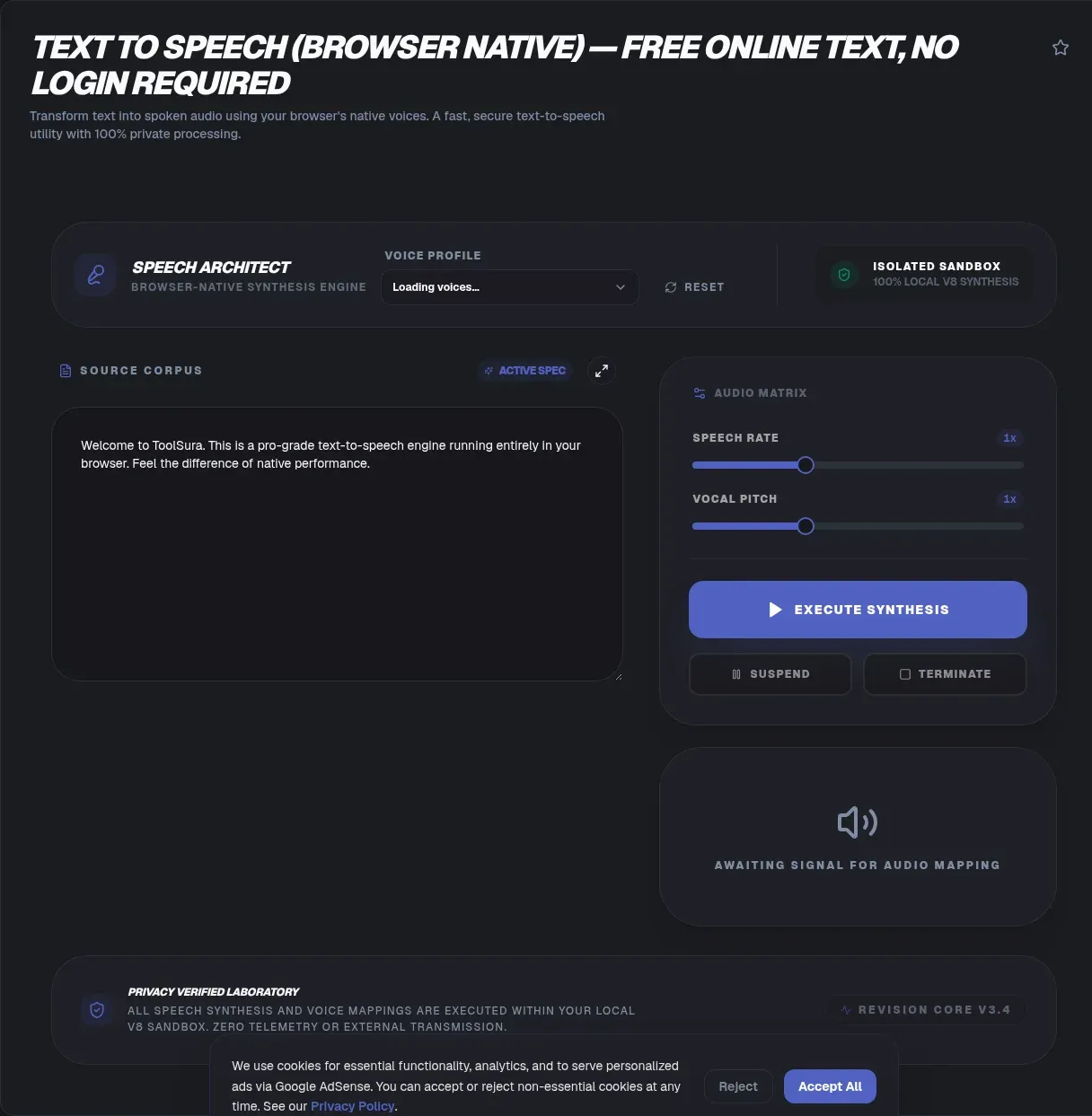
ToolSura's Text to Speech (Browser Native) is a free text to speech tool that reads any text aloud using your device's own speech engine. It runs entirely in your browser, so your words never leave your device. There is no upload, no signup, and no server in the loop.
People reach for it when they want a voice without handing their writing to a company. Cloud readers send your paragraphs to a remote model, which is a problem for drafts, journals, or private notes. Our tool stays local, works offline after the page loads, and speaks in seconds. The result feels like a private narrator that lives in a tab.
What Is Browser Text to Speech?
Browser text to speech is the native ability of a web page to read written text aloud using the device's built in speech engine, with no plugin or app install. The Web Speech API gives pages this power through two halves: SpeechSynthesis for speaking and SpeechRecognition for listening (MDN Web Docs, n.d.).
The spec itself is not a finished W3C standard. It is published by the WICG under a community agreement, with the live draft hosted at the Web Speech API specification (WICG, n.d.). That detail matters because behavior can vary slightly between browsers even when the basics work everywhere.
SpeechSynthesisUtterance in Plain Terms
Under the hood you build a SpeechSynthesisUtterance, a small object that carries the text plus how it should sound. You pass that object to the speechSynthesis.speak() method, and the browser routes it to the operating system's voice. The whole exchange happens on your machine, which is why the tool feels instant.
The API reached Baseline status in March 2021 and has worked cross-browser since September 2018, so you can trust it on almost any modern device (MDN, n.d.). SpeechSynthesis is the controller, and each utterance is one job sent to it.
A Minimal SpeechSynthesisUtterance Example
Seeing the API in a few lines makes the model click. You create an utterance, set how it should sound, and hand it to the synthesizer:
const u = new SpeechSynthesisUtterance("Hello from your browser");
u.rate = 1; u.pitch = 1; u.volume = 1;
speechSynthesis.speak(u);
That snippet is the entire job. The browser queues the utterance and routes it to the chosen system voice, with no server in the path. ToolSura wraps this same call in a friendly panel so you never touch code, but the core is three lines. You can extend it with voice and lang to switch languages, or wait for the voiceschanged event before populating a picker. The simplicity is the point: the platform gives pages a working narrator, and the tool hands it to you pre-wired. If you build your own version, keep the text under 32,767 characters and wrap speak() in a user gesture so autoplay policies let it run.
Why ToolSura's Text to Speech Is Different
Most text to speech sites upload your text to a server, run a cloud model, and stream the audio back. That round trip leaves a copy of your words on someone else's disk. ToolSura skips the server entirely.
Our tool does the synthesis on your device, inside the page, with no network request for your text. Because speech runs through the device's default synthesizer, a pure client-side build reads aloud without the text ever leaving the tab (MDN, n.d.). There is no account wall and no usage cap. You open the page, paste, and listen, even on a plane with no signal.
The privacy benefit is concrete. A cloud reader, by contrast, transmits your words to a remote model and keeps a copy you cannot reclaim. Client-side synthesis removes that exposure completely, since nothing travels off your hardware, and you stay in control of every sentence you paste.
How to Use Text to Speech
The interface is built for speed. Follow these steps:
- Open the Text to Speech page in any modern browser. No account is required.
- Paste your text into the input box, or load a local file from disk.
- Pick a voice and language from the dropdown that lists your installed system voices.
- Adjust the speed, pitch, and volume sliders until the voice feels right.
- Press play. The speech is generated on your device and spoken at once.
Start with the defaults, then nudge the speed slider if the voice feels too fast or slow. Long inputs are fine because the work stays local, though very large pastes may tax older phones. You can pause and resume, and the queue clears when you start a new reading.
Speed, Pitch, and Volume: What the Sliders Do
Each spoken utterance accepts three knobs. The rate property sets speaking speed from 0.1, the slowest, to 10, the fastest, with 1 as normal (MDN rate, n.d.). The pitch property runs from 0, the lowest, to 2, the highest, defaulting to 1 (MDN pitch, n.d.).
The volume property is a float from 0, silent, to 1, full, again defaulting to 1 (MDN volume, n.d.). Rates are relative to normal speech, not absolute words per minute, so 2 is twice as fast as 1 rather than a fixed cadence.
Small Tweaks, Big Difference
A rate near 1.1 often helps proofreading, because the slight speed-up keeps your attention without distorting the voice. Dropping pitch to about 0.8 can make long documents less tiring. These ranges give you room to tune the reader to your ears, all without leaving the page or installing anything.
How to Pick a Voice and Language
The getVoices() method returns the voices your system has installed, and you set them on the utterance with the voice property plus a BCP-47 language tag such as en-US. Voice counts differ by platform: Windows and Edge expose about 98 OS voices across 36 languages, macOS covers about 45 languages, and Android reaches roughly 67 (Readium, n.d.).
The Empty List Gotcha
There is a well known trap. In Chrome, getVoices() returns an empty array on page load because voices arrive later. You must wait for the voiceschanged event before listing them, or you will see nothing. ToolSura handles that timing for you, so the dropdown is always full once the page settles.
Firefox relies entirely on the operating system's voices, with no preloaded set of its own. If a language is missing, it is usually because the OS has not installed that voice, not because the tool failed. Installing a system voice fixes it.
Browser Text to Speech Is Not a Cloud Service
A common myth is that any text to speech tool works the same way. It does not. Browser TTS is not the same as a cloud service: the cloud kind uploads your text and returns audio from a remote model, while browser TTS speaks on device with no upload. The voice quality differs too, since cloud engines often sound smoother but cost your privacy.
Web Speech API SSML Support Is Not Reliable
Another myth is that you can mark up speech with precision. The spec allows you to pass an SSML document as the text, but browsers strip or read aloud the tags when they lack support (MDN text, n.d.). SSML is a W3C Recommendation in theory, yet in practice Chrome and Edge only partly honor it on Windows, and Firefox and Safari effectively ignore it (W3C SSML, n.d.). Do not build features that depend on SSML pauses or emphasis. Plain text is the safe path.
Real-World Uses for Browser Text to Speech
Synthetic speech is a recognized aid for reading difficulty. WCAG Technique G79 recommends a spoken version of text for people who struggle to decode written words, which covers dyslexia, low vision, and high cognitive load (W3C G79, n.d.). ToolSura's reader is a screen reader style assistant that needs no install.
For Writers and Proofreaders
Writers use it to catch errors by ear, since the ear catches typos the eye skips. Reading a draft aloud is one of the oldest editing tricks, and the browser makes it free. You hear missing words, repeated phrases, and awkward rhythm that silent reading hides.
For Language Learners
Language learners listen to correct pronunciation while reading along, which builds both sound and spelling memory. Picking a voice tagged with the target language, say fr-FR or ja-JP, gives native sounding models without a tutor. The local engine means you can practice on a commute with no data use.
For Students
Students turn long readings into audio for commutes and chores, folding study time into a busy day. Because the text stays on the device, they can read unpublished essays aloud without sharing them. The tool fits the WCAG goal of making text available in speech for anyone who needs it (W3C WCAG, n.d.).
Browser Support and the Honest Limits
Support is broad. Global coverage for the Speech Synthesis API sits at about 95 percent of users, with Chrome 33 and later, Edge, Firefox 49 and later, and Safari 7 and later all shipping it (Can I Use, n.d.). Internet Explorer is the one major gap. Chrome first shipped the API in 2014 (Google Chrome, n.d.).
The Export Limit
One limit you should know. The Web Speech API plays audio but does not expose the sound stream for download, so you cannot export MP3 or WAV from it directly. If you need a file, a separate engine is required. ToolSura is built for listening, not for producing audio clips, and we would rather state that plainly than pretend otherwise.
When Voices Sound Different
Voice quality depends on the operating system's engine, not the web page. The same text may sound richer on one device and flatter on another. That is the trade for a tool that asks nothing of you and keeps your words private while it speaks.
Tips for Clean, Natural-Sounding Speech
A few habits make the browser voice sound less robotic. Break long text into short paragraphs, because most engines pause at line breaks and breaths land more naturally that way. Spell out abbreviations the first time, since some voices read "TTS" as separate letters while others guess wrong. Numbers are spoken inconsistently too: write "twenty five" if you want words rather than digits.
Punctuation is your friend. A period forces a full stop, a comma a brief pause. If a name is mispronounced, swap in a phonetic spelling you delete after listening. None of this needs an account, and because the work stays on your device you can experiment freely until the voice sounds right.
Key Takeaways
- SpeechSynthesis from the Web Speech API drives playback through your device's own voices.
- Rate, pitch, volume, language, and voice pickers expose the full capability surface, BCP 47 tags included.
- Chrome populates voice lists late, so careful code waits for the voiceschanged event.
- No audio stream is exposed, which is why exporting to MP3 or WAV is impossible.
- Nothing is uploaded and nothing is stored: synthesis happens entirely on your machine.
Related Tools
Pair this reader with other local, privacy-first utilities on ToolSura:
- Text Summarizer: shrink long articles before you listen to them.
- Lorem Ipsum Generator: make placeholder text to test voice speed.
- Markdown to HTML Converter: turn notes into clean pages the reader can speak.
- UTF-8 Unicode Converter: inspect characters that some voices mispronounce.
- Word Counter: estimate listening time from word counts before you press play.
- Case Converter: normalize acronyms and casing so voices pronounce them consistently.
- Best Free Text to Speech Online — how the browser voices compare
Every tool here runs client-side, so you can chain them without ever uploading a document. Summarize, convert, and listen, all on your own device.