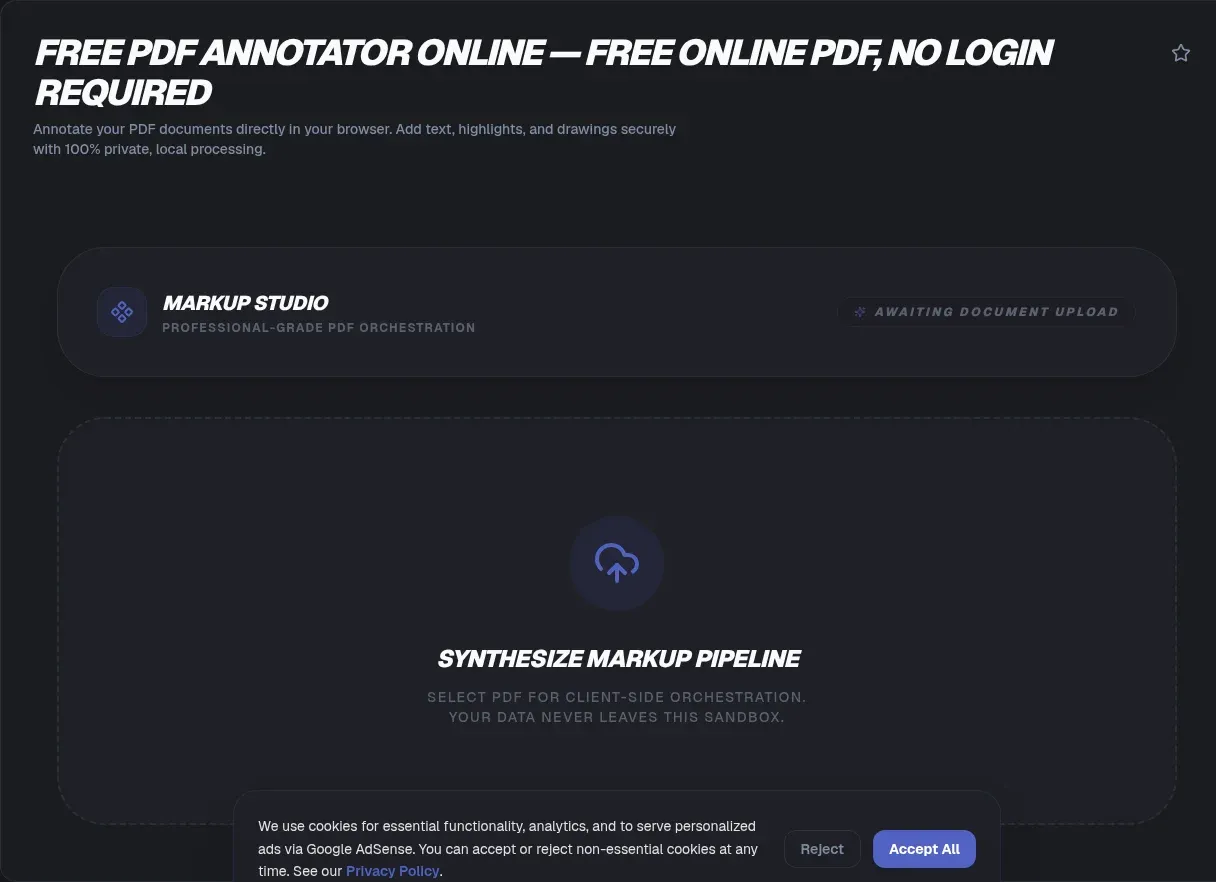
Reviewing a document rarely stops at reading. You highlight the clause that worries you, circle the fee nobody explained, and jot a note beside the signature line. ToolSura's PDF Annotator handles all of it in your browser: highlights, freehand ink, shapes, text boxes, sticky notes, and stamps, applied to pages loaded straight from your disk.
Nothing is uploaded along the way. Rendering runs on Mozilla's pdf.js engine, saving uses the pdf-lib library, and both operate on your hardware inside this tab. There is no account wall, no deletion countdown borrowed from an upload service, and no copy of your contract sitting in a stranger's storage bucket waiting on a timer.
Key Takeaways
- ToolSura annotates locally: nothing uploads, nothing retains, and your Network tab proves the silence
- Every mark is a dictionary object defined by ISO 32000 subtypes such as /Highlight and /Ink, not painted pixels (PDF Association)
- Flatten before e-filing: district courts expect it and warn that drawn black boxes are not true redaction (D.N.J.)
- Annotating a certified PDF can flag its signature as invalid; the DocMDP permission level decides (pdf-insecurity.org)
- Upload competitors hold files for 60 minutes to 24 hours; local annotation holds yours for zero minutes
What Is an Annotation Inside a PDF File?
A highlight is data, not paint. ISO 32000-2, the PDF standard, defines every annotation as a dictionary object whose Subtype key selects behavior: /Highlight for marker swipes, /Ink for pen strokes, /FreeText for typed boxes, /Square for rectangles, /Text for sticky notes, with the common entries catalogued in clause 12.5 (PDF Association).
Positioning lives in specific fields too. Highlight-family marks such as /Underline, /Squiggly, and /StrikeOut store their targets in QuadPoints arrays, while ink drawings record every stroke point in an InkList. The visible artwork comes from an appearance stream, laid over the page like a transparency sheet.
Because marks ride above content as separate objects, others can delete them, software can strip them, and screen readers can read them aloud.
Why Do Some Viewers Show Your Marks Differently?
Appearance streams decide what you see, and PDF 2.0 made them mandatory. Under ISO 32000-2, the AP appearance dictionary is required for annotations except a short exemption list such as Popup and Link, and conforming viewers must prefer those streams over fallback color and border keys (PDF Association).
Older files sometimes skip streams, asking each viewer to redraw a highlight from raw coordinates. Results drift: wider glows here, ignored colors there. A colleague who swears your markup looks broken is probably running a viewer that improvises.
Flattening ends the argument, because baked marks become ordinary page content that renders identically everywhere.
Overlay or Flatten: A Choice With Legal Weight?
Flatten before filing. The District of Rhode Island's CM/ECF guidance directs that all PDF documents should be flattened before filing (D.R.I.). Flattening merges annotation objects into the page itself, so marks cannot be lifted off, edited, or quietly stripped elsewhere.
Overlay mode keeps every mark editable, which suits working drafts and multi-party reviews. Reviewers remove stale highlights, reply to sticky notes, and reshape circles as numbers change. The tradeoff is permanence: whoever holds the file can modify or delete what you wrote.
Court guidance here is district-specific, not universal law, so check your own jurisdiction's rules. The District of New Jersey separately cautions that a black box drawn over text is not redaction, a mistake significant enough to earn its own guidance page (D.N.J.).
Will Annotating Break a Digital Signature?
It can, and the document's certification level decides. Research into PDF signature certification shows the DocMDP mechanism defines three permission levels: adding or changing visible content is barred at all three, while annotations are tolerated only under P3 (pdf-insecurity.org). Mark up a P1 or P2 certified contract and its signature reads as invalid.
That invalidity is the safeguard working as designed: a signature certifies bytes, and annotation dictionaries change bytes. Duplicate the file, annotate the copy, and leave the executed original sealed. A P3 certified document explicitly permits commenting.
How Do You Annotate a PDF Without Uploading It?
Five steps, zero network round trips after the page loads:
- Drop your PDF onto the page. Parsing begins immediately, on your machine.
- Pick a tool and mark the page: highlights snap to text, ink follows your pointer.
- Adjust color, thickness, or opacity as needed; each change updates the underlying annotation object live.
- Choose a save mode: Flatten bakes marks into the page; Keep Layers keeps them editable.
- Download the finished file, generated in memory and handed straight to your disk.
Rendering runs on pdf.js, Mozilla's Apache-licensed JavaScript PDF engine, past 53,000 GitHub stars as of August 2026 (pdf.js). Saving uses pdf-lib, an MIT-licensed writer library past 8,600 stars, stable and widely deployed at roughly ten million weekly installs (pdf-lib).
pdf-lib exposes annotations through its low-level API only, so polished markup takes deliberate work above it; the maintainer has said as much since the project's early issues (pdf-lib issue #39). That layer turns spec-compliant objects into one-click highlights.
Want proof? Open the Network tab in developer tools while you annotate and save. Page assets appear, then silence: no POST ever carries your document.
Which Markup Tools Do What?
Each tool maps to a standardized object, so saved files behave consistently in Acrobat, Preview, Chrome, Firefox, and Edge (PDF Association).
- Highlights: translucent swipes stored as /Highlight quadpoint regions, with underline, squiggly, and strikeout siblings for editing passes.
- Ink: freehand strokes stored point by point in an InkList, ideal for mouse or stylus signatures.
- Text boxes: typed remarks anchored to page positions as /FreeText objects, visible on printouts.
- Sticky notes: /Text popups with author and date metadata, shown as collapsible icons.
- Shapes: squares, circles, lines, and arrows for calling out regions with geometric precision.
- Stamps: reusable graphics, including custom images, applied like rubber stamps for status labels.
Because these subtypes date back to PDF 1.3 in the common cases, even older viewers understand what you drew.
Can You Draw a Black Box Over Text to Redact It?
Treat any drawn box as cosmetic until proven otherwise. An opaque rectangle changes what eyes see, not what the file stores, and the New Jersey court guidance warns that such boxes leave text extractable beneath (D.N.J.). Copy-paste the region afterward and the covered sentence may walk right out.
True redaction removes underlying text rather than hiding it. Verify after saving: reopen the file, select and search the covered area, and confirm nothing surfaces. If text stays reachable, run a dedicated redaction step first.
ToolSura includes redaction markup among its tools; hold any implementation, this one included, to the extraction test above.
Do Annotations Meet Accessibility Standards?
Accessibility auditors treat annotations as first-class citizens. The Matterhorn Protocol, the PDF Association's test suite for PDF/UA conformance, defines 31 checkpoints comprising 136 failure conditions, and checkpoint 28 governs annotations specifically (PDF Association).
Three habits cover most failures. Preserve reading order so screen readers meet notes where they belong. Fill the Contents field on meaningful annotations, giving assistive technology a spoken description instead of an unlabeled shape. Set tab order to structure order on annotated pages, the fix documented in technique G4_05 (G4_05 technique).
Can You Annotate Scanned Documents?
Yes, with one caveat about depth: a scanned page is a photograph wrapped in PDF syntax, so highlights, ink, shapes, and notes sit cleanly on top and print as placed. What the page lacks is a text layer underneath, so search and copy find nothing to grip.
The consequence is straightforward. Markup on scans is purely visual: your yellow swipe covers words, yet the file cannot know where sentences begin. If recipients need selectable, searchable text beneath the marks, run OCR first and annotate the rebuilt page. For quick approvals over a fax-quality scan, visual markup is plenty.
Where Does Your File Go? Retention Compared
Upload-based annotators hold your file on their servers from one hour to a full day. Smallpdf states files are auto-deleted after one hour, unless saved to an account (Smallpdf). iLovePDF's blog puts auto-deletion at two hours, with a manual delete option (iLovePDF). PDF2Go retains uploads up to 24 hours or 10 downloads, whichever arrives first (PDF2Go).
Adobe's editor adds identity to the flow: its page describes uploading the file, signing in to add your comments, and deletion on Adobe servers unless you sign in to save (Adobe). Vendor terms change, so read these windows as snapshots rather than permanent policy.
Local annotation deletes the whole category: nothing transmits, so there is no timer, no expiring link, and no server copy awaiting someone else's cleanup. The data-processing surface shrinks to your own device, smaller than any retention promise.
Incidents show the stakes. Breach reporting attributes 77,159,696 stolen user records to the late-2020 Nitro PDF compromise, including emails, password hashes, and document titles revealing financial reports and deal activity; the company first called it a low impact incident. Neither that breach nor the case below involves any vendor compared here. In July 2024, Cybernews researchers found an open cloud storage bucket leaking more than 89,000 user documents, passports and contracts included, from two unrelated online PDF tools (TechRadar).
Are There Quotas, Free Tiers, or Size Caps?
Server tools meter you because bandwidth costs money: Sejda advertises free limits of 200 pages or 50 MB per file and 3 tasks per hour (Sejda), while Smallpdf leaves its free-tier usage limits undisclosed (Smallpdf). Local processing has no ledger, because nobody is paying for your megabytes.
The honest ceiling is device memory. A desktop workstation chews through long reports comfortably; an aging phone tightens up on hundreds of scanned pages. When a file strains the browser, compress or split it first, then annotate. There is no daily counter to outlast and no premium tier to buy.
Does It Work Offline?
After the first visit caches the code, annotation needs no connection at all: parsing, markup, flattening, and saving all work in airplane mode. Offline operation doubles as privacy evidence, since software needing zero connectivity has no channel for phoning home.
Common Mistakes When Marking Up PDFs
Four repeat offenders cause most botched markup jobs:
- Assuming a black box equals redaction: test saved output by selecting and searching the covered region.
- Annotating the executed original. Certification levels bite; work on a duplicate and archive the sealed copy.
- Sending layered files externally: colleague-facing sticky notes travel inside the file; flatten before outside distribution.
- Reintroducing risk downstream. Uploading the same document to an upload-based converter afterward recreates the exposure you just avoided.
Related Tools
Annotation fits into a wider local-first pipeline, and every tool below runs client-side too:
- PDF Compressor: shrink oversized files before annotating, sparing browser memory.
- PDF Merger & Splitter: combine exhibits into one review packet or extract just the pages you need.
- PDF to Word Converter: turn annotated PDFs back into editable DOCX drafts.
- Word to PDF Converter: produce clean PDFs from Word drafts, ready for markup rounds.
- HTML to PDF Converter: snapshot web pages into PDFs worth highlighting.
- Image Metadata Viewer: inspect hidden metadata inside scanned images before you share them.
Marking up a document should feel like marking paper: immediate, private, gone when you say so. Point the PDF Annotator in Browser at your file, watch the Network tab stay silent, and keep every mark on your side of the wire.
Frequently Asked Questions
Does this tool upload my PDF anywhere?
No. ToolSura renders your PDF and saves every mark inside your browser tab, so nothing is uploaded and the file never leaves your device. You can prove it yourself: open developer tools, switch to the Network tab while annotating, and watch for outbound requests carrying your document. After the page loads, annotation even works offline.
Are annotations permanent or removable?
Both, by choice. Save ToolSura output with Keep Layers and every highlight, shape, or note stays a standard editable annotation object anyone can delete later. Save with Flatten instead and marks bake into the page content like printed ink. Layered files suit ongoing review cycles; flattened files suit final versions and court filings.
Will annotating break a digital signature?
It can. Modifying a certified PDF usually flags its signature, and the document's permission level decides what counts as tampering: strict levels bar any addition, while others tolerate comments and highlights. Check signing restrictions first, annotate a copy when unsure, and keep the executed original untouched for comparison during any later dispute.
Should I flatten annotations before filing or emailing?
Flatten whenever the recipient should see your marks but never move them. Flattening bakes highlights and shapes into the page content, which is what courts such as the District of Rhode Island expect for e-filings, and it stops accidental edits. Keep layers only when a review cycle needs marks removed or revised later.
Are there file size or page limits?
ToolSura sets none artificially, because there is no server quota to defend. Processing happens on your hardware, so the practical ceiling is your device's memory: comfortable on desktop machines for large reports, tighter on older phones. If a huge file strains your browser, compress it first or split it into chapters, then annotate the pieces.
Is it really free, without watermarks or accounts?
Yes. ToolSura charges nothing, asks for no account, and stamps no watermark on saved files. Because processing runs locally rather than on paid servers, there is no usage meter resetting hourly and no premium tier gating basic markup. Open the page, annotate, and download; the only cost is the seconds your processor spends working.
Can I annotate scanned PDFs?
Yes. Scanned pages are images inside a PDF wrapper, so highlights, drawings, shapes, and notes sit on top visually and print normally. Remember the layer underneath is a picture, not selectable text, so search and copy ignore your marked words. For contracts needing searchable text underneath, run OCR first, then start marking up.