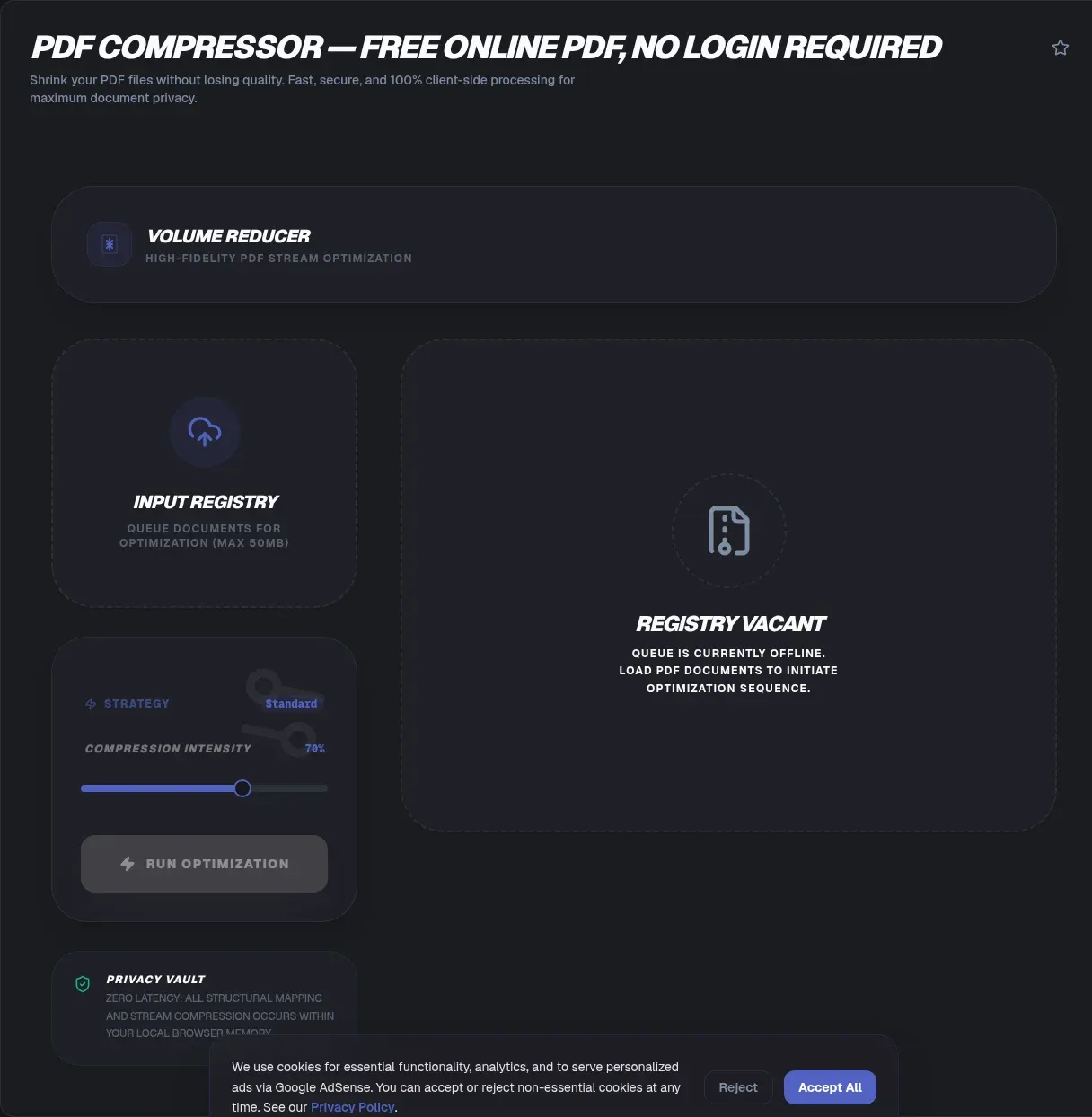
A 40 MB proposal deck sails through your own outbox and dies on arrival: Gmail caps personal accounts at 25 MB per message, Outlook desktop defaults to 20 MB, and plenty of corporate Exchange servers stop at 10. Resending changes nothing. The file itself has to shrink, and ToolSura compresses it entirely in your browser, with no uploads, no sign-up wall, and no waiting queue.
Nothing about that arrangement is gloss. Parsing, recompression, and export all run on your hardware through JavaScript, so the file never leaves your device and no copy exists to delete later. This guide covers what actually bloats PDFs, how compression filters work under the hood, honest size expectations by document type, and where your file ends up with each major tool.
Key Takeaways
- ToolSura compresses PDFs locally in your tab: no uploads, no accounts, no server-side copy at any point
- Embedded images dominate bloated files: one audit found images made up 91.57% of a 37.2 MB PDF (Mapsoft)
- Expect 5-15% savings on lean text PDFs, 30-60% on mixed documents, and 50% or more on scans
- Gmail allows 25 MB attachments, Outlook desktop 20 MB, and many corporate Exchange servers only 10 MB
- Rivals hold uploads for 1 to 24 hours before deletion; zero-upload design means there is nothing to hold
What Actually Makes a PDF File Big?
Images, overwhelmingly. One documented audit found images accounted for 91.57% of a bloated 37.2 MB PDF, and a typical 30 MB business report breaks down to roughly 24 MB of images, 3 MB of fonts, 2 MB of content streams, and 1 MB of structural overhead (Mapsoft).
Fonts take second place. A fully embedded typeface typically adds hundreds of kilobytes, and the same font often ships four to six times over in bold, italic, and variant forms. Subsetting, which stores only the glyphs a document actually uses, trims a font from around 800 KB to tens of kilobytes.
Content streams and object structure look intimidating in a hex editor yet contribute the smallest slice. Attack images first, fonts second, structure last. That ordering alone explains most of the savings any compressor reports.
How Does PDF Compression Work Under the Hood?
Through stream filters, defined in Section 7.4 of the official PDF specification (ISO). Every image and content stream inside a PDF passes through named filters that pack bytes tighter before storage. Knowing which filter handles what tells you why certain files shrink dramatically and others barely move.
The Lossless Filters
FlateDecode applies zlib compression, the same mathematics behind PNG images and ZIP archives. Decoded output matches the original byte for byte, which makes Flate the default for screenshots, flat-color graphics, and every text stream. CCITTFaxDecode implements the Group 4 fax algorithm and crushes monochrome 1-bit images, such as black-and-white scans, harder than any general-purpose method.
The Lossy Filters
DCTDecode is JPEG wearing a PDF badge. It trades pixel fidelity for dramatic size cuts, ideal for photographs and wasteful for screenshots. JPXDecode adds JPEG 2000 wavelet compression from PDF 1.5 onward. The complete filter rules are readable in Adobe's hosted copy of the standard (PDF Association's free access copy).
Tools stack downsampling on top of filtering. Adobe's optimizer guidance targets 72 ppi for screen viewing, 150 ppi for standard print, and 300 ppi for high-quality print, and warns plainly that JPEG quality settings permanently discard pixel data (Adobe).
How Do You Compress a PDF Online Without Uploading It?
Five steps, zero network round trips once the page has loaded:
- Drop your file onto the page or browse to select it. Nothing moves yet.
- Local parsing starts. Mozilla's pdf.js engine reads the bytes straight from your disk, inside the tab (pdf.js on GitHub).
- Pick a level. Light, Medium, or Strong, matched to wherever the file is going next.
- Review the numbers. Before and after sizes sit side by side, so the savings are never a guess.
- Download the result. The compressed copy lands in your downloads folder; the original stays untouched.
The rewrite runs on pdf-lib, a pure-JavaScript library with no native dependencies that modifies existing PDF documents in memory (pdf-lib on GitHub). Skeptical? Open developer tools, switch to the Network tab, and compress a file. The log loads the page, then goes quiet: no outbound request ever carries your document.
How Much Smaller Will Your PDF Actually Get?
Honestly, it depends on what is inside. Text-native PDFs whose streams are already Flate-compressed shrink only 5 to 15 percent. Mixed business documents carrying charts, screenshots, and photos typically drop 30 to 60 percent. Scanned or image-heavy files routinely lose half their weight or more.
Benchmarking supports those bands. An academic comparison across 30 test files measured average reductions clustering between roughly 48 and 58 percent for the major cloud tools, with sequential passes reaching higher. Treat any promise of uniform savings with suspicion: the input file sets the ceiling far more than the tool does.
Which Email Limits Should You Actually Target?
The smallest limit your recipient might face, not the largest you can send. Gmail enforces a 25 MB outgoing attachment cap on personal accounts and quietly swaps larger files into Google Drive links (Google). Helpful, until the recipient's employer blocks Drive access.
Outlook's desktop client defaults to a 20 MB ceiling for POP3 and IMAP accounts, and oversized mail bounces with a terse error message (Microsoft Learn). Behind corporate gates, Exchange deployments commonly sit at 10 MB, set by whoever administers the server.
Practical rule: land under 10 MB whenever the audience is unknown. Email encoding also inflates attachments during transit by roughly a third, so a file sitting at 24 MB can still bounce off Gmail's nominal 25 MB gate. Aim well clear of every threshold.
Why Do Scanned PDFs Compress Best?
Because every page is stored as a photograph, and photographs carry enormous removable fat. At the industry-standard 300 DPI, one uncompressed color page of letter-sized paper weighs roughly 24.6 MB as raw bitmap data, about 665 KB as JPEG, and roughly 38 KB under Group 4 fax encoding for black-and-white text, per published imaging-vendor compression tests.
Those numbers explain exactly what a compressor does to scans. Downsampling from 300 to 150 DPI halves linear resolution and quarters the pixel count, rarely noticeable on a screen. Switching color to grayscale strips two channels before compression even begins. Pure black-and-white text scans fare best of all under CCITT Group 4, staying razor sharp at a fraction of the bytes.
Will Your Text Stay Sharp After Compression?
Yes, and the architecture explains why. Text in a PDF consists of vector drawing commands: select this glyph from this font, place it at these coordinates. Compression targets embedded images and redundant structure, not glyphs, so type stays crisp, selectable, and fully searchable in the output.
Photographs are the exception, because JPEG re-encoding is lossy by design and Adobe's documentation states plainly that reduced quality settings permanently discard pixel data (Adobe). Damage compounds on every pass. Keep the original somewhere safe, compress a copy for sending, and you can always regenerate at gentler settings later.
What Can Compression Not Fix?
Three things, and knowing them saves wasted cycles. First, already-efficient files: a text-only PDF exported with sensible settings is already Flate-compressed, which is why lean documents sit in that modest 5 to 15 percent band.
Second, vector graphics. Logos, line art, and technical drawings are mathematical paths rather than pixels, so downsampling has nothing to bite and re-encoding helps little.
Third, encryption. pdf-lib throws an EncryptedPDFError when handed a password-protected document, and its ignoreEncryption flag explicitly does not decrypt anything (pdf-lib on GitHub). Strip protection first on files you own or are authorized to modify, then compress the result normally.
Are There File Size Limits?
None imposed by the tool. Cloud compressors meter uploads because every incoming megabyte costs ingress, storage, and egress money; Adobe's online compressor takes files up to 2 GB per Adobe's site, with unlimited use reserved for paying customers (Adobe).
Zero-upload architecture deletes that cost structure entirely, so there is no quota to defend and no daily counter resetting at midnight. The honest constraint is your device's memory: a modern laptop handles files running to hundreds of megabytes, while an older phone slows visibly on chunky scans. Short on RAM? Close other tabs first.
Where Does Your File Go With Popular Compressors?
Onto somebody else's servers, in every case except local processing. The retention policies are public, so compare them directly:
| Service | Retention Policy | Model |
|---|---|---|
| Smallpdf | Auto-deleted after one hour | Upload required |
| iLovePDF | Deleted within two hours | Upload required |
| PDF2Go | 24 hours or 10 downloads, whichever first | Upload required |
| Adobe online | Held pending download or sign-in | Upload required |
| ToolSura | Nothing to delete | Never uploaded |
These are reputable operators with clearly stated terms. Smallpdf deletes uploads automatically after one hour and advertises TLS encryption with GDPR and ISO/IEC 27001 compliance (Smallpdf). iLovePDF promises permanent deletion within two hours of processing, with a manual delete button beside each file (iLovePDF). PDF2Go clears uploads after 24 hours or 10 downloads, whichever comes first (PDF2Go).
The architectural difference stands regardless of how trustworthy any vendor is: a file that never uploads has no retention window, no breach surface, and no forgotten copy sitting on a bucket nobody audits. During compression, your document exists in exactly one place, which is memory inside your own browser.
When Should You Not Compress a PDF?
Before archiving and before high-quality printing. Documents destined for long-term storage should follow PDF/A, standardized as the ISO 19005 series, which permits lossy JPEG but prohibits LZW compression and encryption outright. Archival bodies recommend keeping lossless masters, because JPEG artifacts compound on every re-save (PDF Association). Compress a working copy; preserve the master untouched.
Printing deserves equal caution. A photograph downsampled to screen resolution looks fine in a viewer and muddy on glossy paper. Court exhibits, engineering drawings, and medical imagery belong in the same category: when fidelity carries legal or clinical weight, spend the bandwidth instead of shaving megabytes.
Which Compression Level Fits Your Job?
Match the setting to the destination instead of maxing everything. Light preserves near-original image quality for printing, archiving, and files headed back into editing. Medium balances visible quality against real savings and lands most email-bound documents safely under Gmail's 25 MB and Outlook's 20 MB ceilings. Strong squeezes hardest, softening photographs in exchange for minimum weight, ideal for web previews and read-only reference copies.
Unsure? Run a duplicate through at Medium, read the before-and-after figures, and adjust from there. Thirty seconds of comparison beats resending a bounced attachment.
Common Mistakes When Shrinking PDFs
Six repeat offenders cause most botched results:
- Re-compressing the same output repeatedly. Every lossy pass re-encodes images again, stacking degradation onto degradation.
- Deleting the original after one successful pass. Requirements change; keep the master so you can regenerate at different settings.
- Expecting miracles from lean text PDFs. A 200 KB invoice will not become 50 KB; its streams are already squeezed.
- Sending screen-grade output to the printer. Images downsampled for viewing look amateurish on paper; keep 300 ppi for anything printed.
- Landing exactly at a limit instead of under it. Email encoding inflates attachments in transit, so borderline files still bounce.
- Skipping the password step. Encrypted files fail before compression begins; remove protection first on documents you control.
Related Tools
Compression slots into a wider local-first workflow, and every tool below runs in your browser too:
- PDF to Word Converter: turn the compressed file into an editable DOCX without uploading anything.
- PDF Merger & Splitter: when one file cannot fit under a cap, split it into parts that do.
- Word to PDF Converter: export documents to PDF with sensible defaults so bloat never starts.
- HTML to PDF Converter: save web pages as compact PDFs, likewise processed client-side.
- PDF Annotator in Browser: mark up the compressed result without uploading it either.
- PNG/JPG Image Compressor: shrink source images before embedding them, stopping bloat upstream.
A swollen PDF is a solvable problem, and solving it should not involve mailing your contract, tender, or medical records to a stranger's storage bucket with a countdown timer attached. Open the PDF Compressor, drop your file in, read the before-and-after numbers, and keep every byte on your side of the wire.