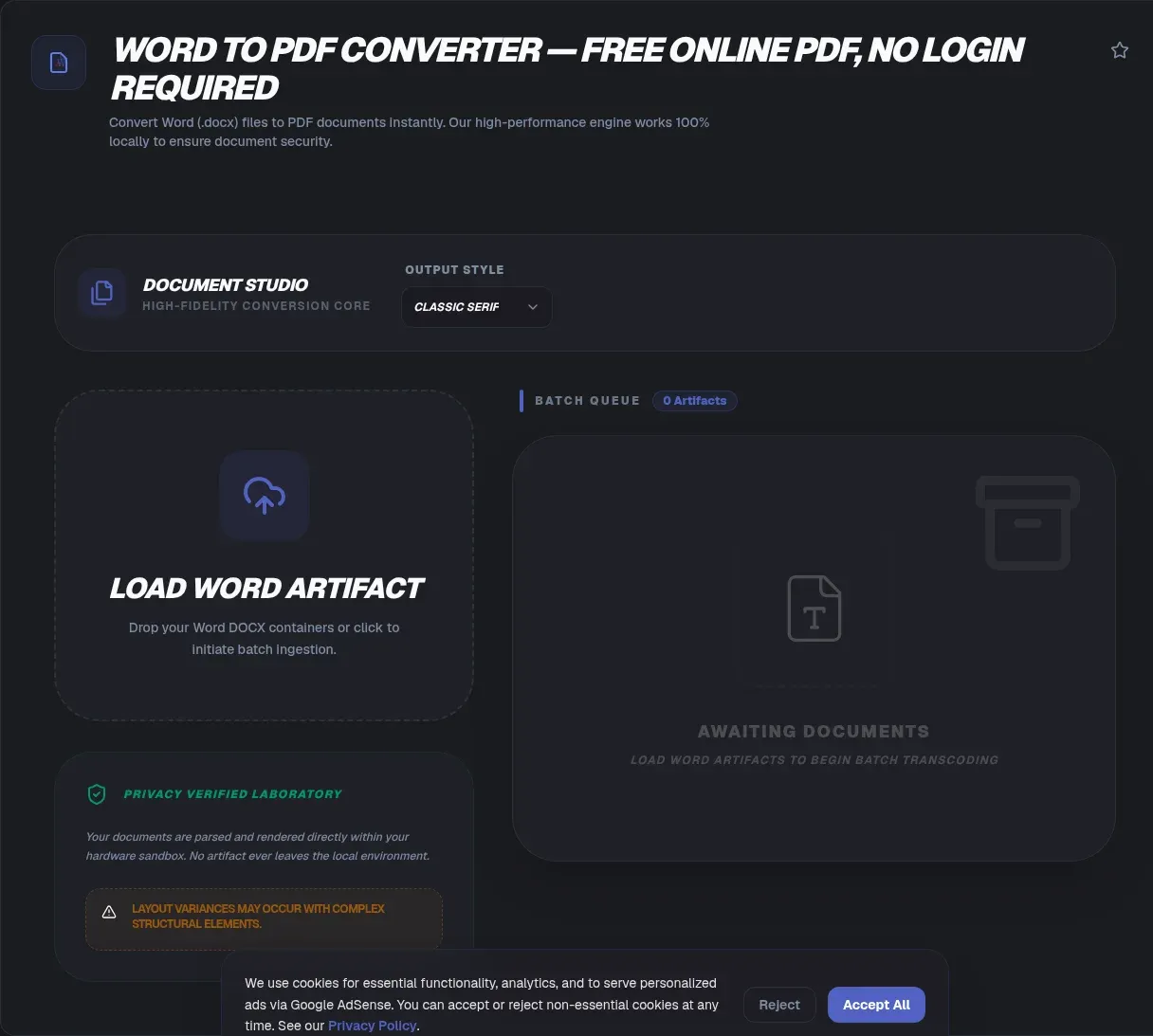
Over 2.5 trillion PDFs exist worldwide, by PDF Association estimates, and nearly every resume, invoice, and contract now travels as one. Eventually someone asks for your Word file in that format. ToolSura handles the conversion entirely in your browser: pick a DOCX, get back a real PDF, and keep every byte on your machine.
Nothing is uploaded at any step. Your document never leaves your device: the browser reads the file from disk, lays out the pages in memory, and writes a finished PDF on your own hardware. This guide covers how that pipeline works, what converts cleanly, what honestly shifts, and why skipping the upload matters for private files.
Key Takeaways
- ToolSura converts Word to PDF inside your browser tab: no upload, no account, no deletion timer on somebody else's server
- A DOCX stores reflowable text while a PDF freezes positions, so small shifts are normal (The Document Foundation)
- Missing fonts become metric clones such as Carlito for Calibri, usually keeping page counts stable
- Cloud converters hold uploads for one to two hours; local conversion removes that window (iLovePDF)
- Encrypted files fail in client-side converters, so remove protection first
Why Did PDF Become the Format Everyone Hands Out?
Because PDF renders identically everywhere, which is precisely what handing a document to strangers demands. By PDF Association estimates, over 2.5 trillion PDFs exist, with more than 290 billion new ones created every year and growth near 12 percent annually. Recruiters, courts, and banks settled on it for one reason: what you send is what they see.
A PDF records outcomes, not intentions. Every glyph sits at fixed coordinates, so fonts, margins, and pagination survive different systems, printers, and decade-old readers. Word formats behave differently, and that difference shapes everything below.
What Is a DOCX File, Actually?
Not a page image and not a single text stream: a .docx file is a ZIP package of XML parts. The format is standardized as ECMA-376, currently in its fifth edition from December 2021, with ISO/IEC 29500 as the international designation (Ecma International). The packaging rules live in Part 2, the Open Packaging Conventions.
Unzip any DOCX and inspect the machinery yourself: document.xml carries the text, styles.xml the formatting, fontTable.xml the fonts, plus relationship manifests. Paragraphs hold properties; pagination happens fresh at render time. A converter's first job is unpacking that archive, done here in memory rather than on a remote queue.
Why Is Word to PDF Conversion More Than Printing?
Because conversion must rebuild geometry, not just output pixels. A proper converter parses the XML, applies styles, measures every text run against real font metrics, breaks lines, assembles pages, and only then emits PDF drawing commands. Get the measurements wrong and text wraps differently, quietly adding a page nobody planned for.
Print-flattened output is the giveaway of lazy pipelines: one big picture whose text cannot be selected, searched, or parsed by screen readers and applicant tracking systems. Quality pipelines emit real text objects instead, keeping results searchable and copyable.
How Does Browser Conversion Work Under the Hood?
In three stages, all inside the tab: unzip, render, assemble. The engines are mature open-source projects, not weekend scripts; jsPDF alone counts about 31,300 GitHub stars as of August 2026 (jsPDF). Decompression happens in memory, layout runs on your processor, and the finished file lands in your downloads folder.
Typical stacks divide the labor: mammoth.js, about 6,300 stars, extracts semantic HTML from DOCX (mammoth.js); docx-preview, about 2,100 stars, renders full pages including headers and footers (docx-preview); pdf-lib, about 8,600 stars, assembles PDF documents (pdf-lib); html2canvas, about 31,900 stars, draws layouts onto canvas (html2canvas).
These projects document their own limits. Mammoth.js ignores purely visual details by design; docx-preview notes real-time page breaking is not implemented, so automatic pagination stays approximate; jsPDF's built-in fonts cover ASCII only; html2canvas warns its output may not match the source exactly. None of this is hidden, which is why a quick output check pays off.
Will Your Formatting Survive?
For everyday documents, mostly, and honest expectations beat absolute promises. Headings, paragraphs, lists, images, and straightforward tables carry over reliably. Trouble concentrates wherever layout depends on precise font metrics: the Document Foundation documented a test file that rendered as two pages instead of one after a font substitution, while Word kept the identical file on one page (LibreOffice developer list).
The mechanism explains why. A DOCX describes reflowable content, and whatever program opens it re-paginates from scratch; a PDF freezes positions permanently. Any difference between renderers therefore becomes visible layout drift. Absolute preservation claims ignore that physics; the smarter habit: convert, then look.
Check in this order: page count first, then line endings near headings, then table borders, then anything floating. If a page break landed badly, adjust spacing in Word and convert again; the cycle costs less than proofreading a mis-paginated contract after sending it.
What Happens to Missing Fonts?
They get replaced, and the replacement decides whether lines break where they did before. Font management is one of the main interoperability problems when non-Microsoft software opens Word files, according to the Document Foundation, because faces like Calibri, Cambria, and Aptos ship with Office rather than with the operating system (The Document Foundation).
The usual fix is a metric clone. LibreOffice substitutes Carlito for Calibri and Caladea for Cambria, typefaces designed with identical character widths so line breaks stay stable (The Document Foundation). A suitable clone keeps your two-page letter at two pages; without one, spacing shifts and pagination moves.
Practical takeaway: where layout is contractual, stick to common faces like Calibri, Arial, or Times New Roman, then eyeball the output once. Exotic fonts are where conversions drift furthest.
How Do You Convert DOCX to PDF Without Uploading It?
Four steps, and zero network round trips once the page has loaded:
- Select your DOCX. Drop it onto the page; parsing starts straight from your disk.
- Local rendering runs. The browser measures text and builds pages with your device's processor.
- Download the PDF. Assembly happens in memory and saves straight to your machine.
- Spot-check the output. Compare page count and a few line endings against Word.
Prefer proof? Press F12, open the Network tab, and convert a document. Requests load the page itself, then the log goes quiet: no outbound request ever carries document bytes, because no server participates. Going offline after loading tells the same story.
Do Images, Tables, Headers and Footers Survive?
Standard constructs mostly do, with a few known soft spots. Embedded images, grid tables, and repeating page furniture come through routinely; in-browser DOCX renderers explicitly support headers, footers, footnotes, and endnotes (docx-preview). The common casualties are table cell borders and floating-image wrap modes, so give those areas one glance before sending anything.
A thirty-second checklist covers it: grid lines visible, images anchored where Word put them, footer repeating on every page, numbering intact. If those pass, circulate the file with confidence.
Can You Convert Password-Protected Documents?
Not until the protection comes off. Encrypted files generally fail in client-side converters, so remove protection first; the generation libraries document that encrypted inputs raise errors rather than decrypt themselves (pdf-lib). In Word, go to File, Info, Protect Document, remove the password from a copy you own or are authorized to handle, save, and convert normally. Treat that restriction as reassurance: quietly bypassing encryption is behavior you should distrust with sensitive paperwork.
What About Email Limits After Converting?
Gmail caps personal-account attachments at 25 MB and turns anything larger into a Google Drive link (Google Support). Image-heavy Word files blow past that ceiling fast, especially once embedded photos land uncompressed inside the finished PDF.
Two remedies exist: shrink pictures in Word before converting, or run the finished file through the PDF Compressor afterward. Either brings the file back under the limit, and compression runs client-side too.
Why Resumes Face the ATS Reality
Because software probably reads your resume first. Jobscan's annual audit of Fortune 500 career pages finds roughly 97 to 99 percent use a detectable applicant tracking system (Jobscan), measuring 97.4 percent in 2026. That is vendor research, but the methodology is public and consistent year over year.
The practical routine follows directly. Keep the layout single-column with standard fonts, finalize the wording, then convert and confirm the text is selectable, because selectable text parses while rasterized screenshots often do not. Check your word count against the posting's requirements before converting.
Where Does Your File Go With Upload-Based Tools?
Onto a server, on a countdown you do not set. Smallpdf removes converted files after one hour unless saved to an account (Smallpdf). iLovePDF states deletion within two hours of processing, with signed documents kept up to five years for legal compliance (iLovePDF). Sejda deletes after two hours and caps free conversions at 50 MB per file and 20 pages (Sejda).
Others lean on unverifiable promises. FreePDFconvert says files are deleted immediately after processing, a self-reported policy with no published audit (FreePDFconvert), while Adobe's free tier is tightly limited and typically nudges you toward signing in. These are stated policies, not observations.
History shows why the model itself carries risk. In January 2021, 77,159,696 user records tied to Nitro's free conversion utilities leaked onto a hacking forum; Nitro initially downplayed the incident (BleepingComputer). In July 2024, Cybernews researchers found two online PDF tools, PDF Pro and Help PDF, exposing more than 89,000 user-uploaded documents, passports included, via a misconfigured cloud bucket (TechRadar). Neither incident involves the vendors compared above; both make the structural point that uploading creates the exposure surface. Client-side conversion removes that category: nothing uploaded means nothing stored, nothing retained, and nothing available to leak.
What Is PDF/A, and Should You Care?
PDF/A is the archival flavor of PDF, standardized as ISO 19005 in four parts published between 2005 and 2020. PDF/A-1 requires every font embedded and forbids encryption, JavaScript, and embedded multimedia, so files open identically decades later. Archives, courts, and thesis repositories increasingly request it.
One boundary matters: this section explains the standard; it does not certify any converter's output. Regular converted PDFs serve daily sharing fine. When a repository demands PDF/A, use a dedicated archiving workflow and validate the result before submitting.
Which Mistakes Should You Avoid?
Five repeat offenders cause most botched conversions:
- Converting with the password still on. Encrypted files fail in client-side pipelines; strip protection first.
- Building critical layouts on exotic fonts. Substitution shifts spacing and page counts whenever the face is missing.
- Skipping the page-count glance. One page versus two decides resumes and tender limits.
- Trusting complex constructs blind. Text boxes, SmartArt, and floating objects drift most.
- Converting drafts. A PDF is a snapshot, so finalize edits first.
Related Tools
Every tool below runs client-side too:
- PDF to Word Converter: need the reverse trip? Turn PDFs back into editable DOCX files.
- PDF Compressor: shrink oversized PDFs before emailing them.
- PDF Merger & Splitter: merge converted chapters or extract the pages you need.
- HTML to PDF Converter: generate fresh PDFs from web content without uploads.
- PDF Annotator in Browser: mark up documents without installing anything.
- Word Counter: check document length against limits in seconds.
Converting Word to PDF should be the quiet, private last step of your work, not a detour through a stranger's storage bucket with a deletion timer. Point the ToolSura Word to PDF Converter at your document, watch the Network tab stay silent, and hand out a file that looks the same on every screen it reaches.
Frequently Asked Questions
Does this tool upload my document anywhere?
No. ToolSura reads your DOCX and builds the PDF entirely inside your browser tab, so nothing is uploaded. Open developer tools, switch to the Network tab, and convert a file: no outbound request carries your document. Once the page has loaded, conversion even keeps working without a network connection.
Will my formatting survive the conversion?
Mostly, yes, for ordinary documents. Text, headings, images, tables, bold, italic, and colors carry over well. A DOCX stores flow instructions that every renderer re-paginates, while a PDF freezes fixed positions, so small shifts are possible. Check page breaks, fonts, and table borders first; ToolSura output rewards a quick skim.
What happens to fonts that are not installed on my computer?
They get substituted. The Document Foundation names font management as a top interoperability problem, because replacements like Carlito standing in for Calibri are metric clones: widths match, so line breaks usually hold. When no close match exists, spacing changes and page counts drift. Common system fonts convert most faithfully.
Can it convert password-protected documents?
Not directly. Encrypted files generally fail in client-side converters, so remove protection first. In Word, open the file, go to File, Info, Protect Document, and remove the password from a copy you own or are authorized to handle. Then convert normally. Any service promising to bypass encryption deserves suspicion.
Is there a file size limit?
No artificial one. Upload-based services cap files because bandwidth and storage cost money; Sejda's free tier stops at 50 MB per file and 20 pages, for example. Since ToolSura processes locally, the practical ceiling is your device's memory, which comfortably handles reports, resumes, and most manuscripts.
Does converting Word to PDF work offline?
Yes, once the page has loaded. Every line of JavaScript the job needs already sits in your browser, so a dropped connection changes nothing: the conversion finishes and the download completes locally. A mid-session reload requires connectivity again. That independence doubles as privacy evidence, since offline code cannot send your file anywhere.
Is browser conversion safe for confidential documents?
It removes the main risk category: the upload itself. Cloud converters hold files on their servers for an hour or more, and incidents like Nitro's 2020 breach, which exposed 77 million user records tied to free conversion utilities, show why retention windows matter. ToolSura uploads nothing, retains nothing, and keeps your document on your device.