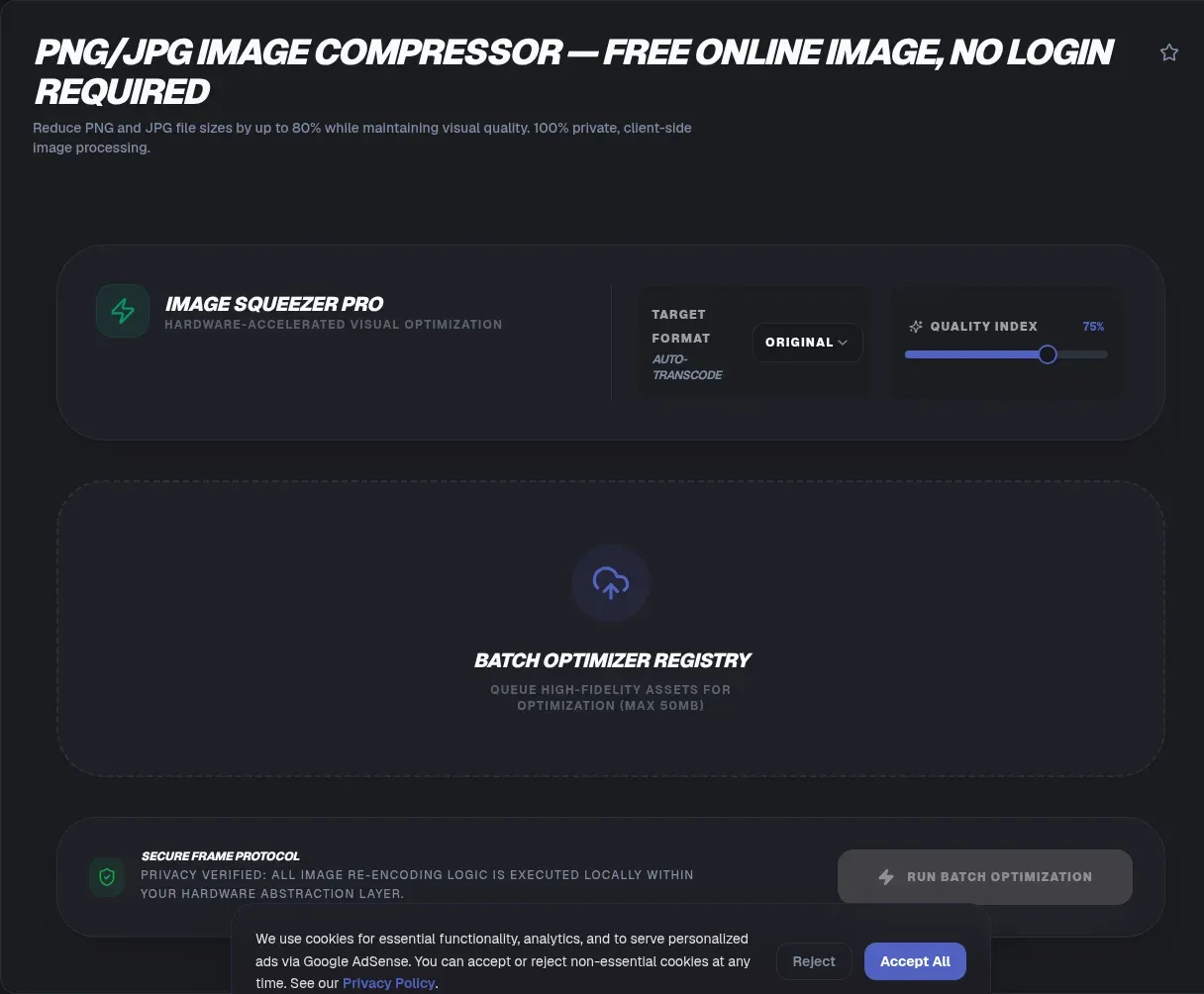
The ToolSura PNG/JPG Image Compressor shrinks images entirely on your device: drag in files or whole folders, adjust a quality slider, and download optimized results in your browser as one structured ZIP archive Source. Input accepts PNG, JPEG, WebP, AVIF, and GIF, and output can keep the original format or convert to WebP or AVIF during compression.
Files never leave your device per the tool's documentation, which also describes offline operation after first load; no accounts, no uploads, no tracking infrastructure involved Source.
Why Image Weight Dominates Page Weight
Images routinely account for the largest share of bytes on a typical page, so image optimization remains the highest-impact performance work available to most sites. Every kilobyte trimmed from hero images and product photos translates directly into faster loads, especially on mobile connections where every byte competes for scarce bandwidth.
Compression tools divide into two philosophies: server round-trips that upload your images somewhere else for processing, and local processing that keeps files on your machine. This compressor belongs firmly to the second camp, which matters both for privacy and for sheer convenience when batches run large.
Quality Sliders and the Sweet Spot
The interface exposes a single quality slider from 10 to 100 percent, documented with practical guidance: around 80 is described as the sweet spot for photos, delivering what the page calls virtually invisible loss Source.
The same documentation includes a truly useful warning about over-compression: below roughly 50 percent quality, compression artifacts can grow so chaotic that file sizes increase rather than shrink. Aggressive settings sometimes produce the worst of both worlds, degraded images that weigh more. The documented sweet spot sits between 60 and 80 percent.
Format Conversion During Compression
Output format choice happens in the same step as compression. Keep the original container, or convert to WebP or AVIF, formats whose browser support the page documents as roughly 97 and 85 percent respectively Source. Modern formats typically deliver substantial savings at equivalent visual quality.
Two technical facts guide conversions. JPEG cannot store transparency, so converting transparent PNGs to JPEG flattens backgrounds against a solid color. WebP and AVIF support both lossy and lossless modes plus transparency, making them natural destinations for screenshots, logos, and photographic content alike.
Lossy Versus Lossless: Choosing Correctly
Photographs tolerate lossy compression beautifully because human eyes forgive subtle color shifts far more readily than they forgive missing detail. Screenshots, diagrams, and text-heavy images behave differently: sharp edges show compression artifacts quickly, and lossless approaches often win.
The tool's documentation reports its own testing found lossless WebP beating PNG by 22 percent on text-heavy screenshot content Source. Treat those figures as the page's own measurements rather than universal guarantees, but the directional lesson holds: match compression mode to content type before reaching for aggressive quality reductions.
Batch Processing and ZIP Output
Drag an entire folder and the queue processes everything in parallel where the platform supports it, per the documentation Source. Results download individually or packaged into a ZIP that preserves folder structure, which matters enormously when compressing organized asset trees rather than loose collections.
No count limit applies; constraints come from browser memory instead, with individual images around 100 to 200 megabytes documented as the practical ceiling Source. Larger sources need resizing first, which belongs to a dedicated resizer rather than this compressor.
Metadata Stripping as a Privacy Feature
Canvas-based processing strips EXIF, ICC color profiles, and XMP metadata by default, and the tool deliberately does not re-inject any of it afterward Source. The privacy implications deserve appreciation: GPS coordinates embedded by phone cameras, capture device details, and editing histories all vanish from published images.
Treat this as a feature unless copyright metadata matters to your workflow, in which case dedicated metadata tools handle preservation separately. For public web deployment, stripped metadata is usually exactly what you want, preventing location leaks while shaving additional bytes from files.
The Numbers, Properly Attributed
The documentation reports its own testing: a median 48 percent size reduction converting JPEG to WebP at quality 80 across 500 sample images, including one example dropping from 2.4 megabytes to 380 kilobytes, alongside processing costs of roughly 15 milliseconds per megapixel Source.
Read these as vendor measurements under stated conditions rather than universal guarantees for your particular images. Your results depend on source formats, dimensions, and content complexity. What transfers regardless is the workflow: test at quality 80, compare visually at realistic display sizes, then tune per image family.
Honest Boundaries
Several capabilities sit outside this tool by design. There is no target-file-size mode, so hitting exact budgets means iterating the slider manually. No resizing exists here; oversized sources should visit the resizer first. SVG optimization lives elsewhere entirely, and lossless JPEG recompression plus perceptual-quality targeting are absent from documented features Source.
None of these gaps undermine the core job: fast, private, batch-friendly compression with modern-format conversion. Knowing where boundaries lie simply prevents wasted time looking for features elsewhere documented.
A Practical Workflow Worth Adopting
Consistent results come from consistent process. Resize first where dimensions exceed display needs, since scaling away pixels beats compressing dead weight. Compress second at quality 80 and compare outputs against originals at realistic display sizes rather than pixel-peeping at 400 percent zoom.
Convert formats third for modern targets, then spot-check transparency on logos before deployment. Finally, archive the settings that worked per image family so next month's batch starts from proven numbers instead of fresh guesswork Source.
Choosing Between WebP and AVIF
Both modern formats compress further than their ancestors, but they differ in support and strengths. The page documents WebP's browser support around 97 percent versus AVIF near 85 percent, which makes WebP the safer default for broad audiences today while AVIF rewards audiences concentrated on current-generation browsers.
AVIF frequently wins on photographic compression efficiency; WebP wins on ubiquity and tooling maturity. When unsure, generate both from one source image and compare sizes at equal visual quality. The conversion step happens inline during compression here, so trying alternatives costs seconds rather than a separate pipeline Source.
Compression Artifacts: What to Look For
Knowing failure signatures makes quality tuning fast instead of guesswork. Lossy blockiness appears as visible grid edges across smooth gradients, most obvious in skies and studio backgrounds. Ringing shows up as faint halos along sharp text edges, the classic screenshot killer. Banding stripes through gradient fills signal aggressive quantization.
Each artifact type responds to different remedies: higher quality settings for gradients, lossless modes for text-heavy content, or format conversion when a codec's weaknesses align badly with your specific imagery. Spot-check compressed results at actual display size, where artifacts hide or reveal themselves honestly.
Key Takeaways
- Local compression keeps images on your device: no uploads, no accounts, offline after first load.
- Quality 60 to 80 hits the sweet spot; below roughly 50, artifacts can inflate file sizes.
- WebP and AVIF conversion happens in the same pass, with transparency support beyond JPEG.
- Canvas processing strips EXIF and location metadata by default, a truly privacy win.
- Batch folders flow through parallel processing into structure-preserving ZIP archives.
Frequently Asked Questions
Does compressing images reduce their visible quality?
At moderate settings, reduction is typically imperceptible. The tool's own blind testing reported most participants could not identify compressed versions at normal viewing distances. Quality around 80 preserves photographs convincingly; push lower and artifacts emerge, eventually growing file sizes again per the documentation's warnings.
Are my images uploaded to any server?
No, according to the tool's documentation: processing happens locally through browser APIs, files never leave your device, and no accounts participate anywhere. That design enables offline use after initial load and removes the privacy questions that accompany upload-based services handling personal or unreleased imagery.
Why did my transparent PNG grow larger after compression?
JPEG cannot store transparency, so transparent regions flatten onto solid backgrounds and can increase encoded size. For transparency-preserving compression, convert toward WebP instead, which supports alpha channels alongside superior compression, keeping logos and overlays crisp without background rectangles appearing where none belonged.
Can I compress many images at once?
Yes. Drag multiple files or entire folders, and processing runs in parallel where the platform supports it. Downloads arrive individually or inside a ZIP preserving your folder structure. Documented limits concern browser memory rather than count, with individual images up to roughly 100 to 200 megabytes handled.
What happens to EXIF and GPS metadata in my photos?
Canvas-based processing strips EXIF, ICC profiles, and XMP data by default, and the tool does not re-inject anything afterward, a deliberate privacy choice per its documentation. Published images therefore carry no location history or device details. Workflows needing preserved copyright tags should handle metadata separately.
Can I convert formats while compressing?
Yes, in the same step. Output options include keeping the original format or converting to WebP or AVIF, whose broad browser support the page documents with approximate percentages. Conversion plus compression together often outperforms either alone, particularly when moving legacy PNG photographs toward modern formats.
Is there a mode to hit an exact target file size?
Not in this tool. Control comes through the quality slider, so hitting precise budgets means adjusting iteratively and re-checking results. The documentation offers starting guidance, recommending quality near 80 for photographs, with the useful caution that extreme low settings can paradoxically increase final sizes.
Related Tools
Complete the optimization pipeline:
- Image Resizer shrinks dimensions before compression.
- SVG Optimizer handles vector assets separately.
- Image Metadata Viewer inspects remaining metadata.
- Base64 Image Encoder embeds compressed results inline.
- Color Picker & Palette Generator matches brand palettes.
- Word Counter trims alt text to limits.Adopted across a whole site, this pipeline routinely turns sluggish media-heavy pages into fast ones without touching code, because the heaviest assets got truly lighter before anything else changed.Where images still fail after compression, check dimensions before blaming quality settings: an image displayed at 800 pixels wide but shipped at 4000 pixels wide wastes bandwidth regardless of encoder skill. Right-size first, compress second, and modern formats third.One more habit closes the loop: keep a compressed-assets folder beside your originals rather than overwriting them. Future redesigns sometimes need higher-resolution sources, and re-compression of already-compressed files degrades quality cumulatively. Originals plus settings notes rebuild any variant on demand without generational loss creeping in across site refreshes.Compression is one of those rare optimizations where the effort stays constant while the payoff compounds across every visitor and every pageview, which is why it remains the first stop in any performance review worth its name.Start with the heaviest images your analytics can identify, compress them first, and measure again: the wins arrive fastest exactly where the bytes are largest.
- HTML to Image Converter: Private, In-Browser
- Optimize SVG for the Web — vector weight, measured