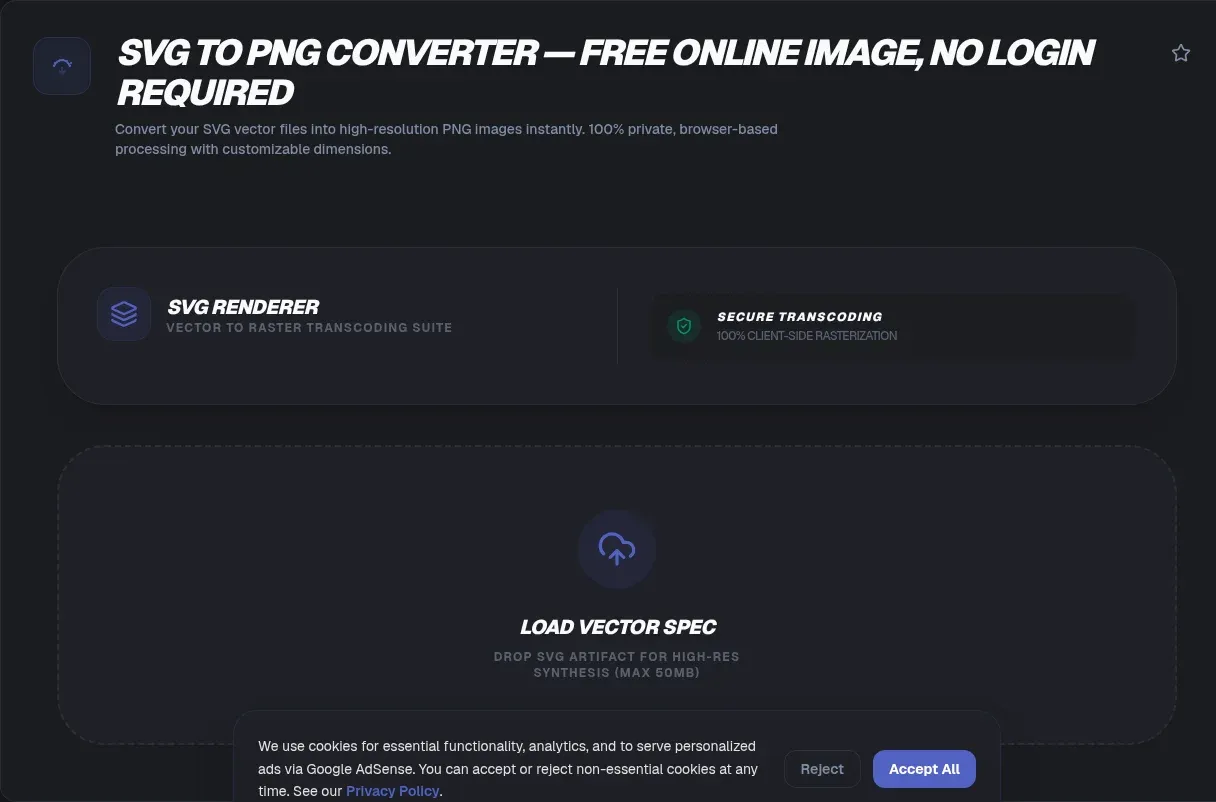
SVG won the format war for icons and logos, yet the moment an asset leaves the browser it keeps hitting walls. Gmail refuses to render it inside tags, Facebook's og:image parser ignores it, and Office releases older than 2019 cannot place it on a page. Converting SVG to PNG clears every one of those barriers in seconds. ToolSura runs the entire pipeline entirely in your browser, so your file never leaves your device and you choose the exact output, from a 32-pixel favicon to a 4096-pixel poster.
No uploads means no exposure and no waiting queue. Rendering happens locally against your browser's own engine under the same standard rules that govern any SVG shown as an image (WHATWG HTML Standard). Scripts embedded in a hostile file would run nowhere at all. Drop in a file, set a size, download a PNG, repeat as often as you like; the page even keeps working offline once loaded.
Key Takeaways
- ToolSura rasterizes SVG entirely in your browser: no uploads, no queues, no file ever leaving your device
- Gmail and Outlook reject SVG outright; measured email support tops out at 92.86% even counting partial clients (Can I Email)
- Blurry exports mean 1x rendering on a 2x screen; fix it by scaling output 2x to 3x
- Match pixels to purpose: 1200x630 for social cards, 512 for favicon masters, 1024x1024 for app stores
- PNG outweighs SVG because pixels outnumber geometry; optimize the source, compress the export
Why Convert SVG to PNG? Where Vectors Still Fail
Because the destinations that matter still demand pixels. Measured support for SVG across email clients reaches just 92.86%, and that figure already includes partial implementations (Can I Email). Social platforms go further: Facebook accepts only JPEG, GIF, or PNG for og:image (Meta). When a graphic has to travel, PNG remains the passport everybody accepts.
Email Blocks SVG Almost Everywhere
Email is the hardest wall. SVG referenced through an tag fails in Gmail on desktop and mobile webmail, in Outlook 2007 through 2019 on Windows, in Outlook.com, and in Outlook mobile; proper rendering survives only in Apple Mail and Outlook for Mac (Can I Email, tested January 2023). A newsletter header built as SVG silently disappears for a huge share of subscribers. Rasterize before sending and every inbox shows identical pixels.
Social Previews, Favicons, and Older Office
Link previews are stricter. Meta's crawler reads og:image only as image/jpeg, image/gif, or image/png, enforcing a 200x200 minimum with 1200x630 recommended for high-resolution displays (Meta). X card images accept JPG, PNG, WEBP, and GIF, never SVG, with 1200x628 suggested for the large summary layout (X Developer Docs). Build the card as PNG and both parsers smile.
Favicons and documents trail the same curve. Safari ignored SVG favicons until version 26, with Chrome and Edge catching up only at v80; global support now sits near 90.49% (caniuse). On the desktop, inserting or editing SVG requires Microsoft 365 or Office 2019 or newer, leaving older perpetual installs stranded (Microsoft Support). One PNG export covers every one of these surfaces at once.
How Browser-Based SVG Rendering Actually Works
A browser-based converter draws your file onto an HTML canvas using the browser's own renderer, then encodes the finished pixels with toDataURL() or toBlob(). No server joins the call at any point. The mechanics are standardized end to end: the WHATWG spec defines how drawable sources map onto canvas (WHATWG HTML Standard), and MDN documents how drawImage() consumes a source's intrinsic size in CSS pixels (MDN: drawImage()).
The Secure Static Mode
An SVG displayed as an image lives in a locked sandbox. The standard is explicit: user agents must not run executable code embedded in an image resource. Interactive behavior is off the table too, though animation may still play (WHATWG HTML Standard). External references get blocked for the same reason. That design cuts both ways: rendering hostile files is safe by construction, but anything your SVG points to externally, webfonts especially, will never show up.
Missing Width or Height? Nothing Renders
One authoring detail breaks more conversions than any other. MDN states plainly that SVG images must specify a width and height in the root element; a file carrying only a viewBox has no intrinsic size to rasterize (MDN Canvas Tutorial). When a dimension resolves to zero, drawImage() throws InvalidStateError and the export dies (MDN: drawImage()). ToolSura reads the viewBox and lets you type the intended size explicitly, which rescues hand-edited and minified files alike.
The Retina Blur Problem: Why Do Exports Look Fuzzy?
Fuzziness almost always means 1x rasterization stretched across a denser screen. devicePixelRatio reports the ratio of physical pixels to CSS pixels, and HiDPI panels return 2 or higher (MDN: devicePixelRatio). A 256-pixel canvas on such a display spreads every bitmap pixel across a 2x2 block of physical ones. Soft edges follow immediately.
The fix costs one setting: multiply the backing store by that ratio before drawing, then export the enlarged buffer. Stack Overflow's highest-scoring answers for SVG-to-PNG blur walk through exactly this arithmetic, one accepted answer holding a score of 56 (threads #31910043 and #55237929). In practice, export at 2x for retina screens and 3x when the asset might land in print mockups. Size for the largest surface where the graphic appears, never the smallest.
How Do You Convert SVG to PNG Online? Five Steps
The entire job takes under a minute, and batching never hits a ceiling. Everything runs locally, so no daily quota exists to exhaust; several server converters restrict free plans to ten conversions per day (CloudConvert free tier, checked August 2026). The workflow looks like this:
- Drop the file. Drag your SVG onto the page or pick it from disk. Parsing starts instantly and nothing moves off your machine.
- Set the dimensions. Keep the file's intrinsic size or enter exact width and height in pixels. ViewBox-only files get their missing numbers here.
- Choose a scale preset. 1x matches CSS pixels, 2x covers retina, 4x turns a 512-pixel logo into a 2048-pixel buffer.
- Toggle transparency. Leave it on unless the destination demands an opaque background; the canvas starts clear either way.
- Download. The PNG encodes locally and saves straight to disk. Repeat for the rest of the folder.
What Resolution Should You Export At?
Match the destination instead of guessing. Meta recommends 1200x630 pixels for og:image on high-resolution devices (Meta), X suggests 1200x628 for its large summary card (X Developer Docs), and Apple's app store icon ships at 1024x1024. Everything else falls out of two rules: serve the biggest surface, and double it for retina.
- Open Graph and social cards: 1200x630, staying under Meta's 8 MB ceiling.
- Favicons and touch icons: export a 512x512 master, then derive 32x32 and 180x180 variants; our favicon generator emits every size from one file.
- App store icons: 1024x1024.
- General web display: largest rendered size multiplied by two.
- Print: apply the 300 dpi rule of thumb, so a two-inch logo needs 600 pixels of width.
Torn between two sizes? Choose larger. Downscaling a PNG stays sharp; enlarging one never recovers detail that was never captured.
Transparency, Fonts, and Other Gotchas
Transparency survives by default. The PNG format builds alpha in from the start: truecolor images carry full 8- or 16-bit alpha samples, and the conversion canvas begins completely transparent (W3C PNG Specification). Whatever your SVG leaves unpainted stays see-through in the export.
A white box almost always traces back to an opaque background rectangle sitting inside the file; delete that rect, then convert. JPEG offers no such channel, which is why logos shipped as JPEG sprout halos on dark backgrounds (MDN: Image file types).
Webfonts Will Not Load
An SVG rendered as an image loads zero external resources, and @font-face declarations count. Text falls back to whatever the local machine owns, so a carefully kerned headline renders as Times on one laptop and Arial on another. Two fixes work reliably: embed the font as base64 inside a style block within the SVG, or convert the text to paths in your editor first. Embedded fonts survive any converter; paths survive everything.
Animated SVGs Freeze at Frame Zero
Browsers may honor animation inside images per the standard (WHATWG HTML Standard), but PNG stores exactly one frame. Conversion therefore captures the opening state, usually time zero. Need a specific pose? Set the animation's start condition in the file itself, or accept that the snapshot is what ships.
Why Is My PNG Bigger Than My SVG Was?
Different data models explain the jump. An SVG stores drawing instructions, often just kilobytes of geometry; a PNG must describe every pixel individually. A 2000x2000 export carries four million pixel definitions before compression, however sparse the artwork looks. Complexity inflates SVG size while resolution inflates PNG size, so a detailed badge at 4x can outweigh its source a hundredfold.
Compression softens the landing without discarding a single sample. PNG's method 0 applies DEFLATE with a sliding window of at most 32,768 bytes in zlib form, and losslessness is written into the format's design goals (W3C PNG Specification). Attack the problem from both ends: slim the geometry with our SVG Optimizer before rasterizing, then push the export through the PNG/JPG Image Compressor if it still weighs too much.
How Does Client-Side Rendering Work Under the Hood?
Four open-source projects prove that serious rasterization never needed a server. canvg parses SVG and renders it straight onto canvas with 3.8k GitHub stars (canvg), while resvg-js compiles a Rust renderer into WebAssembly for near-native speed (resvg-js). Both run entirely in the browser, which is exactly the model ToolSura builds on.
The Canvas Tainting Rules
Security boundaries decide whether an export succeeds. A tainted canvas refuses getImageData(), toBlob(), and toDataURL(), throwing SecurityError instead (MDN: CORS-enabled images). SVG-as-image once tainted canvases routinely, because same-origin files could fetch cross-origin resources, until browsers blocked all external loading inside SVG images (Mozilla Bug 672013). The modern split: a URL-loaded SVG containing foreignObject taints every engine, a data-URI SVG stays clean everywhere, and blob URLs diverged between browsers before being aligned (WHATWG issue #10641). Clean pipeline in, clean PNG out.
Different jobs suit different tools. html-to-image serializes a DOM node through foreignObject to capture whole HTML layouts as PNG (html-to-image), the approach behind our HTML to Image Converter. Heavy server pipelines belong to sharp, advertised as 4x-5x faster than the quickest ImageMagick settings yet confined to Node, Deno, and Bun (sharp). Browsers need none of it.
Common Mistakes When Converting SVG Files
Most failed conversions trace back to five repeat offenders we see constantly, and each one is fixable inside the tool's own controls before you press download. Skim the list once and you will recognize half the broken PNGs circulating in design channels today:
- Rasterizing small, enlarging later. Upscaling never rebuilds detail. Export at final size or bigger.
- Shipping files without width or height. With no intrinsic size, drawImage() throws before rendering starts (MDN: drawImage()).
- Keeping background rectangles. The mysterious white box is usually a literal .
- Trusting webfonts. Unembedded type falls back per machine; base64 embedding or outlined paths travel safely.
- Exporting 1x for retina audiences. Double the scale and thank yourself later.
Quick pre-flight: dimensions declared, background rect removed, fonts embedded, scale at least 2x. Ten seconds of checking beats a full redo.
Related Tools
Conversion slots into a wider browser-only workflow, and each of these runs client-side too:
- SVG Optimizer: shrink the source file before rasterizing so the geometry stays lean.
- Favicon Generator: turn one converted icon into every favicon and touch-icon size.
- PNG/JPG Image Compressor: cut the exported PNG further when page weight matters.
- Base64 Image Encoder: embed the finished PNG inline in CSS or HTML.
- Image Resizer: adjust output dimensions, though exporting at target size stays sharper.
- HTML to Image Converter: render full HTML snippets to images, not just SVG markup.
Pick the destination's pixel grid, keep transparency unless instructed otherwise, and export at 2x so high-density screens get the sharpness they expect. Run your most-used icon through the converter now, save the settings you settled on, and future-you facing a blank newsletter header will owe you one.