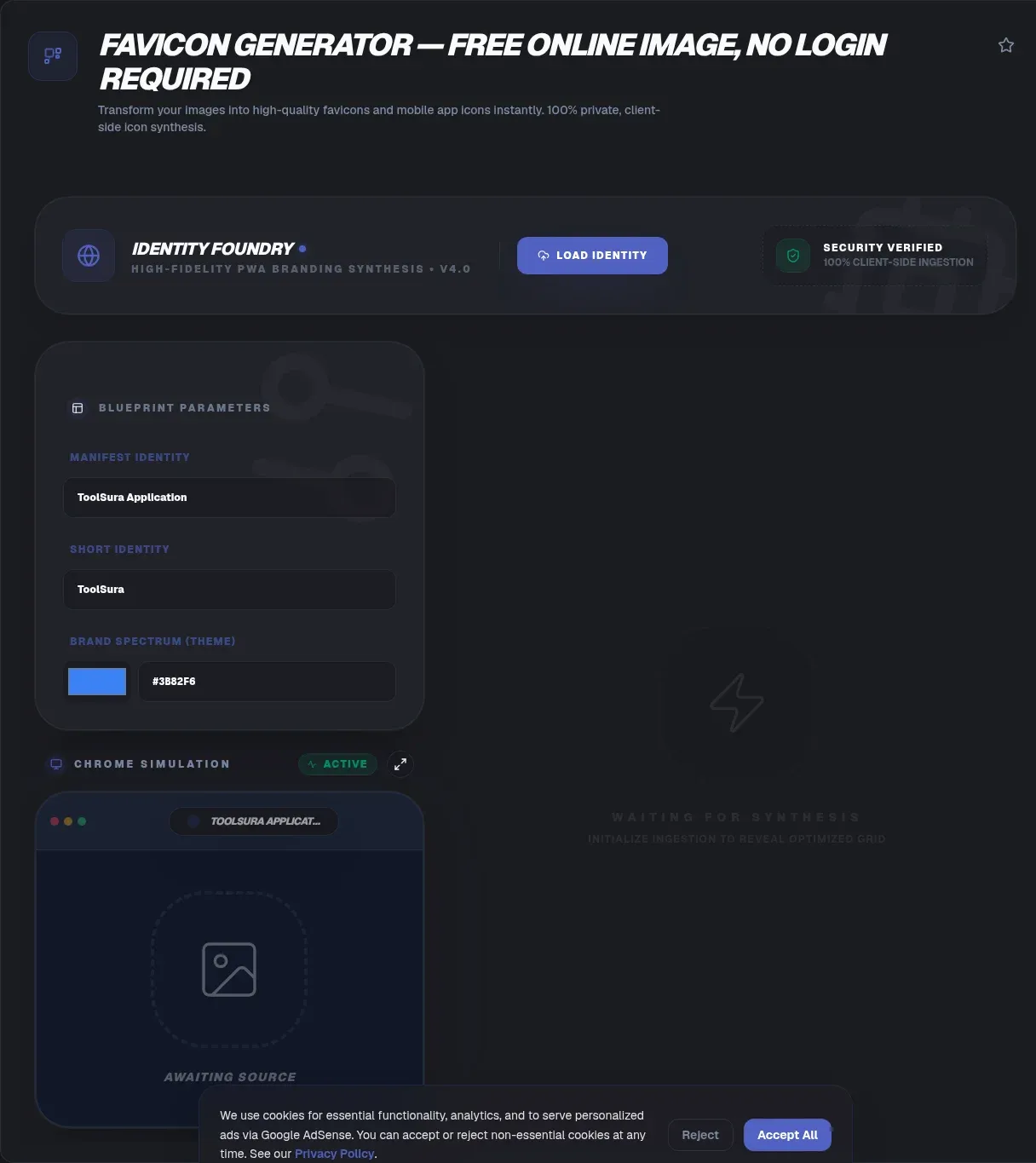
The ToolSura Favicon Generator turns one uploaded image into a complete favicon set: ICO, PNG, and SVG outputs across every standard size from 16 pixels up to 512, packaged for download alongside the snippets that wire them into a site, all without leaving your browser Source.
Processing happens entirely locally per the page's documentation: images never leave your computer, nothing transmits to servers, and the tool keeps working offline once loaded Source.
What a Favicon Actually Does
Per the tool's own framing, favicons identify sites across tabs, bookmark lists, browsing history, and phone home screens Source. That is a remarkable amount of brand surface for an image measured in kilobytes.
The favicon also functions as a trust cue. Browsers displaying a generic blank document icon next to a URL signal something unfinished; a crisp mark signals a maintained property. Users notice the difference even when they cannot articulate it, which explains why favicon generation remains a launch checklist item decades after the format appeared.
The Multi-Size Problem
One size cannot serve every context. Browser tabs render tiny dimensions where detail vanishes; home-screen shortcuts on phones want generous resolution; touch interfaces apply their own conventions entirely. A single upscaled file produces blur at small sizes while wasting bytes at large ones.
The specification-friendly answer is generating fixed sizes rather than shipping one scalable file everywhere. This generator covers the documented set: 16, 32, 48, 64, 128, 192, 256, and 512 pixel variants selectable per project needs Source, so each consuming context receives pixels prepared for exactly its dimensions.
How This Generator Works
Upload any common image format through click or drag-and-drop: JPG, PNG, GIF, BMP, and SVG sources are accepted per its FAQ, with square high-resolution sources of at least 256 pixels recommended and files kept under five megabytes for best performance Source.
Rectangular logos get handled by built-in cropping before size generation, and a real-time preview shows how results appear in tabs, bookmarks, and home screens before anything downloads. That preview closes the gap between abstract square canvases and the actual contexts where favicons live or die.
Choosing Source Images
Source quality determines ceiling quality. Start from the largest clean version of your mark available: vector exports rendered large, original logo files, or high-resolution raster art. Small screenshots upscaled to meet minimums inherit their softness permanently, since generation can shrink cleanly but never invents detail upward.
Square sources avoid cropping decisions entirely, though the built-in cropper handles rectangular inputs when necessary Source. Complex marks with fine lines often need simplification at these dimensions anyway; many brands maintain dedicated simplified marks precisely because full logos turn to mud below 64 pixels.
ICO Versus PNG Versus SVG
| Format | Strength | Best for |
|---|---|---|
| ICO | Multi-size bundle inside one file, legacy support | Universal browser compatibility |
| PNG | Compression plus transparency per size | Modern declarations, platform icons |
| SVG | Infinite scaling, tiny text-based files | Modern browsers, pinned tabs |
The tool's FAQ draws the distinctions directly: ICO holds multiple sizes and works everywhere including legacy browsers; PNG offers better compression and transparency; SVG scales infinitely as vector output Source. Shipping a combination covers every context without compromise.
Platform-Specific Icons
Beyond classic favicons, mobile platforms expect their own artifacts. Per the page's guidance: Apple touch icons want 180 by 180 pixels, Android Chrome manifests reference both 192 and 512 pixel entries, and Safari's pinned-tab feature accepts monochrome SVG Source.
Generating all of them from one source guarantees visual consistency across platforms, which hand-built icon sets rarely achieve. The generator emits the complete package so platform coverage stops depending on someone remembering a checklist.
Wiring It Up
Files alone do nothing until HTML references them. The page provides ready link-tag snippets showing the standard head declarations, plus a site.webmanifest example covering installable web app metadata Source. Copy, adjust paths, deploy.
Deployment placement matters too: icons conventionally live at predictable root paths so browsers discover them even without declarations. Combine generated files with the provided markup and both discovery paths work simultaneously.
Weight and Caching Notes
Favicon weight concerns are mostly historical, and the page quantifies it: typical outputs land under ten kilobytes, and browsers cache favicons after first fetch rather than re-requesting per page view Source. Performance anxiety should not delay favicon deployment.
The caching behavior cuts both ways, though. Updates propagate slowly because cached copies persist across sessions, so users may see old marks until cache expiry. Versioning filenames or cache headers handles forced refreshes during rebrands.
Common Favicon Mistakes Worth Avoiding
Recurring failures cluster into four habits. Uploading low-resolution sources and hoping generation invents detail upward. Forgetting platform-specific artifacts like the Apple touch icon, leaving phones with letter tiles. Deploying files without head declarations, relying on default-path discovery alone. And ignoring the preview, shipping marks that collapse visually at tab dimensions.
Each failure takes seconds to prevent and weeks to notice in the wild, which makes the real-time preview feature more valuable than its simplicity suggests Source. Look before downloading; the preview shows exactly what users will see.
A Rebrand Checklist
Favicon updates deserve their own mini-process during rebrands. Generate the new set from refreshed source art, update filenames or cache headers so browsers fetch fresh copies rather than serving stale cached marks, replace manifest references, and verify across browsers after deployment since favicon caching famously outlasts everything else on a page.
Testing Across Real Contexts
Generated previews help, but real contexts verify better. After deployment, check your tab icon against both light and dark browser themes, since dark marks vanish against dark chrome. Bookmark the site and inspect the bookmarks bar rendering. On phones, add the page to a home screen and confirm the touch icon appears as intended.
Each environment applies its own masks, rounding, and sizing conventions, so a mark surviving all of them is genuinely finished. Five minutes of cross-context checking protects every future first impression Source.
Favicon History in One Paragraph
The format began as a convenience and grew into an expectation. Browsers started requesting a fixed filename automatically, sites complied, platforms piled on their own variants for touch screens and pinned tabs, and eventually an absent favicon became the exception worth explaining. Today the ecosystem spans multiple formats and declaration mechanisms precisely because every platform added requirements across decades.
Generators exist to absorb that accumulated complexity: you supply one image, they emit everything the modern web might request, formats and declarations included Source. What once required hand-editing binary icons now takes one upload and one download click.
Key Takeaways
- Favicons brand your site across tabs, bookmarks, history, and home screens for a few kilobytes.
- Fixed sizes beat single upscaled files: generate 16 through 512 pixel variants deliberately.
- ICO bundles sizes for legacy reach; PNG and SVG cover modern and vector contexts.
- Square high-resolution sources produce the best results; cropping handles the rest.
- Ship the whole package: platform icons plus link tags plus webmanifest from one source image.
Related Tools
Round out the image toolkit:
- Image Resizer produces the square source sizes icons start from.
- PNG/JPG Image Compressor trims icon payloads before deployment.
- Base64 Image Encoder inlines small icons directly into markup.
- Color Picker & Palette Generator samples brand colors for consistent iconography.
- Image Metadata Viewer inspects what your source files carry.
- Word Counter keeps accompanying release notes within limits.
Frequently Asked Questions
What does a favicon actually do for my site?
It identifies your site everywhere browsers display compact references: tabs, bookmarks, history lists, and phone home screens, per the tool's summary. Beyond recognition, a polished favicon signals a maintained property, while missing favicons render as generic blank documents that undermine otherwise professional presentation.
Why do I need multiple favicon sizes instead of just one?
Different rendering contexts demand different dimensions: tabs draw tiny versions while home screens want large ones. Fixed-size generations prevent the blur that upscaling introduces and the waste that downscaling creates. Generating the full documented set means every context receives pixels authored for its exact size.
Which formats should my favicon set include?
A complete set combines all three documented outputs: ICO for universal compatibility including legacy browsers, PNG files for modern declarations and platform icons, and SVG for infinite-scaling contexts like Safari pinned tabs. Together they cover every browser generation and platform convention without visual compromise anywhere.
What makes a good source image for favicon generation?
Square, high-resolution artwork of at least 256 pixels, kept under five megabytes, per the tool's recommendations. Simple marks survive tiny dimensions better than detailed logos, so consider simplified variants for the smallest sizes. Rectangular sources work too thanks to built-in cropping, but square inputs skip that decision entirely.
Will adding favicons slow my website down?
No, per the page's documentation: typical favicon outputs weigh under ten kilobytes, and browsers cache them after first fetch rather than requesting repeatedly across page views. Compared with hero imagery or scripts, favicon weight is effectively invisible in performance budgets, so deployment hesitation buys nothing.
How do I add the generated favicon to my site?
Copy the provided link-tag snippet into your document head pointing at the uploaded files, and include the accompanying site.webmanifest example for installable-app metadata, both supplied by the generator per its documentation. Placing files at conventional root paths lets browsers discover them even without explicit declarations.
Can I create animated favicons with this tool?
No. Generation covers static formats only: ICO, PNG, and SVG, per the tool's FAQ. Animated tab icons exist in some browsers but remain nonstandard and distracting, which is presumably why the capability stays out of scope here. Static marks age better and behave consistently everywhere anyway.Small file, constant visibility, permanent placement in every visitor's interface: few assets work as hard as a favicon does, and generating the complete set from one source image takes less time than finding your logo file in the first place.That compression of effort is the whole story: an hour of platform archaeology collapses into a single upload, and the hardest remaining task becomes choosing which square version of your logo deserves to represent you in ten thousand tabs.Generate the set, wire the snippets, check the tabs, and move on to work only you can do.The favicon will still be working for you long after this article is closed, which is rather the point of a mark that lives in every tab.For teams managing multiple properties, repeat the process per domain rather than sharing one favicon across sites: distinct marks prevent tab confusion when users work across your properties simultaneously, and the generator makes per-domain sets cheap enough that consistency never has to wait on shared resources or scheduling.And when the inevitable rebrand arrives years from now, the archived source image plus this generator rebuild the entire icon ecosystem in minutes, which is exactly how long a task this small always deserved to take. Small icon, lasting impression: generate the set once and let it work everywhere. Every tab counts. Every single one.