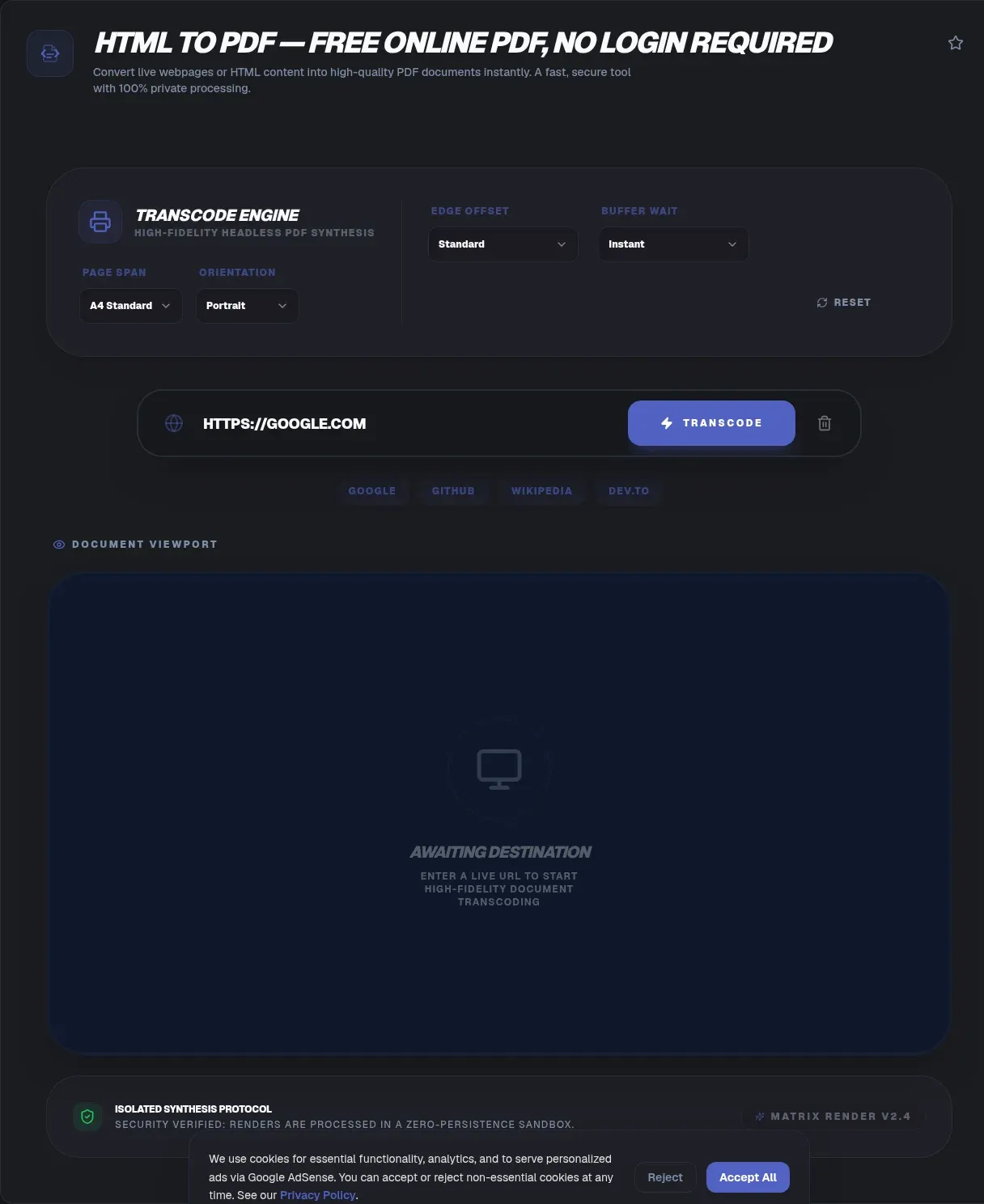
Turning a web page, invoice template, or report into a PDF should not mean shipping it to somebody else's computer. ToolSura renders HTML to PDF entirely in your browser: the engine doing the work already lives on your machine, and the file lands straight in your downloads folder.
Because rendering happens locally, nothing is uploaded at any step, and your markup, stylesheets, and the generated document never leave your device. This guide explains how client-side PDF generation works, where it beats server pipelines, and which print CSS behaves.
Key Takeaways
- ToolSura generates PDFs from HTML inside your browser tab: nothing is uploaded, so there is no retention window and no server bucket to breach
- Canvas-based converters draw pictures while print-engine routes keep selectable text; test yours once with Ctrl+F
- wkhtmltopdf was archived on January 2, 2023 and receives no fixes (wkhtmltopdf)
- CSS @page sizing became Baseline in December 2024, so pagination stylesheets now work everywhere (MDN)
- Upload services delete files after one to two hours; local generation means zero minutes on anyone's servers
Two Ways to Make a PDF From HTML
Every converter picks between two architectures. Client-side tools reuse the engine already installed in your tab; server tools rebuild the page remotely, which is why automation frameworks ship whole browsers: Puppeteer downloads Chrome at install time, and Playwright, at 95,000 stars as of August 2026, drives Chromium, Firefox, and WebKit (Playwright).
Server pipelines are heavyweight by design: farms install headless browsers, queue jobs, and meter output. Even non-browser engines need infrastructure; WeasyPrint requires Python 3.10 or newer plus native Pango 1.44, fitted through packages or Docker, so it cannot run in a visitor's browser (WeasyPrint).
Client-side generation skips that supply chain: your browser already parses HTML, applies CSS, and lays out pages, and a converter redirects that machinery into PDF form. No queue, no per-document bill, and no stray copy waiting on a worker disk.
Why Do Some Converters Give You Pictures Instead of Text?
Some converters hand back a photograph of your page wearing a PDF wrapper. Canvas-pipeline libraries such as html2canvas redraw the DOM 'as a canvas image,' producing pixels rather than text objects; paired with jsPDF, every page embeds as flat raster (html2canvas), so selecting, searching, and screen readers come up empty.
The five-second test settles which kind you received. Press Ctrl+F in the result or drag across a line: highlighted, selectable characters mean real text survived, and silence means pixels. Contracts, invoices, and anything people will copy deserve real text.
This distinction stays buried because it complicates marketing. The html2canvas maintainers themselves describe the project as being in a 'very experimental state' and discourage production reliance, yet canvas screenshots remain a common quick path to PDF. Knowing the pipeline tells you what the output can do.
The Client-Side Stack, by the Numbers
Adoption shows where the ecosystem lives. As of August 2026, html2canvas counts about 31,900 GitHub stars and jsPDF about 31,300, making the screenshot-plus-generator pairing the most common quick client-side recipe (jsPDF); both ship under MIT licenses and run entirely in JavaScript.
Alternatives trade convenience for structure. pdf-lib, around 8,600 stars as of August 2026, modifies PDF objects directly and runs in Node, browsers, Deno, and React Native (pdf-lib). Paged.js, near 1,500 stars, polyfills the W3C CSS Paged Media Module for running headers and folios (Paged.js). Treat these as typical client-side stacks, not a fixed recipe any tool must follow.
The server side lost its veteran. wkhtmltopdf, built on the aging Qt WebKit engine with about 14,600 stars, was archived on January 2, 2023; the repository is read-only and no fix will ever land (wkhtmltopdf). Its users inherit a frozen renderer, one more reason in-tab generation looks attractive.
How Do You Convert HTML to PDF Without Uploading It?
Four steps, and zero network trips after the page loads:
- Load your markup. Paste HTML into the editor or open a saved .html file from disk.
- Preview locally. Your browser applies the CSS and lays out the page like any website.
- Set the paper. Choose A4 or Letter, orientation, and margins; print CSS in the document overrides defaults.
- Generate and save. The PDF assembles in memory and downloads immediately: no watermark, no conversion counter.
Want verification instead of promises? Open developer tools, switch to the Network tab, and convert something. Requests fetch the page itself, then the log goes quiet: no outbound POST carries your markup, because generation happens inside the tab. Upload-based converters show the opposite.
Which Print CSS Actually Works?
Modern browsers finally speak proper pagination CSS. The @page rule, including the size descriptor for A4 and Letter, reached Baseline Newly Available status in December 2024, with margin and page-orientation descriptors supported alongside (MDN). One declaration now sets sheet dimensions across Chrome, Safari, Edge, and Firefox.
@page {
  size: A4;
  margin: 18mm;
}
Page breaks moved too: MDN marks page-break-before, -after, and -inside as deprecated legacy aliases of break-before, break-after, and break-inside, where old always maps to page (MDN). Old snippets keep working, but new stylesheets should target the fragmentation syntax.
How Do Fonts Behave in Generated PDFs?
Fonts fail quietly, more than any other input. If rendering starts before a webfont finishes downloading, fallback glyphs bake in and look subtly wrong forever. Load critical typefaces early, and embed them as base64 data URIs for self-contained documents that convert offline.
Character coverage hides a second trap. Typical generator libraries ship standard PDF fonts limited to ASCII codepages; jsPDF's documentation notes that non-Latin scripts need a custom .ttf embedded through its fontconverter or characters garble (jsPDF). Arabic, Devanagari, and accented-heavy languages depend on that path.
What Happens to Flexbox, Grid, and Complex Layouts?
Layout fidelity depends on who computes it. A real browser engine handles flexbox and grid natively because that is its day job; canvas reimplementations note that each CSS property must be manually built, and html2canvas's flex alignment bug, issue #2781, still saw activity in June 2025 (html2canvas issue #2781).
Multi-column layouts tell the same story: rasterizing bug #2729 sits open, and grid support arrived only partially. When a page looks perfect on screen but breaks in the PDF, a reimplemented engine diverging from the real one is the usual suspect. Block flow, tables, and explicit breaks sidestep the divergence.
Does It Capture JavaScript-Rendered Content?
Yes, and here the browser wins outright. Pages execute in a live environment on your device, so charts, counters, and injected tables finish rendering before export captures them. A genuine engine produced that DOM moments earlier, exactly as visitors see it.
Server APIs approximate this with knobs: configurable waits for asynchronous JavaScript inside hard ceilings, like PDFcrowd's documented 60-second conversion-time limit and rate limits (PDFcrowd). Heavy single-page apps occasionally lose that race and arrive half-drawn on remote workers.
How Do Multi-Page Documents and Page Breaks Work?
Pagination triggers automatically once content outgrows one sheet, though automatic rarely means tasteful. Start chapters with break-after: page, protect tables and figures with break-inside: avoid, and note that legacy aliases still function: page-break-after: always maps onto its modern replacement (MDN).
Book-grade control runs deeper. Running headers, folios, footnotes, and repeated table heads belong to the W3C CSS Paged Media modules, which native engines cover unevenly; Paged.js exists to polyfill those specifications in the browser, chunking content into page-sized boxes ahead of export (Paged.js).
What Do Invoices, Receipts, and Real Workflows Look Like?
Most generated PDFs travel by email immediately, so size has concrete consequences. Gmail's limit for personal accounts is exactly 25 MB per message; larger attachments are stripped and swapped for Drive links automatically (Google). Logo-heavy receipt templates cross that line invisibly.
A lean local pipeline handles it: resize oversized images before embedding, generate in your browser, compress if the result creeps toward the limit, then merge receipts into one archive. Compression and merging stay client-side with the PDF Compressor and PDF Merger & Splitter, so financial paperwork completes its lifecycle on your own disk.
What Do Server APIs Charge For Free Generation?
Free tiers at API vendors are trials with the meter running. PDFcrowd bills one credit per 0.5 MB of output, hands new accounts 100 trial credits valid one month, and enforces its 60-second ceiling alongside rate limits (PDFcrowd). Output size, not document count, drains the balance.
Managed engines price higher because they license commercial renderers underneath. DocRaptor starts at $15 per month for 125 documents per its pricing pages, watermarked tests included; it wraps Prince, whose direct license starts at $2,500 per year (DocRaptor). Everyday invoices do not need that budget.
Client-side generation prices at zero marginal cost because it consumes hardware you already own: no credit ledger, no overage arithmetic, no trial watermark.
Where Does Your File Go? Retention Compared
Upload converters hold your document on servers you neither control nor audit. Sejda states files are deleted after 2 hours, with free-tier caps around tens of pages and roughly 50 MB (Sejda); Smallpdf's tier allows around two tasks a day, deleted after about an hour, per its site (Smallpdf).
Adobe ties retention to identity: uploads are handled on Adobe servers and, quoting its stated policy, deleted unless you sign in (Adobe). Signing in turns convenience into a persistent account-linked copy, a tradeoff local tools remove entirely.
History shows why windows matter. In October 2020, attackers stole the database behind Nitro PDF's free conversion service; security reporting established 77,159,696 records exposed, converted-document titles among them, though the company initially called the incident low-impact (BleepingComputer). In July 2024, Cybernews researchers found online makers PDF Pro and Help PDF leaking 89,062 user-uploaded documents through a misconfigured AWS S3 bucket still receiving files during disclosure (Cybernews).
Neither incident involves the vendors compared above. Both mark the structural point: any upload model creates a bucket or database that can misconfigure or get stolen. Files that never leave your device have no such artifact anywhere.
Common Mistakes When Generating PDFs from HTML
Three repeat offenders cause most botched exports:
- Skipping the text test. Convert a typical document once, press Ctrl+F, and know whether you got text or a picture before batch-processing fifty files.
- Exporting before webfonts load. Fallback glyphs bake in permanently; wait for fonts or embed them.
- Assuming backgrounds survive. Defaults vary by engine; Puppeteer's page.pdf() ships with backgrounds off and letter size unless told otherwise (Puppeteer).
Related Tools
Generation is one link in a local-first chain, and every tool below runs client-side:
- PDF Compressor: shrink an overweight export under email limits.
- PDF Merger & Splitter: combine a month of invoices or pull out single pages.
- Word to PDF Converter: starting from a DOCX instead? Same zero-upload treatment.
- PDF to Word Converter: need editable text again? Convert back without uploading either.
- PDF Annotator in Browser: review and mark up the finished PDF, no server involved.
- Image Resizer: shrink embedded pictures first so the PDF stays light.
HTML is where documents are born; PDF is where they travel. Moving between them should not mean uploading payroll data or medical summaries to a stranger's queue with a deletion timer attached. Point the HTML to PDF Converter at your markup, watch the Network tab stay silent, and keep every byte on your side of the wire.
Frequently Asked Questions
Does this tool upload my HTML file anywhere?
No. ToolSura renders your HTML and builds the PDF entirely inside your browser tab, so nothing is uploaded at any point. You can verify it yourself: open developer tools, switch to the Network tab, and run a conversion. After the page loads, you will see no outbound request carrying your document.
Is the output text-selectable or just images?
That depends on the rendering engine, not on magic. Canvas-based stacks such as html2canvas feeding jsPDF draw the page as a picture, so the text cannot be selected or searched. Print-engine approaches keep real text. Test once with your typical document: press Ctrl+F in the result or try selecting a sentence.
Can I use custom fonts in the generated PDF?
Yes, provided the font finishes loading before rendering starts. Install it locally, embed it with @font-face using an accessible file, or link it reliably. If a webfont loads late, fallback glyphs appear instead. Note that jsPDF's built-in standard fonts cover only ASCII characters; other scripts need an embedded .ttf file.
Does it capture JavaScript-rendered content like charts?
Yes. The page runs in a live browser environment inside your device, so charts, counters, and dynamically injected tables are captured after they render. Server-side APIs must simulate this with explicit wait settings and hard time caps, such as the 60-second conversion limit that PDFcrowd enforces on every job.
Are there file size or usage limits?
ToolSura imposes no artificial server-side caps because there is no upload pipe to meter. The practical ceiling is your device's memory: hundreds of embedded images can strain a phone's browser tab. Generated size matters downstream too, since Gmail strips attachments from messages over 25 MB, so compress large outputs before emailing them.
What do paid HTML-to-PDF APIs cost compared with this?
Commercial APIs meter every document. PDFcrowd bills one credit per 0.5 MB of output, DocRaptor starts at $15 per month for 125 documents with watermarked test files, and a direct Prince license runs $2,500 per year. ToolSura charges nothing for the same work because local generation has no marginal per-document cost.
Is browser-based conversion safe for confidential documents?
It removes the risk category that keeps causing incidents. In July 2024, researchers found 89,062 user-uploaded documents sitting in an open cloud bucket belonging to two separate online PDF makers. ToolSura uploads nothing, retains nothing, and leaves those incidents no equivalent: there is no server-side bucket left to misconfigure.