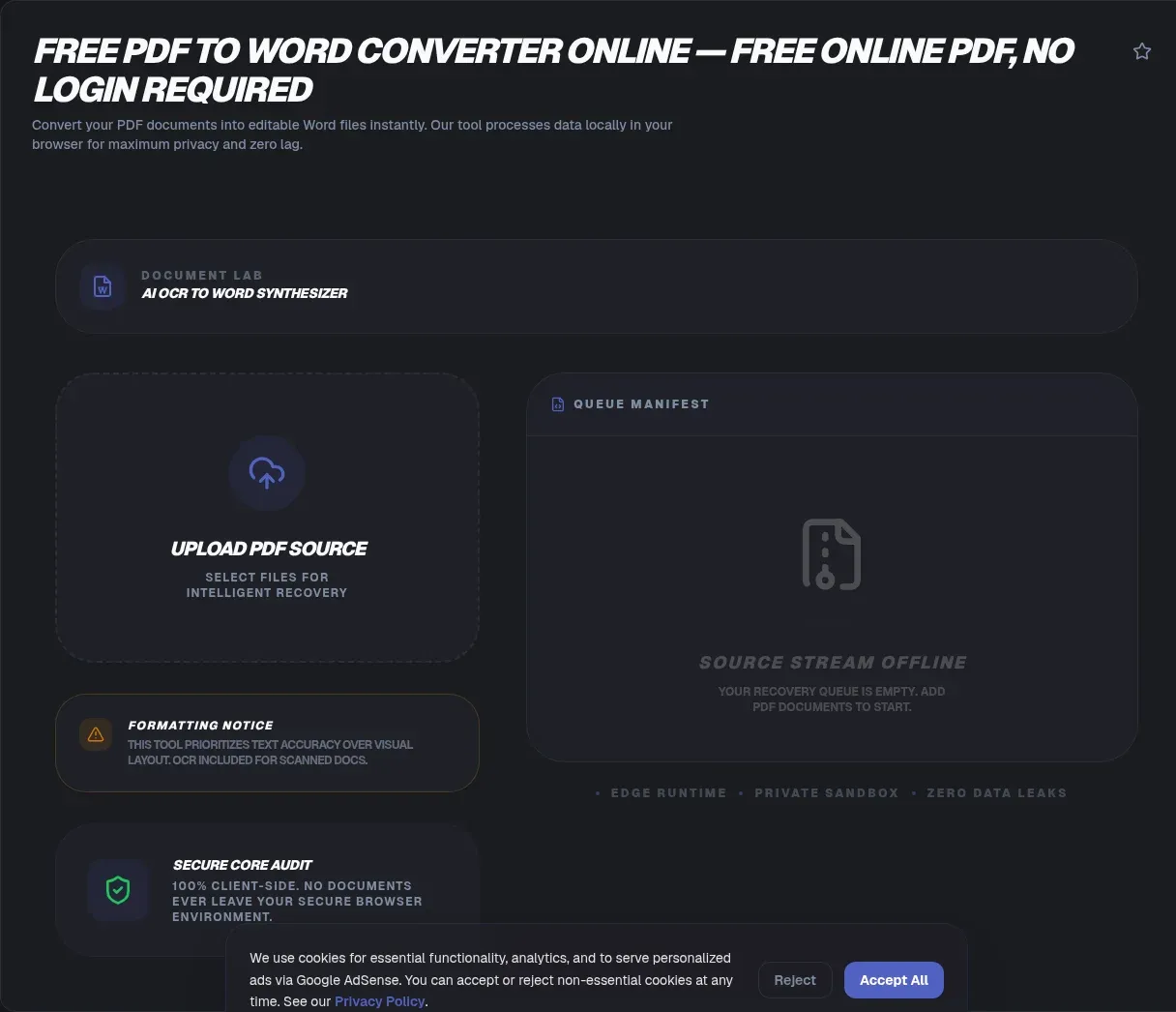
Contracts, invoices, and reports arrive frozen as PDFs, yet nearly every edit happens in Word. ToolSura bridges that gap entirely in your browser: drop in a PDF, get back an editable DOCX, and the file never leaves your device. Parsing and document generation both run on your hardware, inside this tab.
No uploads means no progress bar crawling toward somebody's server, no account wall, and no deletion countdown on a disk you have never seen. This guide covers why PDF to Word conversion is harder than it looks, how to spot a scanned page before wasting a cycle, what formatting honestly survives, and where competitor upload pipelines have failed publicly.
Key Takeaways
- ToolSura converts PDF to DOCX locally: parsing and file generation happen in your tab, so nothing is uploaded
- PDF stores positioned drawing commands while DOCX stores paragraphs and styles, so conversion is heuristic reconstruction, not translation
- Run the Ctrl+F test first: if searching finds nothing, the page is a scan that needs OCR (Section508.gov)
- Upload converters hold files on their servers for an hour or more; local conversion eliminates that retention window
- Single-column documents with standard fonts convert cleanly, while dense multi-column layouts usually need some manual cleanup
Why Do So Many Documents Live as PDFs?
Because PDF won the default-format war decades ago and never gave the crown back. An estimated 79 to 92 percent of indexed documents online are PDFs, the PDF Association counts roughly 2.5 trillion in existence with 290 billion added annually, and CommonCrawl ranks it the third most common file format on the web behind only HTML and XHTML (PDF Association).
The format earned that position on merit. A PDF renders identically on any machine, which is why signatures stick and invoices print predictably across offices and operating systems. The weakness appears the moment editing starts: PDF was engineered to freeze layout, never to hand paragraphs back to a writer. That design decision shapes everything below.
Why Is PDF to Word Conversion So Hard?
Because PDF records geometry, not meaning. ISO 32000-2, the current 986-page standard, specifies a fixed-layout page description: select a font at 14 points, move the cursor to precise coordinates, draw this string (ISO). Nowhere in that model exists a paragraph object, a table cell, or a column. Those concepts simply are not stored.
So an editor reconstructs intent the way a human reader would. Aligned lines become paragraphs. Grid-arranged text becomes a table. Vertical gaps hint at columns. Worse, reading order is not recorded in ordinary PDFs, so a two-column page extracted naively interleaves its text line by line. Every converter heuristically rebuilds structure from coordinates, which makes conversion educated guesswork rather than mechanical translation. Good engines guess accurately; lazy ones emit independently floating textboxes.
Tables deserve special mention because they do not exist in PDF either, just text arranged in a grid plus optional vector line commands, with no metadata marking rows, spans, or merged cells. Crisp printed borders make inference reliable. Invisible borders, irregular spacing, and wrapped cell content quietly break it.
What Does a DOCX File Actually Contain?
Not one file: a ZIP archive of XML parts. The Office Open XML format behind every .docx is standardized as ECMA-376 and ISO/IEC 29500, and a minimal document holds just three members: a content-type manifest, a relationships file, and document.xml (Ecma International). Rename any DOCX to .zip, extract it, and inspect the machinery yourself.
Inside document.xml, WordprocessingML stores content hierarchically: sections contain paragraphs, paragraphs contain runs carrying the styling. A layout engine re-flows that structure onto pages each time the file opens or edits (ISO). Flow versus fixed coordinates is the exact opposition that makes the two formats trade through reconstruction instead of direct copying.
The practical payoff is genuine editability. A valid package opens in Microsoft Word, Google Docs, LibreOffice, and Pages with reflowing text, working spellcheck, and real styles. Renaming a PDF to .docx fools nothing; assembling correct XML is what makes Word adopt the result as its own.
Is Your PDF Native Text or a Scanned Copy?
This one check decides whether conversion can work at all. Image-only PDFs contain zero machine-readable text: flat raster pictures wearing a PDF wrapper, impossible to search, copy, parse, or feed to a screen reader, which is why US Section 508 guidance treats them as accessibility failures (Section508.gov).
The test costs five seconds. Press Ctrl+F and search for a word you can plainly see on the page. A hit means native text, ready to convert directly. Silence means the page is a photograph and needs optical character recognition first. Adobe's own documentation walks through how scanners produce exactly these image-filled files (Adobe).
Can Scanned PDFs Become Editable Word Documents?
Yes, through OCR, and input quality decides the outcome. On clean printed text, Tesseract reaches 97.5 to 98.7 percent character accuracy in UNLV's published testing (Tesseract). Difficult scans are humbler: one peer-reviewed benchmark of 18,568 documents ranked Tesseract last among tested engines (Springer), and separate research measured 13.4 percent accuracy on challenging images, rising to 61.6 percent after preprocessing (MDPI).
OCR also runs in the browser now. tesseract.js compiles the engine to WebAssembly with support for over 100 languages, processing images entirely client-side, and pairing it with a local parser yields fully local PDF OCR (tesseract.js on GitHub). Whatever engine you use, rescanning at 300 dpi beats fighting a bad original, because preprocessing only recovers so much.
How Do You Convert a PDF to Word Without Uploading It?
Five steps, zero network round trips after the page loads:
- Drop your PDF onto the page or browse to select it. Multiple files queue as a batch.
- Local parsing starts immediately. pdf.js reads the bytes straight from your disk, inside the tab.
- Structure gets rebuilt. Aligned lines group into paragraphs, gridded text into tables, stacked blocks into columns.
- The DOCX assembles in memory. A valid Office Open XML package builds on your machine, not in a distant worker farm.
- Download and edit. Open the result in Word, Google Docs, or LibreOffice and continue working.
Want proof instead of promises? Open developer tools, switch to the Network tab, and convert a file. Requests load the page itself, then the log goes quiet: no outbound POST ever carries your document, because generation never leaves the tab.
Will Your Formatting Survive Conversion?
Mostly, yes, for ordinary documents, and honest expectations beat marketing fiction. Single-column reports in standard fonts convert with paragraphs, headings, and emphasis intact. Multi-column layouts suffer first: since reading order lives nowhere in an untagged PDF, columns frequently merge into one continuous stream unless detection catches the gutter.
Tables convert best with clean borders and simple cells. Merged cells, hairline rules, and wrapped text degrade inference. When grouping turns ambiguous, well-built converters fall back to independently positioned textboxes: visually faithful to the original, mildly annoying to edit. Reflow those sections by hand and carry on.
Budget cleanup accordingly. A straightforward letter lands ready to send; a dense annual report deserves ten minutes of proofreading, especially around footers drifting into body text. Any service promising pixel-perfect fidelity on every file is overselling, because the source format simply does not store enough information to guarantee it.
Where Does Your File Go With Upload-Based Tools?
Onto servers you neither control nor audit, for retention windows you do not pick. Smallpdf uploads your file and auto-deletes it after roughly one hour, with OCR gated behind a Pro subscription (Smallpdf). iLovePDF also requires uploading, advertises Solid Documents processing, and states deletion after about two hours (iLovePDF). Adobe's online converter caps files near 100 MB and ties deletion to your sign-in status (Adobe).
Those windows have historically mattered. In October 2020, the Nitro PDF breach exposed around 70 million user records from the cloud database behind a free email-only conversion service, reportedly affecting customers that included Google, Apple, Amazon, and Microsoft (BleepingComputer). Four years later, researchers discovered a misconfigured cloud storage bucket spilling over 89,000 user-uploaded files, passports and contracts among them, from two online PDF tools (TechRadar).
Local conversion removes this entire risk category by construction. Nothing uploaded means nothing retained, nothing breached, nothing resurfacing from a forgotten bucket. While converting, your sensitive document exists in exactly one place: memory inside your own browser.
How Does Browser PDF Parsing Work Under the Hood?
On Mozilla's pdf.js, the same Apache-licensed engine Firefox has shipped as its native PDF viewer since version 19, maintained with over 50,000 GitHub stars (pdf.js on GitHub). The library parses PDF syntax, decompresses content streams, and exposes a text layer carrying positions, fonts, and sizes for every glyph, all in JavaScript (pdf.js demo).
That extraction feeds reconstruction. Each glyph arrives tagged with its page position, font name, and point size, exactly the data grouping logic consumes: shared fonts and tight baselines fuse into paragraphs, mismatched sizes split into headings. Parse, extract, cluster, build: the whole pipeline runs on your CPU.
One boundary matters: encryption. A password-protected file cannot be parsed without credentials, by design, so protected documents must have protection removed first, on files you own or are authorized to handle. Everything else, from compressed streams to subsetted CID fonts, is routine extraction handled before a single byte travels anywhere.
Are There Page or Size Limits?
None imposed artificially, because there is no server quota to defend. Upload tools meter usage because every megabyte costs ingress, storage, and egress money; local processing deletes that cost structure entirely. Your real constraint is hardware: a modern laptop converts documents running to hundreds of pages, while older phones slow noticeably on chunky files. There is also no daily conversion counter resetting at midnight, because nobody is paying for your clicks.
Memory is the honest ceiling. Each parsed page holds text objects, font metrics, and layout data in RAM, so a 900-page tome asks more of a tablet than of a workstation. If a huge file strains your device, compressing the PDF first trims the workload cheaply.
Does Converting Work Offline?
After the initial page load, yes. Client-side logic means the browser already holds every line of code the job requires, so a dropped connection mid-conversion changes nothing: the job finishes, the download completes, and no partial file sits stranded in a foreign queue. Airplane mode is the extreme demo, and it works. That resilience doubles as privacy evidence, since a tool needing zero connectivity cannot be phoning home with your data.
What About Password-Protected PDFs?
They stop at the door, correctly. Encryption exists to prevent exactly what conversion requires, which is reading raw content, so a protected file cannot proceed without credentials and no honest tool pretends otherwise. Strip the password first on documents you are authorized to modify, then convert normally. Services advertising encrypted-file bypasses are either exaggerating or doing something you should not trust with sensitive paperwork.
Common Mistakes When Converting PDFs to Word
Six repeat offenders cause most botched conversions:
- Converting a scan and expecting prose. Skip the Ctrl+F check and image-only pages return empty or garbled output.
- Feeding photocopy-quality scans straight to OCR. Rescan at 300 dpi first; preprocessing lifted measured accuracy from 13.4 to 61.6 percent on hard images (MDPI).
- Renaming .pdf to .docx by hand. Word rejects the impostor, because the extension is not the format; the XML package is.
- Shipping multi-column output unread. Columns merge often enough that a thirty-second skim against the original pays for itself.
- Deleting the source PDF. Keep it as ground truth while cleaning up tables and column merges.
- Trusting every table blindly. Merged cells and wrapped rows are where inference breaks; eyeball each grid before circulating.
Related Tools
Conversion fits into a wider local-first pipeline, and every tool below runs client-side too:
- Word to PDF Converter: need the reverse trip? Convert Word back to PDF in your browser.
- PDF Compressor: shrink oversized PDFs before converting them, sparing your RAM.
- PDF Merger & Splitter: combine chapters or pull out the three pages you actually need.
- PDF Annotator in Browser: mark up documents without uploading them either.
- HTML to PDF Converter: generate fresh PDFs from HTML, likewise client-side.
- Word Counter: check the word count of your converted document in seconds.
A PDF freezes a document; a DOCX sets it moving again. Moving between them should not involve mailing your contract, medical record, or tender response to a stranger's storage bucket with a deletion timer. Point the PDF to Word Converter at your file, watch the Network tab stay silent, and keep every byte on your side of the wire.