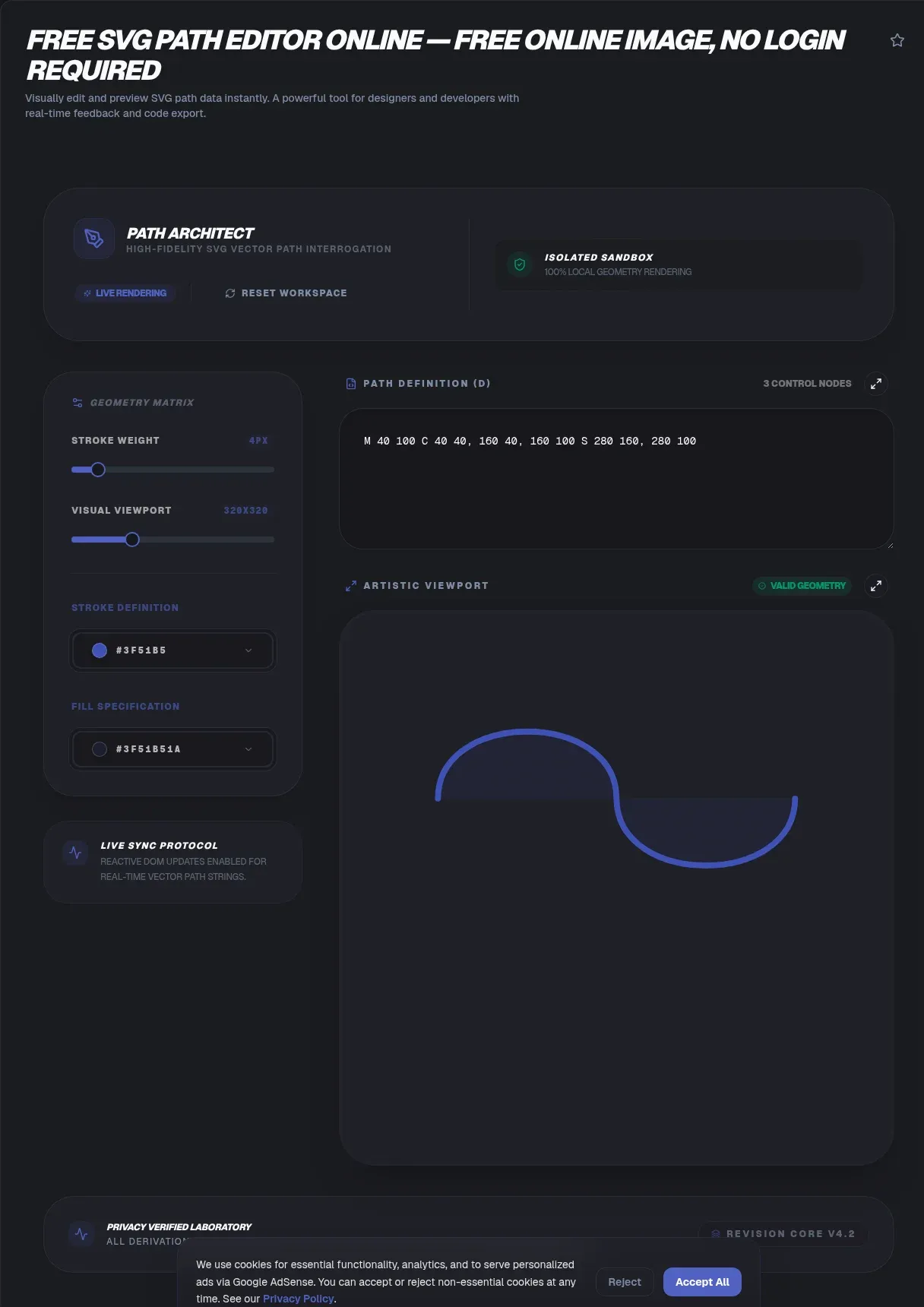
Every optimized icon ships with a d attribute that reads like a collapsed alphabet: M4 12h8m-4-4v8c0.... Optimizers strip separators, drop command letters, and swap absolute for relative until the numbers stop meaning anything to human eyes. A visual editor reverses the damage. ToolSura parses and edits SVG path data entirely in your browser, so your artwork never leaves your machine.
Paste a raw d string or drop in a file and the anchors appear on canvas. Drag bezier handles, insert or delete nodes, flip between absolute and relative coordinates, then copy the cleaned-up result back into your project. No uploads, no signup, no watermark. The rest of this guide decodes every command letter, explains why minified paths look alien, and walks through debugging arcs that refuse to cooperate.
Key Takeaways
- Every SVG path uses 6 command families across 20 letters; uppercase means absolute coordinates, lowercase means relative (MDN)
- SVGO rewrites paths aggressively: mixed abs/rel segments, h/v promotion, cubic-to-quadratic downgrades, and rounded decimals
- Arcs break for predictable reasons: four candidate arcs, two flag bits, silent radius scaling defined in SVG 2 Appendix B
- Fewer nodes draw faster, and rounding coordinates shrinks files while speeding rasterization
- ToolSura keeps the whole workflow local: paste, edit visually, copy, zero uploads
What Do the Letters in an SVG Path Actually Mean?
Twenty command letters cover every path ever drawn, organized into six families: Moveto, Lineto, Cubic Bezier, Quadratic Bezier, Elliptical Arc, and ClosePath (MDN). The d attribute is nothing more exotic than a string storing those commands in sequence, parsed left to right by the renderer (W3C SVG 2).
| Letter | Command | Parameters | Example |
|---|---|---|---|
| M / m | Moveto | x y | M10 10 |
| L / l | Lineto | x y | L30 30 |
| H / h | Horizontal lineto | x | H50 |
| V / v | Vertical lineto | y | V80 |
| C / c | Cubic bezier | x1 y1 x2 y2 x y | C20 40 40 40 50 30 |
| S / s | Smooth cubic | x2 y2 x y | S60 20 70 10 |
| Q / q | Quadratic bezier | x1 y1 x y | Q80 0 90 20 |
| T / t | Smooth quadratic | x y | T100 40 |
| A / a | Elliptical arc | rx ry rot large-arc sweep x y | A5 5 0 0 1 110 40 |
| Z / z | ClosePath | none | Z |
Case decides everything else. Uppercase commands take absolute coordinates measured from the origin; lowercase versions move relative to the current point (MDN's path tutorial). Picking the wrong case is the fastest way to teleport your geometry off-canvas.
The grammar also tolerates laziness. Extra coordinate pairs after a moveto are treated as implicit lineto commands, and once a letter has appeared, repeats of the same command may omit the letter completely (W3C SVG 1.1). Numbers pack tighter too: separators vanish where unambiguous, so M0.6.5 legally parses as moveto 0.6, then 0.5. That flexibility is why minified paths read like slot-machine reels.
Absolute or Relative: Which Coordinates Should You Edit?
Both produce identical geometry; they differ only in how each point is addressed. Absolute commands make hand-tweaking easier because every coordinate reads directly against the viewBox origin, while relative chains run shorter and survive translation without rewriting (MDN).
When editing manually, absolute wins on predictability. When reading minified output, expect both styles mixed inside one string, because optimizers pick whichever encoding is shorter segment by segment. A good editor shows you which mode each command uses, so the mixture stops mattering.
Why Do Minified Paths Look Like Number Soup?
Because an optimizer rewrote them, deliberately. SVGO's convertPathData plugin rewrites path data in shorter form: it collapses repeated commands, promotes line segments to h or v, flattens nearly straight curves back into lines, downgrades cubics to quadratics when the second control point adds nothing, converts convex circular beziers into arcs, and merges trailing returns into a closepath (SVGO source). Each transform is safe on its own. Stacked together, your tidy authoring-time path becomes unrecognizable.
Precision takes a hit simultaneously. The cleanupNumericValues plugin rounds numeric values to a fixed precision, defaulting to three decimal places (SVGO source), so 12.345678 becomes 12.346 and hand-placed anchors drift slightly. None of this is corruption; it is compression. Reading the raw string to edit it is still the hard way. Load it into a visual editor and let the canvas interpret instead.
How Do You Edit an SVG Path Online, Step by Step?
The whole loop takes about a minute per path, running locally end to end:
- Load the path. Paste a raw d string or drop in a complete SVG file. Parsing starts instantly, in your browser.
- Click an anchor. Square nodes mark on-curve points; selecting one exposes its handles.
- Drag the handles. Round control points bend the curve live while the underlying numbers update.
- Add or remove points. Click a segment to insert a node; select a node and delete it to simplify.
- Toggle abs/rel view. Inspect how each command addresses its coordinates and convert command types where useful.
- Copy the result. The edited d string re-serializes continuously; grab it and paste it back into your markup.
Rounding controls sit alongside the canvas, so you can trim decimals before copying. For icon work, three decimal places matches what most optimization pipelines would apply anyway.
How Do Bezier Handles Shape a Curve?
Each cubic C command carries six numbers: two control points followed by the endpoint. Those control points are the handles you see on canvas, and their positions alone determine the curve's shape (MDN). Dragging a handle pulls the curve toward it like a magnet; the endpoint never moves unless you drag the node itself.
The smooth shorthands S and T behave differently, and knowing this prevents most kink bugs. Their first control point is computed as the reflection of the previous curve's second control point about the current point (W3C SVG 2). That reflection guarantees tangent continuity where two curves meet. Even if you shove one side around, the joint stays smooth because the hidden control point follows the mirror, not your intentions.
Practical handle discipline: short handles for tight radii, long handles for sweeps. Symmetric handles suit circles and ovals; asymmetric suits teardrops and commas. Sharp corners deserve separate nodes rather than forcing one anchor to serve both directions.
Why Does Your Arc Render Wrong?
Because four different elliptical arcs connect any two points, and the command's two flag bits choose among them. The full signature is A rx ry x-axis-rotation large-arc-flag sweep-flag x y, where large-arc selects the sweep greater or less than 180 degrees and sweep picks the direction of travel (W3C SVG 1.1). Flip either bit and the arc jumps to a completely different curve.
Radii carry their own surprise. If the ellipse is too small to span the endpoints, browsers scale both radii up by a factor of sqrt(lambda) so the arc barely reaches, per the correction algorithm in SVG 2 Appendix B. That is why nudging an endpoint makes a calm arc suddenly snap to a new size. And if rx or ry is zero, the command quietly degrades into a straight line.
A debug order that works: set both flags to 0, confirm the small arc appears, then flip flags one at a time while watching the preview. Save rotation for last; it is rarely the culprit you suspect.
Why Did Your Path Vanish? Debugging Invalid d Strings
Parsing halts at the first invalid token, so everything after a mistake never renders. The classic symptom is a console error reading attribute d: Expected number, "MNaN,...". The NaN position is diagnostic gold: MNaN,42 means the x accessor broke, while M42,NaN indicts the y axis. JavaScript arithmetic producing NaN upstream, fed straight into a template literal, generates most of these strings (normative grammar, W3C SVG 1.1).
An empty d is legal and silently disables rendering rather than throwing an error (W3C SVG 1.1). So a path element that exists but draws nothing may hold an empty string, or a string whose very first token failed. Check the console first, then the leading number pair.
Fills hide a third trap. An open subpath still fills as if a closepath were appended automatically (W3C painting model), so a shape can look closed while stroking betrays the gap. Prefer Z over drawing a line back to the start: closepath joins the meeting segments cleanly via stroke-linejoin, whereas a manual lineto leaves the segments capped separately.
Should You Round Path Coordinates?
Yes, especially for icons. SVGO defaults to three decimal places precisely because the savings compound across every coordinate pair (SVGO source). Whole numbers push further and rasterize faster, since the renderer skips subpixel positioning work. The tradeoff is fidelity: aggressive rounding on shallow curves produces visible stepping in detailed illustrations.
Round in small steps inside the editor and watch the preview. Icons displayed at 24 pixels tolerate integer coordinates with almost no visible loss. Illustration curves shown large usually want one or two decimals kept. Once the geometry settles, squeeze the file further with our SVG Optimizer.
Do Fewer Nodes Really Draw Faster?
Yes, and the engineers who profiled rendering engines say so plainly. Taylor Hunt, ex-Chrome, puts it simply: the fewer nodes a shape carries, the faster it draws, and he recommends rounding coordinates toward whole numbers for speed (Taylor Hunt's writeup). CSS-Tricks reaches the same verdict from the authoring side: hundreds of well-placed points can usually replace thousands of automatic ones (CSS-Tricks).
Animation multiplies the bill. Complex SVGs get re-rasterized every frame when transformed, and Jake Archibald measured real cases blowing past the 16ms frame budget by up to ten times (JakeArchibald.com). Deleting redundant anchors before shipping costs minutes; fixing janky scroll later costs days.
Which Free SVG Path Editor Fits Your Workflow?
Dedicated editors beat general vector suites for raw d-string work. The strongest open-source entry is yqnn/svg-path-editor at roughly 5,300 GitHub stars, Apache-licensed and Angular-built: drag nodes, convert command types, toggle relative values in orange against absolute in purple, round, scale, rotate, reverse, optimize (GitHub). Inkscape digs deeper with cusp, smooth, symmetric, and auto-smooth node types, but demands a desktop install. Method Draw offers a pleasant browser canvas with no raw-string debugging, and Boxy SVG splits a free web app from paid desktop builds at 19.99 dollars.
What none bundle is the surrounding pipeline: parse the minified output, spot the failure, fix arc flags, round, then hand off to optimization, raster export, or favicon generation. ToolSura covers that chain in a single browser tab with nothing installed and nothing uploaded.
Is Your Edited Icon Accessible?
Geometry edits change nothing about semantics, so audit those separately before shipping. Inline SVGs are skipped by assistive technology by default; informative icons therefore need role="img" plus a non-empty accessible name through title or aria-label, matching the W3C accessibility rule for SVG graphics. Decorative icons should carry aria-hidden="true" so screen readers glide past them (web.dev). Quick test: if removing the icon deletes information, name it; if not, hide it.
Where Do Edited Paths Go Next?
Edited paths feed straight into motion work. CSS motion paths consume raw d strings via offset-path: path("M ..."), a capability baseline across major browsers since March 2022 (MDN). SMIL's animateMotion moves elements along a path using the same syntax, supports rotate="auto" for orientation along travel, and reuses existing path elements through mpath; it reached baseline in January 2020 (MDN). Same string, new job: the coordinates you clean today become tomorrow's animation track.
Icon systems work identically at heart. Google's Material Symbols ship as SVG sources drawn on a 24-pixel grid (Google Fonts on GitHub), so customization happens at the single-path level: nudge an anchor, retune an arc, re-export. Convert a tweaked icon into a complete favicon set with the Favicon Generator once it looks right.
Common Mistakes When Editing Path Data
Five repeat offenders cause most broken paths:
- Treating minified output as source of truth. Keep an editable master; consider optimizer output disposable.
- Editing numbers blind inside the string. One wrong digit shifts geometry invisibly; the canvas catches what squinting cannot.
- Leaving subpaths open. Fill conceals the gap because filling acts as if closepath were added (W3C); stroke exposes it immediately.
- Mixing case carelessly. Lowercase
h8advances 8 units right; uppercaseH8jumps to x equals 8. Similar-looking strings, wildly different destinations. - Over-rounding detailed curves. Integers flatter 24px icons and betray 800px illustrations.
Related Tools
Path editing slots into a wider local-first workflow, and every tool below runs client-side too:
- SVG Optimizer: shrink the finished path after editing, applying the same class of transforms described above.
- SVG to PNG Converter: export your edited path as a PNG at exact pixel dimensions.
- Base64 Image Encoder: inline the final SVG or PNG directly into HTML or CSS.
- Color Picker & Palette Generator: choose fill and stroke colors that sit well in the surrounding design.
- CSS Gradient Generator: build the backdrop your animated path will travel across.
- Favicon Generator: turn a tweaked icon path into every favicon and touch-icon size.
A path is just instructions until you can see them. Paste your worst-optimized d string into the SVG Path Editor, drag a single handle, and the alphabet soup resolves back into geometry you actually control.