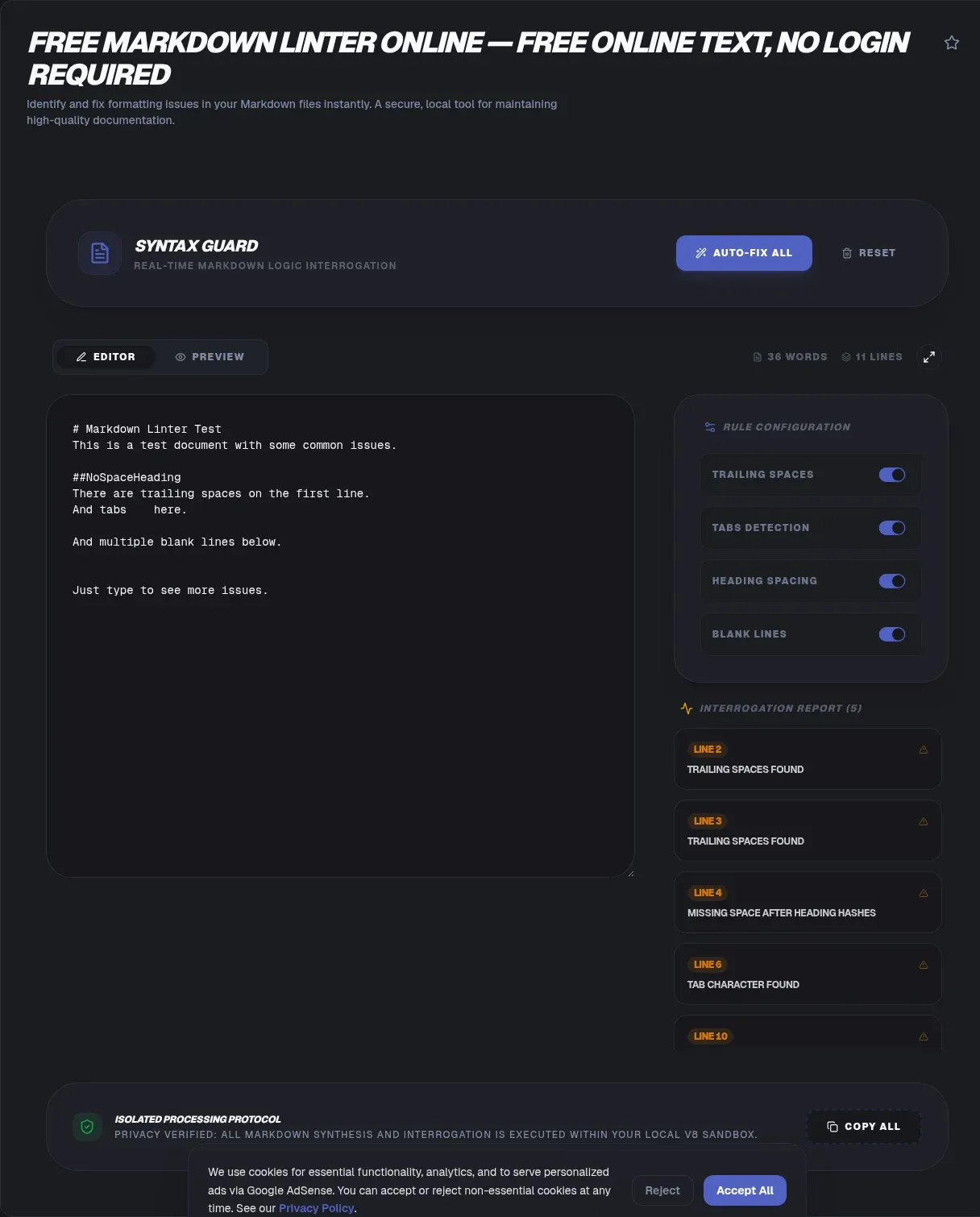
A markdown linter is a tool that scans your Markdown text for formatting, structural, and style problems before you publish or commit it. Most people use one to keep docs consistent and to catch small errors that break rendering. ToolSura's version runs entirely in your browser, so your text never leaves your device and there is no upload to any server.
That privacy promise matters more than it sounds. Most online checkers send your file to a remote server for processing, which means notes and drafts leave your machine. ToolSura's markdown linter parses everything on your device. You can even use it offline after the page loads. Nothing you paste is stored, logged, or transmitted anywhere.
Key Takeaways
- A markdown linter checks files against rules like CommonMark and GFM to catch formatting and style errors.
- ToolSura's tool runs fully in your browser, so your text never leaves your device and there is no upload.
- The most popular style checker, markdownlint, defines 53 rules and sees about 2.5 million weekly npm downloads (npm, 2025).
- GFM is a strict superset of CommonMark, adding tables, task lists, and strikethrough.
What Is a Markdown Linter?
A markdown linter is a static-analysis tool that checks Markdown files against a rule set built on standards like CommonMark and GitHub Flavored Markdown. Markdown itself was created by John Gruber in 2004 as a plain-text way to write formatted documents (Markdown Guide, 2024). It finds problems a human eye skips.
The original project described Markdown as "a text-to-HTML conversion tool for web writers," meaning both a syntax and a program (Daring Fireball, 2004). A linter applies those ideas automatically. It reads your file and reports places where headings, lists, links, or spacing break expected conventions.
The value is consistency. Two writers can produce Markdown that renders to the same page but differs in dozens of small ways: one uses setext underlines, the other ATX hashes; one blanks lines around every list, the other does not. A linter treats those choices as rules, so a whole repository reads as if one person wrote it. That uniformity is what makes diffs small and reviews fast.
Think of it like a spell-checker, but for structure. Where a spell-checker flags typos, a markdown linter flags a heading that jumps from H1 to H3, or a table missing its delimiter row. The de-facto rule set is markdownlint, which defines 53 rules from MD001 through MD060 (markdownlint, 2025). Those rules codify the habits that keep documents readable across editors and rendering engines.
Why ToolSura's Markdown Linter Is Different
ToolSura's markdown linter is different because every check happens on your own machine, with no server in the loop. The de-facto checker, markdownlint, sees about 2.5 million weekly npm downloads yet still runs client-side via its browser bundle (npm, 2025). Most web tools cannot make that promise.
markdownlint ships a browser bundle that runs lintSync on in-memory strings, so no file upload is required (markdownlint, 2025). ToolSura builds on that client-side model. Your Markdown stays in the tab. Because nothing is sent, you can lint confidential specs, unreleased posts, or customer docs without a second thought. The page also honors the CommonMark specification through the same micromark engine family that powers modern client-side parsing, so the results match what you would get from a local install.
Privacy is not a side effect here; it is the architecture. There is no API to call and no upload step to skip, so there is nothing to misconfigure. That also makes the tool fast: parsing a few hundred lines of Markdown takes milliseconds, and the result appears as you type.
How to Use the Markdown Linter
You can check a file in well under a minute. Markdown is now used by 34.8% of developers for documentation (Stack Overflow, 2025), so quick local checks fit busy workflows. Follow these steps to get a clean report with no signup and no upload.
- Open the ToolSura Markdown Linter page in your browser.
- Paste your Markdown into the input box, or type it directly. Nothing is uploaded.
- Wait a moment while the client-side engine parses the text on your device.
- Read the results list, which shows each rule violation with its line number and a short reason.
- Click a result to jump to the offending line if your editor supports it, then fix the issue in your source.
- Re-paste the corrected text to confirm a clean pass before you commit or publish.
Each result is a single, isolated finding rather than a wall of errors, so you can work top to bottom without losing context. Treat the list as a checklist: clear every line, then re-run. If a rule does not suit your house style, you can note it and adjust your own config later; the goal is cleaner docs, not blind obedience to every default.
Common Markdown Mistakes It Catches
The most common mistakes involve heading order, stray blank lines, and missing alt text, all of which markdownlint encodes as 53 numbered rules (MD001 through MD060) (markdownlint, 2025). Catching them early keeps docs readable and rendering predictably. Below are the rules ToolSura flags most often.
MD001: Heading Levels Should Increment
MD001 fires when a heading skips a level, such as jumping from H1 straight to H3. Screen readers and table-of-contents builders rely on a clean hierarchy. ToolSura reports the exact line so you can renumber headings without guessing where the gap sits. A skipped level also confuses anyone navigating by document outline in an editor.
MD041: First Line Should Be a Heading
MD041 requires the document's first line to be an H1, which gives files a clear title. Many static site generators depend on this for page metadata. The linter flags files that open with prose or a code block instead of a heading. Setting the H1 first means generated tables of contents and search snippets pick up the right title.
MD012 and MD022: Spacing Around Content
MD012 catches multiple consecutive blank lines, which create messy diffs in version control. MD022 requires blank lines around headings so parsers separate them correctly. Both rules reduce noise in pull requests and make collaborative editing far easier to review. A team that obeys them can scan a changed file in seconds instead of hunting for the one meaningful edit buried among stray blank lines.
MD047, MD009, and MD013: Line Hygiene
MD047 expects a single trailing newline at end of file, a Unix convention that prevents merge conflicts. MD009 flags trailing spaces, which are not harmless. MD013 warns when a line passes 80 characters by default, a limit you can tune per document (markdownlint, 2025). Together these three rules keep files tidy across editors and terminals, where long unbroken lines are hard to read and easy to mis-edit.
The Myth: Trailing Spaces Are Harmless
Trailing spaces are not harmless. In Markdown they create hard line breaks that silently change how your text renders. A line that looks fine in your editor can split awkwardly on a published page. MD009 exists precisely because these invisible characters cause real, confusing output bugs. The fix is trivial once you can see the violation, which is exactly what the linter shows you.
Accessibility: MD045 and Alt Text
MD045 flags images missing alt text, enforcing a WCAG-derived accessibility rule (W3C, 2025). Screen-reader users rely on alt descriptions to understand meaningful images, and an image with no alt text is simply invisible to them. ToolSura surfaces every image without alternate text so you can fix it before shipping docs to a wider audience. The same discipline applies to the rest of your document: consistent headings (MD001, MD041) and clean spacing (MD012, MD022) also help assistive technology parse structure correctly.
Alt text is not the only accessibility win a linter offers. Documents with a strict heading order are far easier for assistive tools to navigate, and predictable spacing keeps the reading order stable. Treat MD045 as the visible tip of a broader accessibility habit the other rules quietly support.
CommonMark vs GitHub Flavored Markdown
GitHub Flavored Markdown, or GFM, is a strict superset of CommonMark, which means every valid CommonMark document is also valid GFM. GFM simply adds extensions on top. The distinction matters when you lint files destined for GitHub versus a bare CommonMark renderer (GFM spec, 2019).
CommonMark, now at version 0.31.2, defines the base grammar for parsing Markdown (CommonMark, 2024). GFM extends it with a handful of features that most documentation teams now rely on:
| Feature | CommonMark | GFM |
|---|---|---|
| Tables | No | Yes |
Strikethrough (~~x~~) |
No | Yes |
Task lists (- [ ]) |
No | Yes |
| Autolinks | Bare URLs only | Expanded |
| Heading and list syntax | Yes | Yes |
If your docs use any of those GFM features, a pure CommonMark linter may under-report. ToolSura honors GFM syntax so those constructs pass cleanly. This matters for teams publishing to GitHub: a file using task lists will lint fine under GFM but could trip a strict CommonMark checker. Knowing which standard your pipeline targets prevents false failures and keeps your documentation builds green.
Markdown Linting in CI/CD
You can enforce Markdown quality automatically by running a linter in CI/CD, so bad formatting fails the build before it reaches readers. Markdown is widely used: 34.8% of developers in the 2025 Stack Overflow survey used Markdown files for docs, and 75.8% admired it (Stack Overflow, 2025).
Tools like markdownlint and remark-lint run in GitHub Actions or pre-commit hooks. Configure them to exit non-zero on violations, and your pipeline blocks the merge. This turns style rules from a suggestion into a gate. Teams ship consistent docs without manual review overhead on every pull request. For a local, no-upload alternative during writing, ToolSura's in-browser linter gives you the same signal before you ever push.
A practical setup runs the linter as its own job that checks out the repo, installs the tool, and lints every Markdown file with the same config the team agreed on. When it fails, the author sees the exact rule and line in the logs, fixes it locally, and the build goes green. Pre-commit hooks catch the same issues even earlier, before the commit is written.
Markdown Linting vs Formatting
A markdown linter reports problems across markdownlint's 53 rules, while a formatter like Prettier rewrites your file to fix them (markdownlint, 2025). They solve different halves of the same goal. Linters tell you what is wrong, formatters change the text, and using both gives clean output.
Formatters can hide issues by silently editing your source, which some writers dislike. Linters keep you in control by listing each violation for review. Many teams run a linter in CI to block merges and a formatter locally to auto-fix the easy stuff. The two tools complement each other well. If you adopt both, let the formatter handle mechanical fixes and the linter enforce the rules a formatter cannot decide for you.
Related Tools
ToolSura's privacy-first model means this linter and its companions all process text locally with no upload, unlike most online checkers (markdownlint, 2025). The free, in-browser tools below pair well with the markdown linter for everyday writing and editing tasks. Pick what fits your workflow.
- Word Counter: check length and reading stats after you lint a draft.
- Case Converter: normalize headings and labels to a consistent case.
- JSON Formatter & Validator: clean up embedded JSON code blocks in docs.
- Diff Checker (Text): compare your before and after Markdown revisions
- Markdown to HTML Converter: render clean markdown into a styled page once it passes the lint.
- Text Summarizer: shrink sprawling docs before you restructure them..
- Linting Markdown in CI
- Rendering a Markdown README on GitHub and GitLab