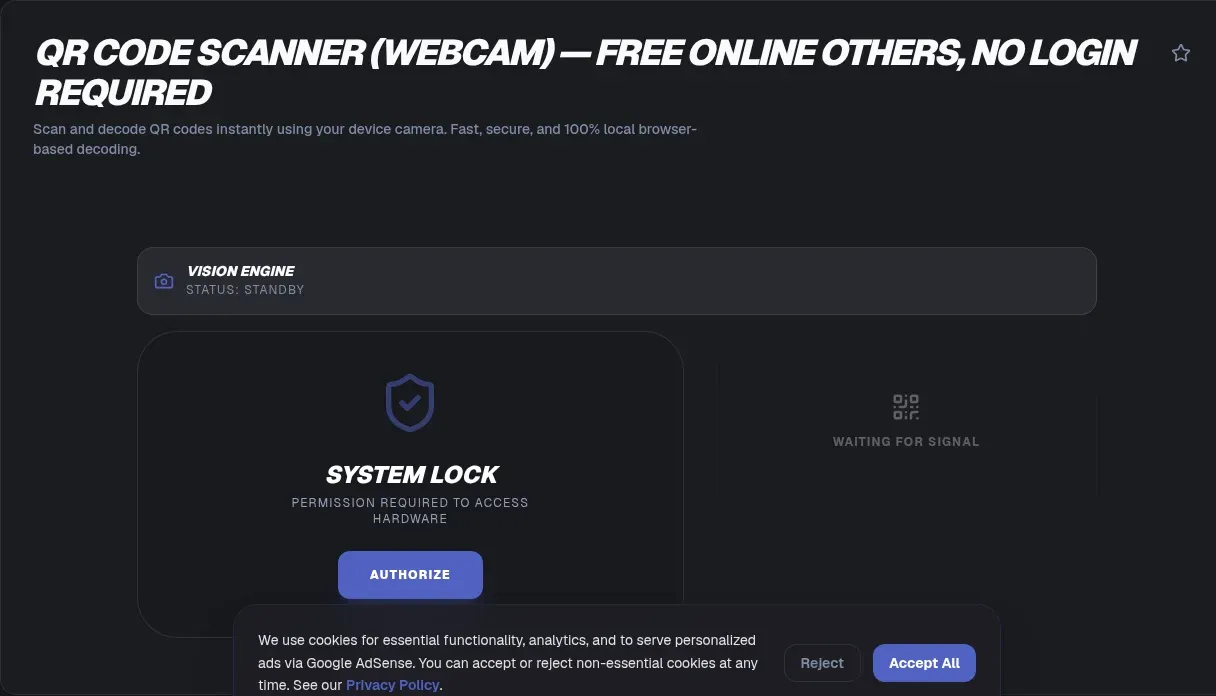
Yes, your laptop camera can scan a QR code. Point the built-in webcam (or any external USB camera) at a code, grant the one-time permission prompt, and the decoded text appears on your screen. The camera feed is processed in your browser and never leaves your device, so there is no upload, no account, and no signup. This scanner works on Windows, macOS, and Linux laptops and desktops.
Everything happens locally. The frames from your webcam stay in the browser tab, decoding runs on your own machine, and nothing is stored after you close the page. The only thing your computer sends out is the ordinary request to load the page itself. If you want the reverse workflow, you can create a QR code from text and then hold the screen up to this scanner to confirm the payload decoded correctly.
Key Takeaways
- Any laptop or desktop webcam can scan a QR code in the browser, with no app, upload, or signup.
- Camera access needs two platform gates: an HTTPS secure context and one explicit permission grant.
- Chrome, Edge, and Opera decode natively via the experimental BarcodeDetector API; Firefox and Safari use a JavaScript fallback such as jsQR.
- Most failed reads trace to lighting, glare, focus, or distance, so fix the optics first.
- Decoding before you open a link turns an untrusted code into readable data you can judge.
What does a webcam QR code scanner actually do?
A webcam QR code scanner turns your computer's camera into a live QR reader. You open the page, allow camera access, and hold the code inside the video frame. The scanner analyzes the frame continuously and prints the decoded content the moment it recognizes a valid pattern. No capture button and no photo upload stand between you and the result, and the whole cycle stays on your machine.
Under the hood, the browser's getUserMedia() method is what opens the camera. MDN documents that it prompts the user for permission to use a media input and returns a stream of video tracks only after consent (MDN getUserMedia). The scanner then draws frames to a canvas and hands the pixel data to a decoder, either the built-in BarcodeDetector or a JavaScript fallback, and reads the text back out. The decoded result might be a URL, a WiFi credential, a contact card, or plain prose, and the tool shows you exactly which characters were hidden in the pattern.
Why does the scanner insist on HTTPS?
Camera access is restricted to a secure context by design, and a secure context means HTTPS, localhost, or a file URL. On a plain http:// page the browser does not even expose navigator.mediaDevices, so calling the API throws a TypeError before any prompt appears (MDN secure contexts). The W3C Secure Contexts specification is what defines that boundary, treating an insecure origin as unfit for sensitive capabilities like the camera (W3C Secure Contexts).
This is a security feature, not a bug. Serving the scanner over HTTPS cryptographically protects both the permission conversation and the video feed, so a network attacker cannot quietly intercept frames or tamper with the page. Any legitimate browser scanner runs from a secured origin, which is why you will see it work on an https:// address and refuse on http://. Localhost counts as secure during development, which is why a scanner still works when you open the file directly from disk.
The short version: an http:// address has no camera API at all, so the page cannot even ask for permission. Use the https:// version.
The permission prompt, explained
The first popup surprises people, so it helps to know why it exists. getUserMedia() always requires explicit user permission, and the browser prompts at least the first time for a given domain. If you ignore the prompt or click Block, the request is rejected outright and the camera stays locked (MDN getUserMedia). Permission is granted per origin, so allowing one site does not silently allow every other site you visit. The prompt also has to come from a top-level page, not an embedded frame, unless a Permissions Policy allows the iframe to ask.
You can check the current state at any time. The Permissions API lets a page query the camera permission with navigator.permissions.query({name: 'camera'}), which returns granted, denied, or prompt. If a policy has blocked the camera, that query reports denied and you are not prompted at all (MDN Permissions.query). Revoking access later happens through the address-bar lock or camera icon, and closing the tab ends the stream entirely. A related quirk catches people off guard: before permission is granted, device labels from enumerateDevices() are blank even though the hardware exists, and the names appear only after a stream is active (MDN enumerateDevices).
BarcodeDetector is not available everywhere
There is a myth worth busting: people assume every modern browser can decode a QR code natively. It cannot. The native BarcodeDetector API is experimental and not Baseline, and MDN notes it does not work in some of the most widely used browsers (MDN BarcodeDetector). In practice it is Chromium-only, covering Chrome, Edge, and Opera on desktop and Android, while Firefox and Safari on desktop and iOS do not support it at all. That gap is exactly why a scanner that works on a Mac must not be built on the native API alone.
The detection interface is a WICG Draft Community Group Report, explicitly not a W3C Standard. It defines a BarcodeDetector({formats}) constructor and a detect(ImageBitmapSource) call whose results carry rawValue, format, and cornerPoints, and it rejects with a SecurityError for cross-origin sources or a canvas that is not origin-clean (Barcode Detection API). Across the 13 symbologies it can target, qr_code is the one that matters here.
Because two major engines skip it, scanners fall back to JavaScript decoders. jsQR is a standalone Apache-2.0 library that reads QR codes from webcam ImageData, uploaded images, or Node (jsQR). The other common choice is zxing-wasm, ZXing-C++ compiled to WebAssembly, which handles QR (including Model 1, Model 2, Micro QR, and rMQR) with a tryHarder option and powers the popular barcode-detector polyfill (zxing-wasm).
How a QR code is not just a picture
A common misconception is that a QR code is a static image with a hidden secret inside. It is not. A QR code is a structured matrix of black-and-white modules that encodes a string as text, and decoding simply reads those modules back. What you see is exactly what you get, so a decoder exposes the real payload: a URL with every tracking parameter, a WiFi password, a contact card, or plain prose. There is no hidden layer beneath the visible text, and no second payload tucked away where a casual look would miss it.
The structure is defined by the international standard. The QR Code symbology is specified in ISO/IEC 18004 (ISO/IEC 18004), which is the same family that a scanner reads every time you point it at a square. Understanding that it is text wearing a visual costume is what makes desktop decoding useful: you inspect the characters before you act on them, instead of blindly obeying a picture. That framing also explains why a clean, correctly printed code always decodes, while a damaged one still might, depending on how much redundancy the creator baked in.
Common payloads a desktop scan reveals
A decoded result is simply whatever text the creator embedded, and the payload type is easy to recognize once you read it. A web link arrives as a full URL with its query string intact, tracking parameters and all. A WiFi code shows up as a literal connection string carrying the network name and password. A contact card arrives as vCard data, and a ticket, menu, or parcel reference arrives as a short alphanumeric string. Nothing about the type is hidden, because the decoder hands you the raw characters rather than a summary of them.
That raw output is what makes a desktop decoder a diagnostic tool, not just a curiosity. Once you can read the exact string, you can inspect it properly: paste a structured payload into a JSON validator to check whether it is well formed, or run a long or suspicious link through a URL decoder to see what parameters are riding along. A short code that should resolve to a long link is worth a second look before you trust it.
What a failed scan is usually telling you
When a code will not decode, the cause is almost always physical rather than software. The usual suspects are insufficient lighting, glare washing out the modules, an unsteady hand blurring the frame, and a distance that falls outside the camera's comfortable focus range. Fixing the optics solves the overwhelming majority of cases before you touch a single setting.
A few habits fix nearly everything. Angle the code away from overhead lights to kill specular glare, rest your elbows on the desk to steady the frame, and move close enough that the code fills roughly a third of the picture so autofocus can lock onto the pattern. A code also needs its quiet zone, the plain light margin around the modules, or a decoder cannot find the edges. Cleaning a dusty laptop lens helps more than people expect, because pocket lint defeats pattern matching easily. If you captured the code as an image first, view image metadata to check its real dimensions and confirm the modules are large enough to survive.
Can a webcam read a QR code shown on your own screen?
Yes, and this is the clearest desktop advantage. A code pasted into an email, embedded in a PDF, or rendered on a webpage already sits in front of your monitor, so a webcam reads it far more easily than a phone held inches from the glass. The one thing to watch is display scaling: a code that was shrunk to a thumbnail before it was pasted has lost the crisp, high-contrast module edges the decoder relies on. If a screenshot scan keeps failing, resize an image to enlarge the code to a few hundred pixels wide before pointing the camera at it.
The same loop works in reverse for QA work. Generate a code, screen-scan it to confirm the payload, test-print it, scan the printed copy, then distribute. Screen scanning catches encoding mistakes; physical scanning catches printing mistakes.
How much damage can a QR code survive?
QR codes carry built-in redundancy, so a scuffed or partly covered code can still read. That resilience comes from Reed-Solomon error correction, which adds redundant data so the decoder can reconstruct the original even when some modules are damaged. The four correction levels recover roughly 7 percent of codewords at level L, 15 percent at M, 25 percent at Q, and 30 percent at H (qrcode.com error correction).
The tradeoff is size. A higher correction level means a denser, larger code for the same payload, because the redundancy has to fit somewhere. Physical limits still apply, though. Error correction recovers obscured modules, not an out-of-focus frame or a lens cap, so start with the physical layer before suspecting the digital one. Size scales by version too: Version 1 is a 21 by 21 module square, and every step up adds four modules per side until Version 40 reaches 177 by 177. At level L, that largest version holds up to 7,089 numeric characters or 2,953 byte characters, which is plenty for a URL but a real ceiling for a paragraph of text (qrcode.com versions, Wikipedia QR code).
INTERNAL-LINK: inspect a structured payload → JSON formatter and validator
Where desktop scanning beats pulling out your phone
Several everyday tasks are faster on a webcam than on a phone. A QR code embedded in an email, a PDF, or a chat message already sits on your monitor, so pointing a phone back at your own screen is awkward, while the webcam reads it naturally. Conference badges propped in front of a monitor scan without the fumbling of a handheld device, and users with limited mobility find a keyboard-and-webcam setup easier than juggling a phone. A fixed camera also gives steadier framing than a moving hand ever manages.
IT and QA teams get a specific win: verifying that codes printed on proofs, packaging, or documentation decode correctly before anything ships, without passing physical samples around the office. This page decodes, so if your actual task is turning words into a square, you want the other half of the pair. Searches like "text to QR code" or "static text QR code" belong to a generator workflow, not a scanner, so generate a QR code from text first and then come back here to confirm the result reads back correctly. Once a payload gets long or encoded, a URL encoder and decoder or a Base64 decoder can show you what the decoded string really wraps around.
Is the camera feed or my scanned data ever uploaded?
No. The feed never leaves your device. The camera produces a local MediaStream, decoding runs locally against pixel data in the browser, and the decoded result stays in the page until you close it. The spec reinforces the boundary: BarcodeDetector's detect() throws a SecurityError if you try to feed it cross-origin pixels, which is exactly the kind of leak the platform is designed to prevent (Barcode Detection API). A scanner built this way has no server component that could receive your video, because there is nowhere for the video to go.
You do not have to take a scanner's word for it, either. Browsers display their own indicator whenever a camera or microphone is in use, and a separate indicator shows granted permission even when devices sit idle, so you can verify activity independently of anything a site claims (MDN getUserMedia). The formal rules live in the WHATWG Media Capture and Streams specification (WHATWG Media Capture). The camera light is a second tell: a physically glowing indicator means a stream is running, no matter what any webpage says about it.
Treating a scanned code as data, not an instruction
Decoding a QR code tells you what is inside it, and that is the whole security value of keeping a decoder nearby. A marketing poster may promise one destination while encoding a different one. Reading the raw text before acting converts blind trust into an informed decision, and doing it on a desktop means you can read the destination before it ever opens in a window tied to your work session.
Look at the decoded string before you open it. Be cautious with shortened or obfuscated URLs that hide their true destination, and never run a javascript: payload a stranger handed you. Treat a scanned WiFi credential or payment request with the same suspicion you would give any unexpected link. Reading first costs you a second and removes most of the risk.
The bottom line: a QR code is text wearing a visual costume. Decode it, read the characters, and decide with your own judgment whether to act.