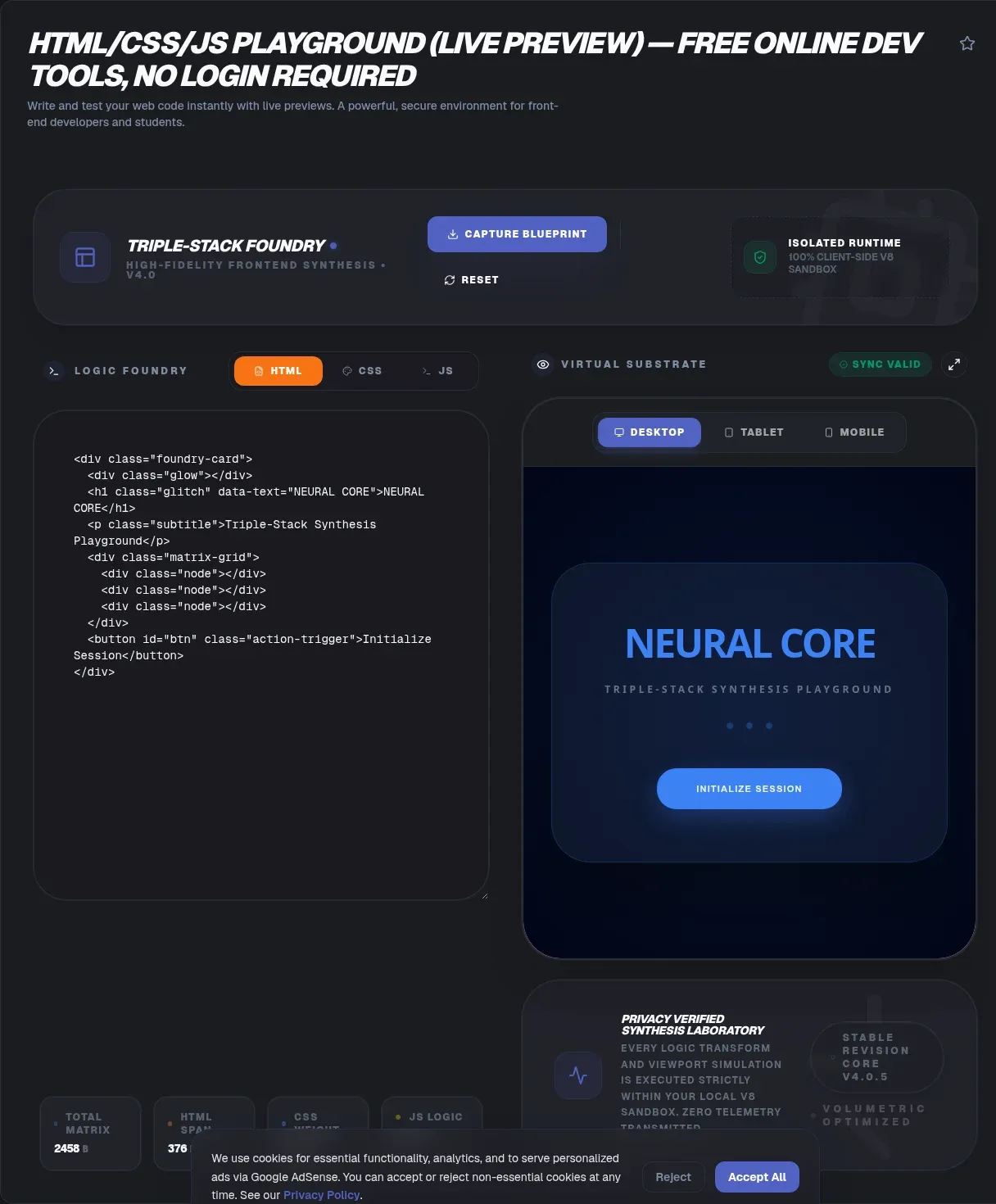
The ToolSura HTML CSS JS Playground is a lightweight editor that runs entirely in your browser. You type markup and styles into one pane, script into another, and the rendered web page appears beside them as you type. There is no build step to configure, no package to install, and no account standing between you and the result.
Because everything executes locally, nothing is uploaded while you work. The tool page describes processing as 100% client side inside a V8 sandbox and states that snippets are not stored server side, so persistence comes from shareable links you generate yourself rather than projects saved on someone else's database.
What Is a Front-End Playground?
A front-end playground is a browser-based editor with three linked inputs: HTML, CSS, and JavaScript, plus a pane that renders what those three files produce together. The category has been around for years, and even MDN runs its own Source alongside its documentation. The pitch is simple: prototype ideas where they will actually run, without scaffolding a project first.
Playgrounds sit between throwaway scratch files and full development environments. A scratch file gives you no rendering; a full project gives you rendering but buries it under tooling. A playground collapses that distance to a single keystroke, which changes how quickly you can test an assumption about markup, a selector, or a small script.
Why Live Preview Changes How You Build
Feedback loops shape how people work. When rendering requires saving files, switching windows, and refreshing a tab, you batch your experiments and lose the thread between cause and effect. When the preview updates instantly as you type, each edit answers itself immediately, so you iterate on the actual rendered output instead of a mental model of it.
This matters most for CSS and layout questions. Does this flexbox rule center the card stack the way you expect? Does the media query kick in at the width you planned? Per the tool page, the preview pane updates instantly without hitting save, which turns those questions into direct observations rather than guesses you confirm later Source.
Inside the ToolSura Playground
The layout follows the classic split-screen pattern described on the tool page: panes for HTML and CSS, plus a third pane that shows the rendered web page immediately. Editing features include syntax highlighting and autocompletion, which the page credits with helping catch mistakes early Source.
Three practical details round out the workflow. First, there is no run button to hunt for; edits render as you type. Second, the interface is built mobile friendly, so quick checks work from a phone or tablet. Third, when something looks right, the tool generates a unique URL for whatever you are building, which doubles as both a save point and a way to hand the result to someone else.
What It Deliberately Leaves Out
Honest boundaries are worth stating plainly. The FAQ on the tool page says the playground is optimized for vanilla HTML, CSS, and JavaScript and does not load external frameworks such as Bootstrap, trading ecosystem support for fast rendering Source. There is also no console panel, no download-to-file export, no collaborative editing, and no server-side project storage mentioned anywhere on the page.
None of these gaps are accidents. Every feature added to a browser tool costs startup weight, and the entire value proposition here is a page that opens fast and renders faster. If a task needs frameworks, a persistent console, or team features, heavier platforms exist for exactly that, and the comparison section below maps out when to reach for them.
How Playgrounds Keep Code Contained
Rendering untrusted HTML and JavaScript safely requires isolation, and the platform primitive for that is the iframe sandbox attribute. An empty sandbox value applies every restriction, giving embedded content a unique origin where same-origin policy protections hold; individual tokens then relax specific rules, such as allow-scripts to permit execution at all Source.
MDN also warns about token combinations: allowing both scripts and same-origin access on same-origin content lets the embedded content remove its own sandbox, which is why real implementations must choose their tokens deliberately. Defense in depth extends beyond iframes too. A Content Security Policy restricts which scripts and resources a document may load at all, and MDN positions CSP as a complement to sanitization rather than a replacement Source. One honest caveat: the tool page does not disclose which specific sandbox tokens it sets, so treat its client-side labels as vendor descriptions rather than audited guarantees.
Sharing Work Without Accounts
Most collaboration-heavy platforms tie your work to a profile. This tool takes a different route described on its own page: it generates a unique URL for whatever you are building, so the link itself carries the state Source. Send it to a colleague, bookmark it for tomorrow, or paste it into a bug report as a reproduction case.
The tradeoff is equally clear. There is no dashboard of past work, no folders, and no version history, because there is no account layer to attach them to. For disposable experiments and quick demos that is usually the right trade; for long-lived assets, export the parts that matter into a real repository once they stabilize.
Testing Responsive Layouts
Two tools cover responsive checks well. Inside the playground, resize the preview window to see how your layout adapts at different widths, which the tool page recommends directly Source.
For structured breakpoint testing, Chrome DevTools Device Mode simulates phone and tablet viewports with draggable handles and dimension presets ranging from 320px up to 2560px, and it overlays visual bars showing where your media queries sit: blue for max-width rules, orange for min-width rules Source. Google adds one honest hedge on that page worth repeating here: emulation is a first-order approximation, and real devices remain the final word before shipping.
Playground, IDE, or DevTools Snippets?
| Environment | Setup | Best for | Persistence |
|---|---|---|---|
| ToolSura playground | None | Snippets, demos, teaching | Shareable URL only |
| DevTools Snippets | None (browser built-in) | Scripts against live pages | Local preferences |
| Full IDE | Install plus project | Multi-file products | Git and builds |
Chrome's own documentation frames DevTools Snippets as saved, re-runnable scripts with access to the page's JavaScript context, calling them "an alternative to bookmarklets" Source. That makes Snippets the closest built-in cousin: excellent for debugging existing pages, less convenient for composing new ones, since there is no HTML or CSS pane attached.
The rule of thumb that falls out of the table: prototype in the playground, debug running pages with Snippets, and productionize in the IDE. Each environment wins on a different axis, and none of them require abandoning the others.
Who Actually Uses Browser Playgrounds
Three groups dominate. Learners use playgrounds because the feedback loop teaches faster than explanations do: change a property, watch the box move. Writers and teachers embed runnable examples in tutorials so readers can twist knobs instead of trusting screenshots. Working developers use them as scratch space for isolated questions, like whether a regex behaves or a flexbox alignment resolves the way they remember.
A fourth group deserves mention: anyone reporting bugs. A minimal reproduction in a shareable playground URL communicates more to a library maintainer than paragraphs of description, because the maintainer can open, edit, and observe the failure directly.
The Landscape in 2026
The playground market has been consolidating around bigger ambitions, which leaves the lightweight niche more useful, not less. JSFiddle remains the feature-dense veteran, listing extensive framework support and self-reporting over four million users on its homepage Source. Liveweave markets itself as a generative AI code editor with dozens of libraries in its menu Source. OneCompiler leans educational, wrapping its HTML editor in reference material Source. Most notably, PlayCode's homepage now leads with an AI app builder and cloud hosting rather than the classic three-pane experience, at a Pro tier of $25 per month by its own pricing display Source.
CodePen is the best-known name in the category, and ToolSura positions this tool explicitly as a lighter, signup-free alternative in that space, per the tool page's own framing Source. Where every rival above adds capability, this one subtracts ceremony: no ads layer pitched at you mid-edit, no account wall, no framework loader slowing first paint.
Getting Started in Three Steps
Open the tool page. Type or paste HTML into the first pane and watch the third pane render it immediately; add CSS and JavaScript the same way. When the result works, copy the generated unique URL to keep or share it.
That is the entire learning curve. From there, pair the playground with the rest of the toolkit as your snippet matures: minify assets before shipping them, validate any JSON your script consumes, and generate the color values your design needs without leaving the browser.
Key Takeaways
- A playground collapses the distance between writing front-end code and seeing it rendered to a single keystroke.
- The ToolSura playground runs client side per its own page, needs no account, and shares work through generated URLs.
- Vanilla-only support is a deliberate trade: fewer dependencies mean faster rendering, per the tool's FAQ.
- iframe sandboxing and Content Security Policy are the platform mechanisms that make rendering untrusted code practical.
- Prototype in the playground, debug live pages with DevTools Snippets, and productionize in an IDE with version control.
Frequently Asked Questions
Do I need an account to use the ToolSura playground?
No. The tool page states repeatedly that signup and login are not required, and there is no account layer attached to your work at all. You open the page, type in the panes, and watch the preview render. When you want to keep or share a snippet, the tool generates a unique URL for it, which means the link itself acts as your save point rather than a profile.
Can it run frameworks like Bootstrap or React?
No, and that is documented behavior rather than a limitation to work around. The tool's FAQ says the playground is optimized for vanilla HTML, CSS, and JavaScript and does not load external frameworks, which keeps rendering fast and predictable. If your snippet depends on Bootstrap, React, or another library, use a platform built for library loading, or test locally with a build setup instead.
How does the live preview update?
As you type. Edits in the HTML and CSS panes re-render the output pane immediately with no save step and no manual refresh, according to the tool page's feature list. Under the hood, front-end playgrounds generally render your markup inside an isolated browsing context so experiment code cannot damage the host page, a mechanism the MDN iframe sandbox documentation describes in detail.
Is it safe to paste sensitive code into any online tool?
Treat every online tool as exposure territory regardless of its privacy claims. ToolSura describes this playground as fully client side with no data transmission, but the safer habit is simpler: never paste API keys, tokens, credentials, or personal data into any web page you do not control. MDN's Content Security Policy guide frames defense in depth well: isolation layers reduce risk, yet they do not make secrets safe to share.
Can I use the playground offline?
The tool page makes no offline claim, so plan on needing a connected browser for the initial load. Everything after that happens locally on your machine, but the page itself still has to come from the network the first time. If you regularly need offline front-end experimentation, keep a local HTML file workflow ready as a fallback for flights and dead zones.
How is a playground different from an IDE?
A playground is zero-setup and disposable, ideal for snippets, demos, and teaching moments. An IDE manages multi-file projects, version control, dependencies, and builds, which is what shipping software actually requires. Chrome's DevTools documentation draws a related contrast with Snippets, its own lightweight option for scripts against live pages. Use each for what it is good at: prototype small, build big.
How do I test responsive layouts in it?
Start by resizing the preview pane inside the playground to watch your layout adapt at different widths, which the tool page recommends directly. Then verify breakpoints with structure using Chrome DevTools Device Mode, whose viewport presets span 320px to 2560px and whose overlay marks where media queries apply. Remember Google's own caveat that emulation is a first-order approximation; confirm anything critical on physical devices before release.
Related Tools
Round out your front-end workflow with these companions:
- HTML Minifier compresses the assets you finalize.
- CSS Flexbox Generator builds layout rules visually.
- CSS Grid Layout Generator handles two-dimensional layouts.
- Bookmarklet Builder turns utility scripts into one-click tools.
- JSON Formatter & Validator checks the data your scripts consume.
- Color Picker & Palette Generator picks accessible colors fast.
- Favicon Generator: when the prototype becomes a real site, generate every icon size from one image.
- Live HTML Preview Online — render as you type, no files
For instant feedback on markup, styles, and scripts in one place, the HTML CSS JS Playground keeps the loop tight from first keystroke to shareable link.